
More tools
Keep a chat draft when switching conversations
Find your entered text again after switching between conversations.
Requirement: A signed-in account with at least two conversations selectable in the chat list in the same browser.
Step by step
-
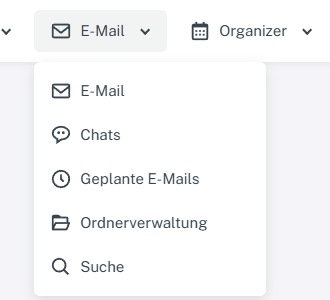
Click “Email” at the top; open “Chats” or “Folder management” in the menu. Click “Email” → “Chats” at the top, open a conversation on the left, and enter a message without sending it.

Enter your text in the input bar without clicking “Send”. Its reappearance after switching chats is not shown here. -
Switch to another conversation and then back.
-
Check whether the unsent text is displayed again in the original chat.
What you will see afterwards
When switching between conversations, unsent text is retained in the original chat in the same browser. Do not rely on this temporary state for long-term storage.
Common problems
- If you do not want to send the text, delete it before leaving the conversation.
- Switching requires two conversations that are already selectable in the chat list. In the current production test account, two newly created, still-empty groups were not sufficient; the process was not rechecked there without sending messages.
- Unsent text is not a sent or securely stored chat message. Persistence after restarting the browser is not guaranteed.