
Sign-in and account access
Forgot your password: start account recovery
Choose the appropriate way to recover a forgotten password: security email, SMS, backup code, recovery key or a public account review.
Requirement: Publicly accessible without signing in through “Forgot password”.
Which option suits you?
Use one of these options. Email and SMS are alternatives that reset only the password. If you have also lost your second factor, or cannot use either option, choose a backup code or recovery key. If you have no recovery method of your own, use the public account review.
1. You can access your security email
Request a link sent to the alternative security email address stored in your account.
Open email recovery2. You can access your verified mobile number
If you cannot use email recovery, request an SMS code.
Open SMS recovery3. You have a backup code
If email and SMS do not help, or you have lost your second factor, verify a backup code.
Open backup-code recovery4. No backup code, but you have a recovery key
Use your recovery key, which consists of eight blocks.
Open recovery-key recovery5. None of these methods is available
Submit a public request for a manual account review without signing in.
Open manual account review
Instructions for each recovery method
Start: open Forgot password
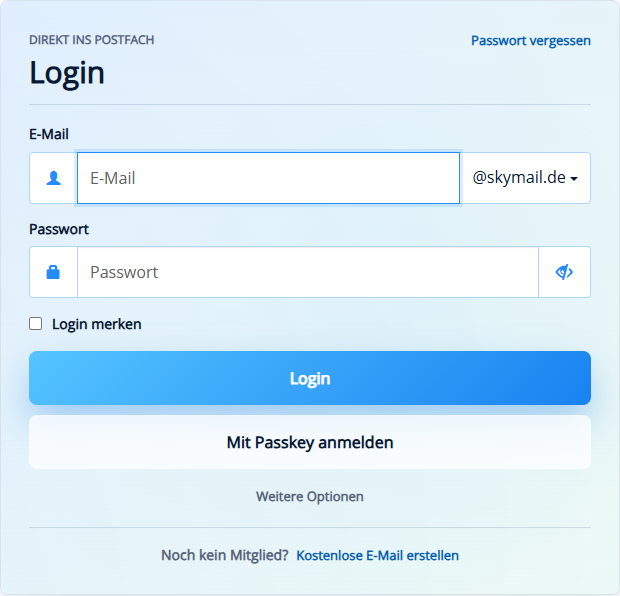
Open skymail.de and find the sign-in panel on the home page. On a desktop, “Forgot password” appears at the top right of the panel. On a narrow screen, scroll to the sign-in panel; the link appears directly below “Login”. Click it before entering anything. This opens the public “Forgot password” page; you do not need to sign in. The option cards above these instructions also take you directly to the individual recovery methods.
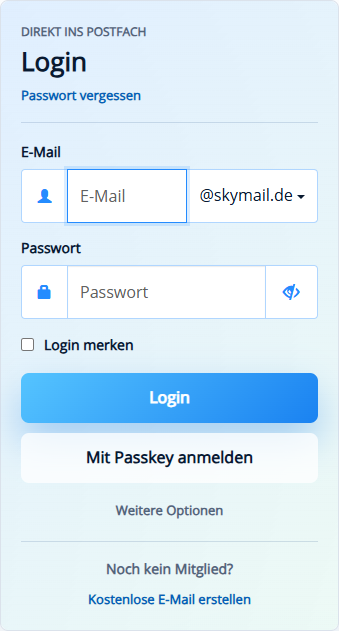
Method 1: use your security email
On the “Forgot password” page, “Request password” is selected at the top left. If another tab is open, click “Request password”. If you can access your stored alternative security address, enter the local part of your address under “Your email” and select your Skymail account’s domain on the right.
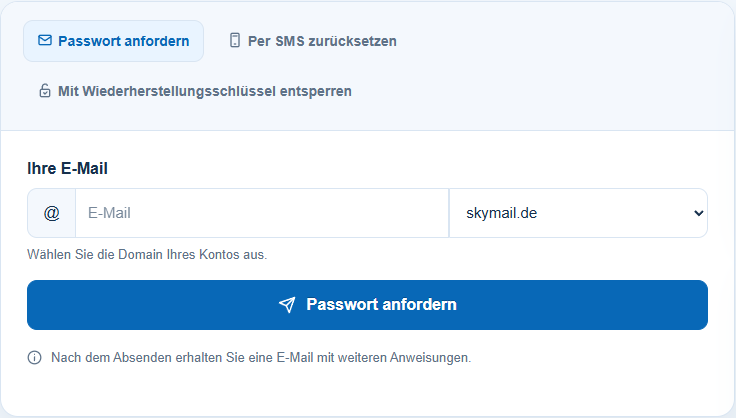
Method 1: confirm the email link
Select “Request password”. The neutral response does not confirm that a message has been sent. A reset link arrives only if a usable alternative security address is stored in the account. Open a link you requested yourself within 15 minutes, select “Confirm link”, then follow the instructions to enter a new password. This method changes only the password; existing second factors and passkeys remain in place.
Method 2: use an SMS code
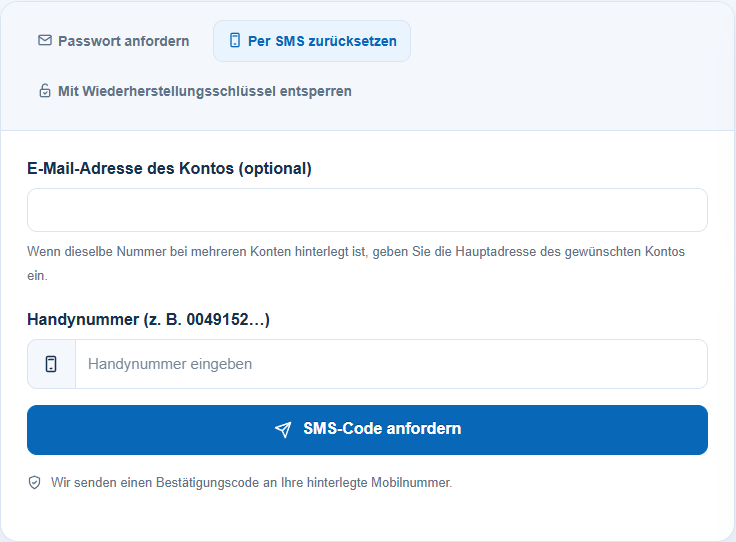
If email recovery is unavailable but you can access your stored and verified mobile number, click the “Reset by SMS” tab at the top of the “Forgot password” page. In the form that opens, enter your mobile number and, if needed, your account email address, then select “Request SMS code”. A code you receive is valid for ten minutes. Confirm it on the next page and follow the instructions to enter a new password. This method also changes only the password; existing second factors and passkeys remain in place.
Method 3: verify your own backup code
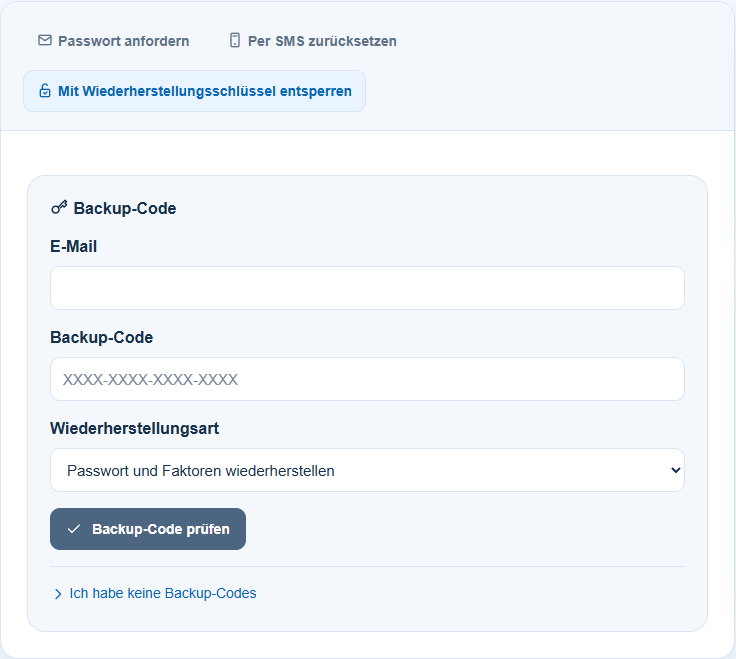
If neither email nor SMS is available, or you have also lost your second factor, click the “Unlock with recovery key” tab at the top of the “Forgot password” page. The “Backup code” section appears first. Enter your account email address and one of your own backup codes. Under “Recovery type”, explicitly select “Restore password and factors”, then “Verify backup code”. A valid backup code is consumed by this check. Then continue below at “Set new password”.
Method 4: use a recovery key
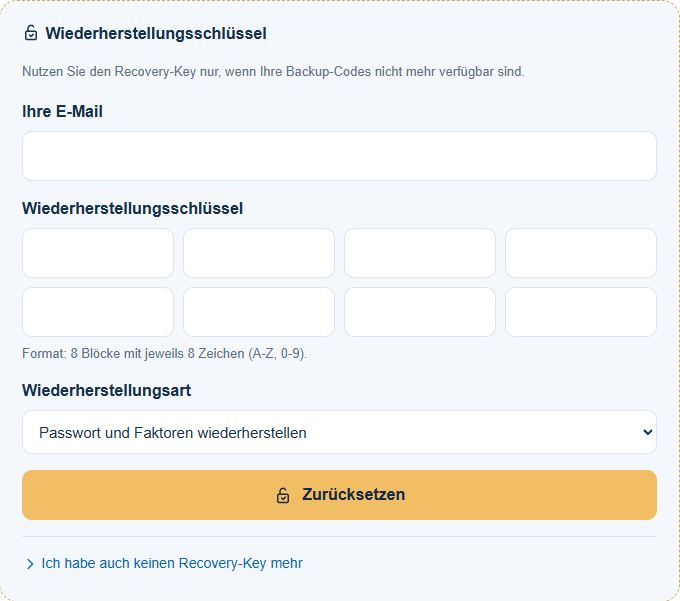
If you have no backup codes left, go to the bottom of the “Backup code” section you opened earlier and click “I have no backup codes” below “Verify backup code”. The section that appears underneath is called “Recovery key”. Enter your account email address and your own key in eight blocks. Select “Restore password and factors”, then “Reset”. Continue below at “Set new password”. The “Open recovery-key recovery” link above these instructions can also open this section directly.
After method 3 or 4: set a new password
If “Set new password” appears after your backup code or recovery key has been verified, enter the new password twice. It must contain at least ten characters and differ from your previous password. Select “Save password”. Only after this recovery process finishes completely and successfully are your previous two-factor methods, passkeys, trusted devices, backup codes and previous recovery key removed. Read the completion message carefully, then set up the factors you need again and save new recovery details. Do not assume access has been reset until you see a successful completion message.
No recovery method available: manual account review
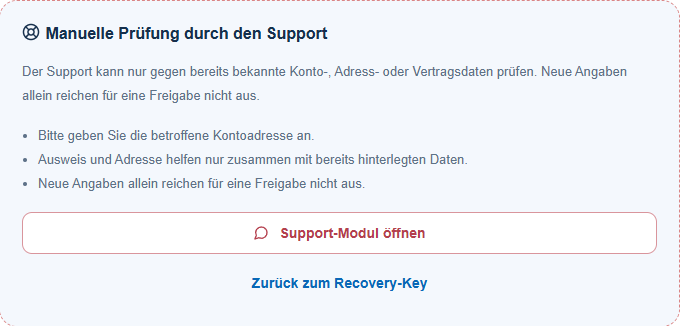
If neither a backup code nor a recovery key is available, click “I no longer have a recovery key either” at the bottom of the “Recovery key” section. “Manual review by support” appears underneath; select “Open support module”. The “Open manual account review” option card above these instructions leads directly to the same public request. The form is accessible without signing in, and you do not need Premium membership. Submit only accurate information about your own account. During the documented check, the form was opened but no ticket was submitted.
What you will see afterwards
A password change is complete only when you see the explicit completion message and can subsequently sign in with the new password. A neutral acknowledgement after requesting a link or code proves neither that a message was sent nor that a password was changed.
Common problems
- If no message arrives, check the alternative security email address or verified mobile number stored in the account. A general success message is not proof of delivery.
- If you have lost both your password and your second factor, email or SMS recovery alone is not enough. Use your own backup code, recovery key or manual account recovery.
- If an error resetting the factors appears after “Save password”, the new password may already have been saved. Sign in again with that password and your own factor that is still requested, or use manual account recovery. Do not assume that the old factors have been removed.
- “Reset security factors only” is a different recovery type: after a valid backup code or recovery key, the security factors are reset immediately without setting a new password. For a forgotten password, choose “Restore password and factors”.
- Do not open links in unexpected emails; start recovery directly from the Skymail website.
- On narrow screens, the password page presents the recovery methods through the “Forgot password” button. If the choices underneath do not become visible, use the direct links in the option cards above these instructions.
- If none of your own recovery methods is still available, choose “Open manual account review” above and read the instructions for submitting a public request.
Go to the relevant section of the “Getting started with Skymail” guide