
Webdisk and files
Search for files and folders in Webdisk
Narrow down the items in the currently open folder by name.
Requirement: After signing in with Webdisk access; the search applies to the displayed folder list.
Step by step
-
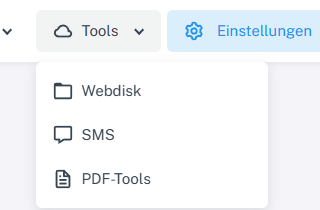
Click “Tools” at the top and choose “Webdisk” from the menu. Click “Tools” → “Webdisk” at the top and select the folder you want to search on the left.
-
Enter part of a file or folder name in “Search files and folders” above the list.
-
Check the results and the result count. If no name matches, the list shows zero results.
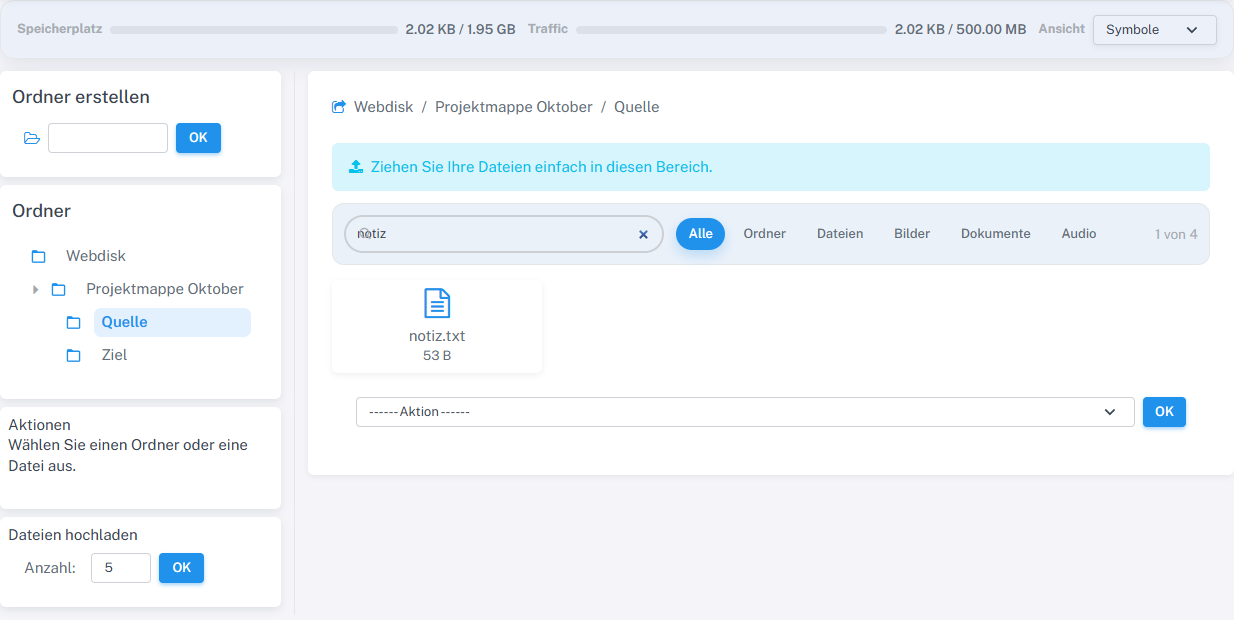
The name notiz filters the four sample files down to one result. -
Clear the search text to see all the items in the current folder again.
What you will see afterwards
The current folder view is filtered by name. The files remain unchanged.
Common problems
- The search is limited to the displayed folder. Open another folder if needed.
- An active type filter may also hide results. Select “All” and try again.