
Security and encryption
Select a security email for newly created backup codes
Configure the notification for creating a new set of backup codes.
Requirement: After signing in, go to Settings → Security center.
Step by step
-
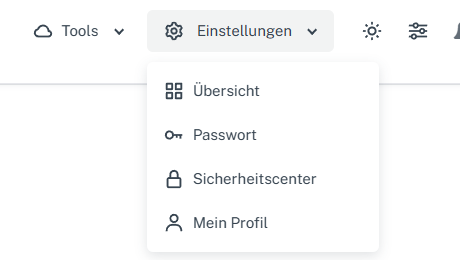
Click “Settings” at the top and select “Security center” in the menu. Click “Settings” in the webmail header, then “Security center” in the menu. On a narrow screen, first open “Menu”, then “Settings” → “Security center”. Open “Select notifications” in the “Security” card.
-
Set “Backup codes created”. The main “Send listed security emails” switch must also be on for this selectable notification.
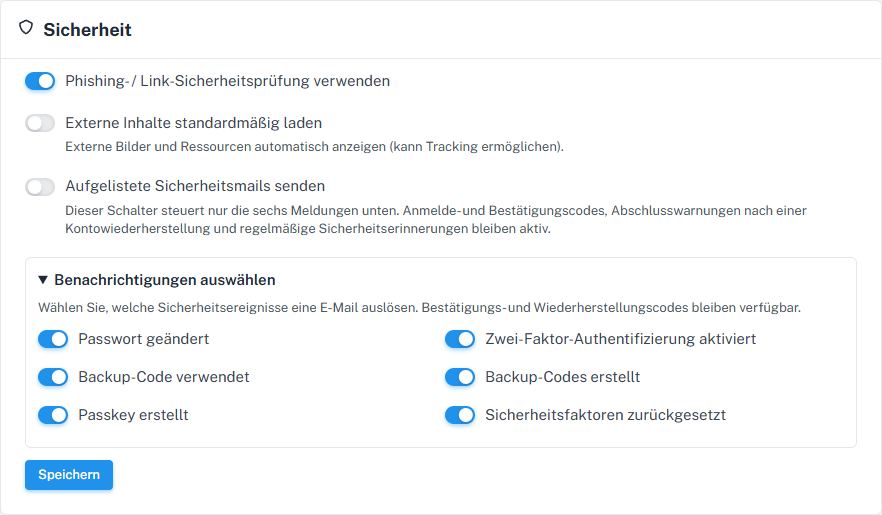
Generating backup codes is a separate event. -
Check the other switches, save the shared form, and check the selection after reloading.
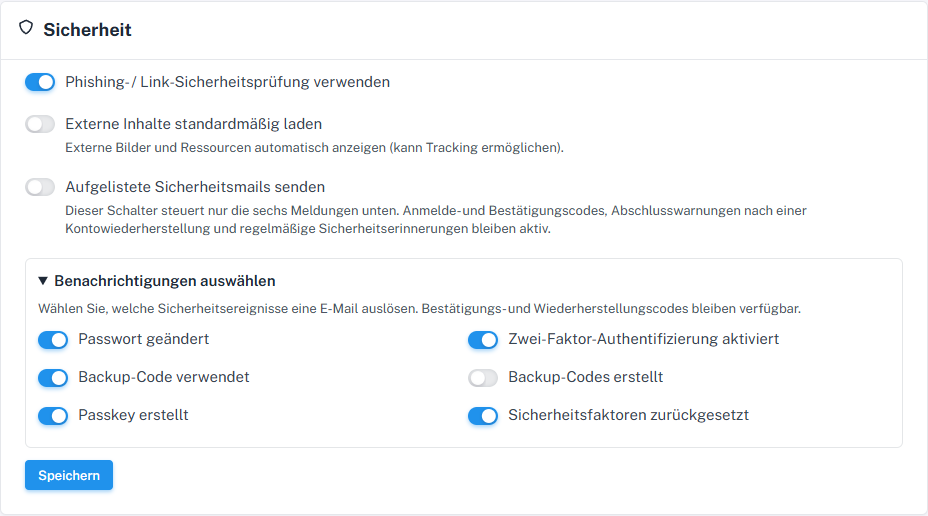
Choose the notification for generating new backup codes here.
What you will see afterwards
After saving, your choice for “Backup codes created” remains visible when reopened. The main switch must also be active for a selectable email. The setting itself does not generate backup codes or prove email delivery.
Common problems
- The notification does not contain usable backup codes; back them up separately when generating them.
- Renewing codes may replace previously unused codes.
Go to the relevant section of the “Getting started with Skymail” guide