
More tools
Insert smileys into a chat message
Open the smiley picker in a chat and insert a symbol into the message text.
Requirement: A signed-in account with an open chat conversation.
Step by step
-
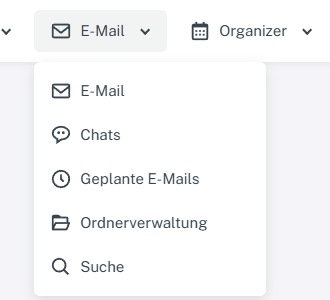
Click “Email” at the top; open “Chats” or “Folder management” in the menu. Click “Email” → “Chats” at the top, open a conversation on the left, and select the smiley icon beside the message input.

The smiley icon opens the picker for the message text. -
Select a symbol from the picker that opens. It is inserted into the chat message text.
-
Add text if needed and check the message before selecting “Send”.
What you will see afterwards
The selected symbol is in the message text. The message is only sent when you select “Send”.
Common problems
- If the picker is not visible, check that a conversation is open.
- Inserting a symbol does not send the message.