
Webdisk and files
Move a Webdisk file
Place a file in another Webdisk folder.
Requirement: After signing in; the source and destination folders must be accessible in your own Webdisk storage.
Step by step
-
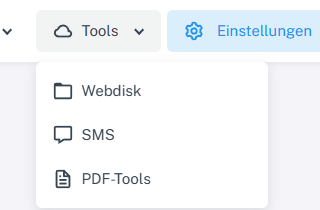
Click “Tools” at the top and choose “Webdisk” from the menu. Click “Tools” → “Webdisk” at the top, open the source folder on the left, and select the file you want to move.
-
Choose “Cut” from the file actions.
-
Switch to the destination folder and choose “Paste”.
-
Check that the file appears in the destination folder and is no longer shown in the source folder.
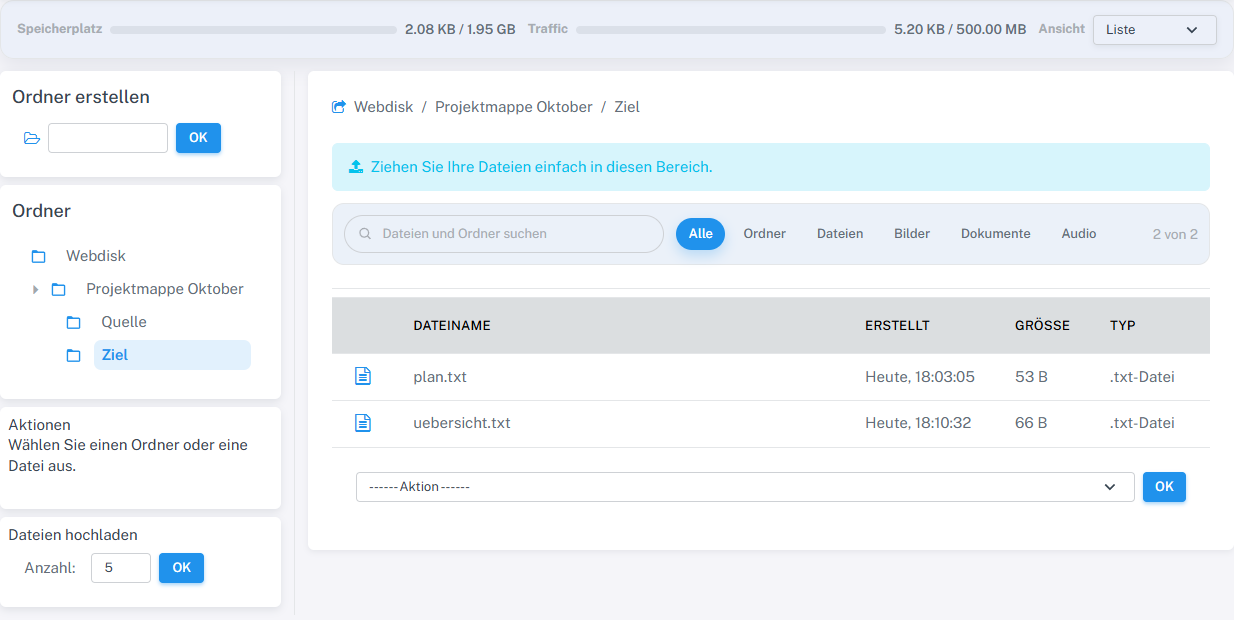
After cutting and pasting, plan.txt is in the destination folder. The source folder was checked separately.
What you will see afterwards
Once the move succeeds, the file is in the destination folder.
Common problems
- A file with the same name already in the destination folder may prevent pasting.
- Check the path bar before choosing “Paste” so the file does not end up in the wrong folder.