
PDF tools
Protect a PDF with an opening password
Create a PDF file that requires a password to open.
Requirement: Publicly accessible without signing in at /en/pdf-tools and the respective tool page
Open the relevant PDF tool
Step by step
-
On the skymail.de home page, scroll to the footer. Under “Support”, click “PDF Tools” (see screenshot). In the PDF overview, select “Protect PDF”.
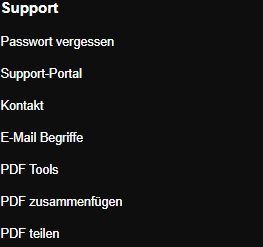
Scroll to the bottom of the SkyMail home page and click “PDF Tools” under “Support” in the footer. -
Select a valid PDF file up to 20 MB.
-
In “Password”, enter an opening password of at least four characters, then click “Protect”.
-
Download the new PDF and check that it opens with your chosen password. Keep the password separately from the PDF.

The PDF protected with an opening password is available to download.
What you will see afterwards
The download is AES-encrypted and opens with the entered opening password. The tool does not recover forgotten passwords.
Common problems
- An empty password or one shorter than four characters is rejected.
- If no protected result file can be created, the form shows a processing error.
- If necessary, send the password and protected document through separate channels.