
PDF tools
Attempt to repair a damaged PDF
Try to create a readable new file from a damaged PDF.
Requirement: Publicly accessible without signing in at /en/pdf-tools and the respective tool page
Open the relevant PDF tool
Step by step
-
On the skymail.de home page, scroll to the footer. Under “Support”, click “PDF Tools” (see screenshot). In the PDF overview, select “Repair PDF”.
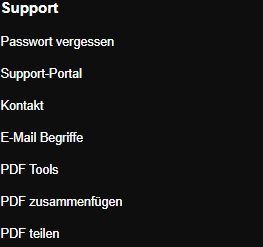
Scroll to the bottom of the SkyMail home page and click “PDF Tools” under “Support” in the footer. -
Select the affected PDF file, up to 25 MB.
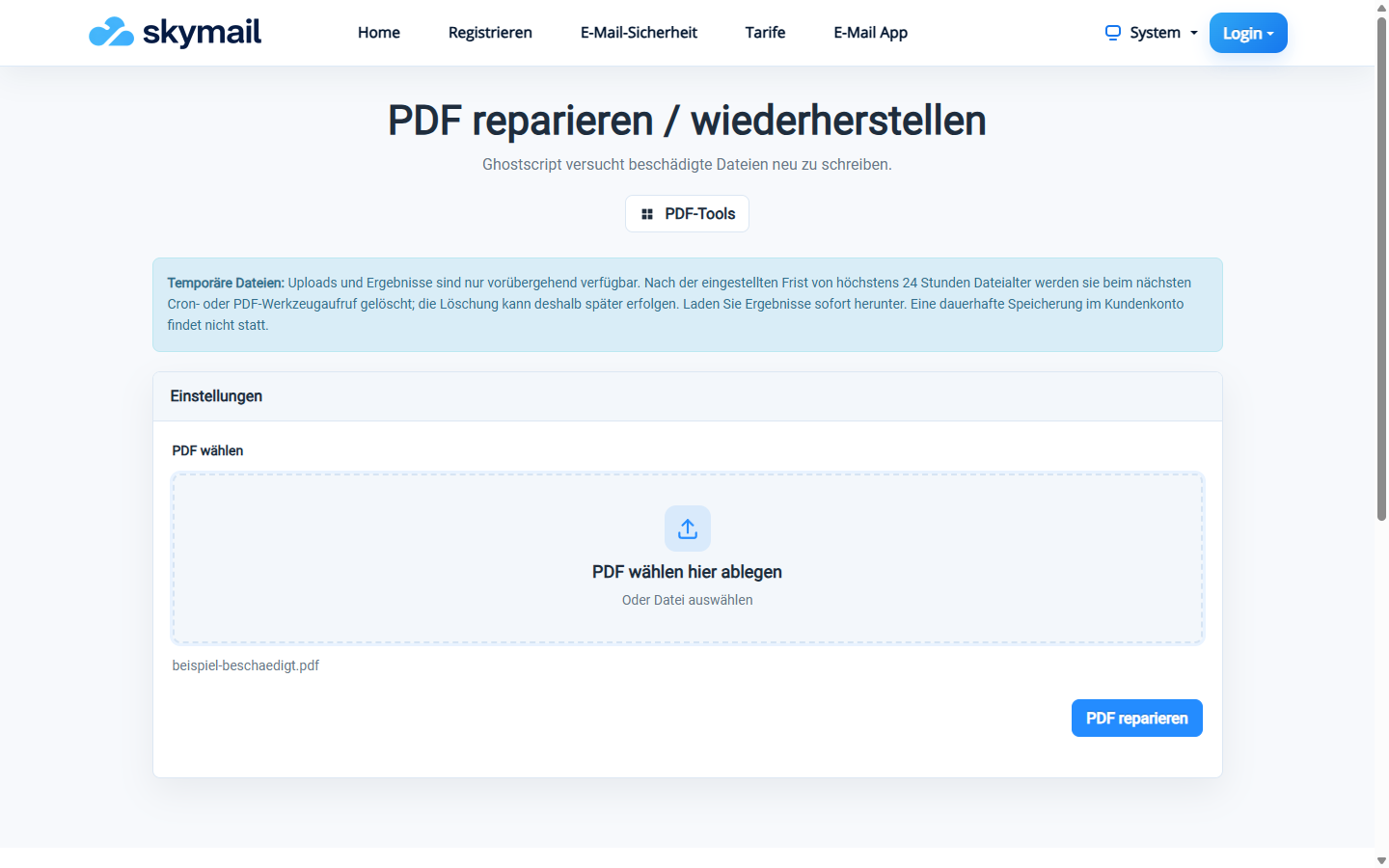
Select the damaged PDF file for a repair attempt. -
Click “Repair PDF” and download the new file if successful.
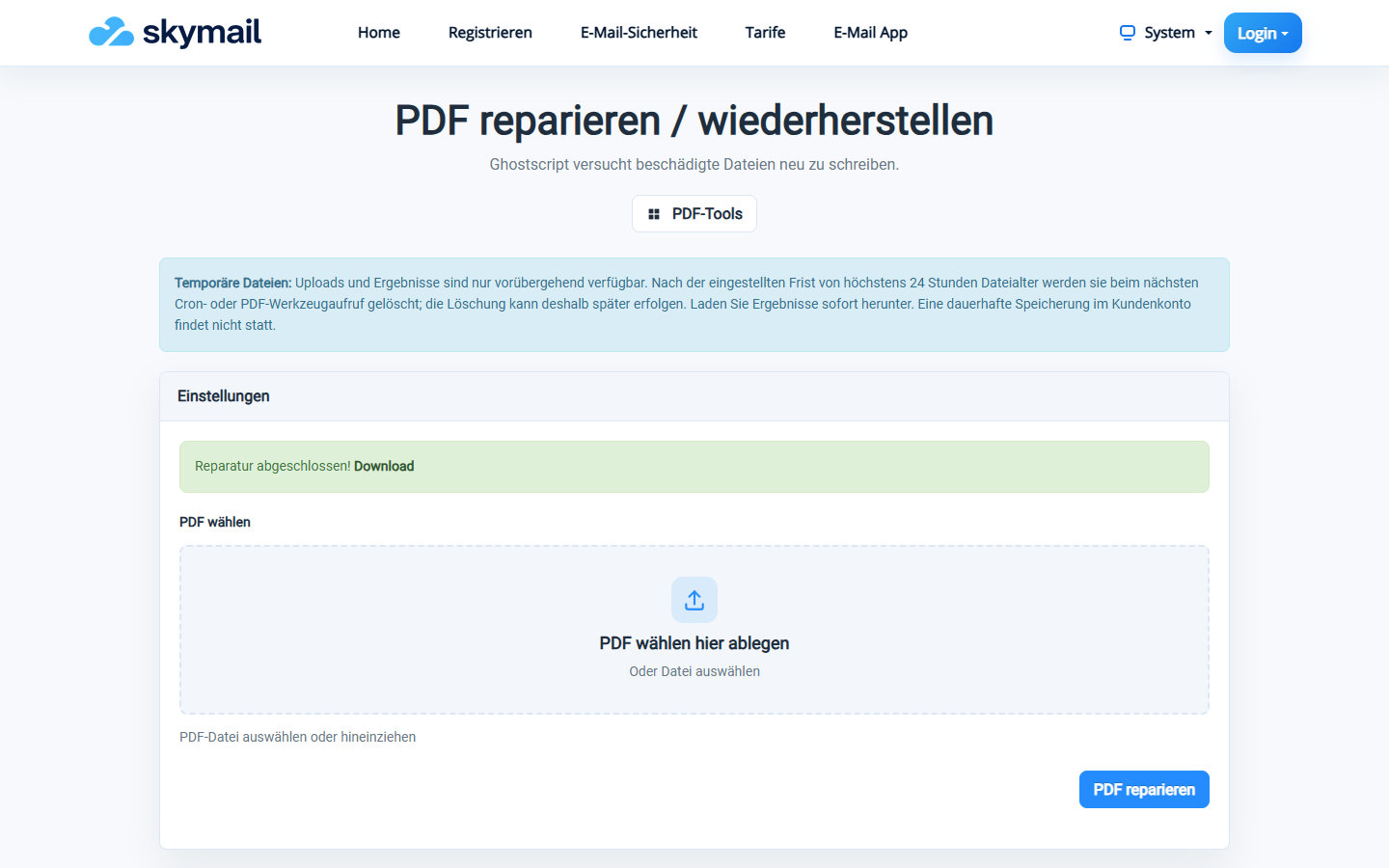
The rewritten PDF is ready for inspection. -
Open the result and compare pages, images and text with the original, as far as it remains readable.
What you will see afterwards
If repair succeeds, a new PDF is available to download. Not every type of damage can be repaired; even a generated file may have lost content. Compare it with the original.
Common problems
- An error appears if the file is too severely damaged.
- Files larger than 25 MB are rejected.
- Keep the original until you have verified completeness.