
Help and contact
Reply to a personal support ticket
Answer a follow-up question in your own private ticket history.
Requirement: After signing in with personal Premium support enabled and access to a ticket of your own.
Step by step
-
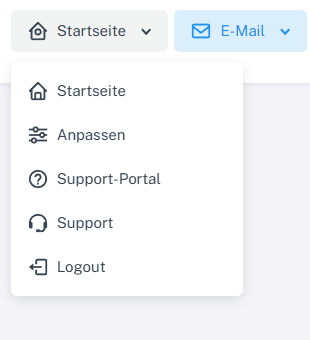
Click “Home” at the top and open the private “Support” area. In signed-in webmail, click “Home” at the top, then “Support” with the headset icon in the menu. The adjacent “Support portal” entry opens only the public help.
-
Under “My tickets”, find your own ticket by number or subject, open it, and read the history and status.

Find your own ticket under “My tickets” and open it. -
Write your additional information in “Send reply” and select suitable attachments if needed.
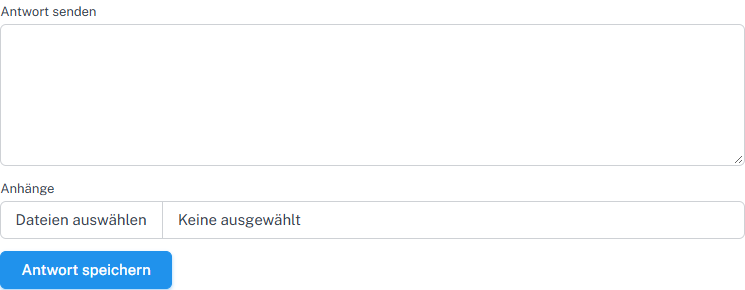
Enter a reply in your own ticket and add it to the history using “Save reply”. -
Select “Save reply” and check that the reply appears in the history.
What you will see afterwards
If saving succeeds, the reply is displayed in your own ticket's history.
Common problems
- An empty reply is not saved.
- Only you can open your own private ticket through this area when personal Premium support is enabled for your account.
- You can also reply to a closed ticket. The new reply changes its status back to “Open”.