
Read and write emails
Choose an email's priority
Mark a message with high, normal, or low priority.
Requirement: You must be signed in with the compose form open.
Step by step
-
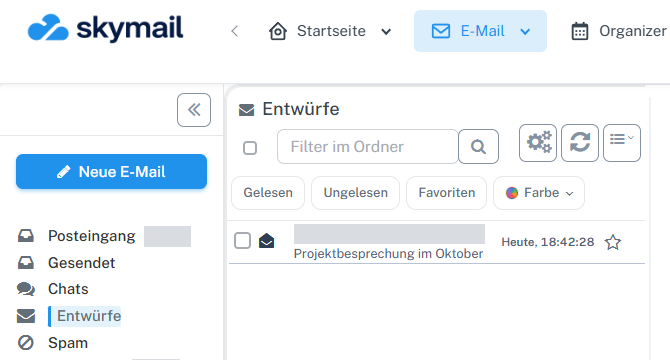
Click “Email” at the top and “New email” with the pen icon on the left. Click “Email” in the header and “New email” with the pen icon on the left. Expand “Options” in the compose form if needed.
-
In “Priority”, select “High”, “Normal”, or “Low”.

Select the desired value in Priority. -
Check the selection in “Preview”. After “Save & return”, you can reopen the draft and check the priority.
What you will see afterwards
The selected priority appears in the preview and is retained in the saved draft.
Common problems
- The priority mark does not force faster delivery and may be displayed differently by recipients.
- If the preview shows a different priority, close it and change the value in the compose form.
Go to the relevant section of the “Getting started with Skymail” guide