
Read and write emails
Set messages per page
Choose how many emails appear on a page in the open folder.
Requirement: A signed-in account with an open email folder.
Step by step
-
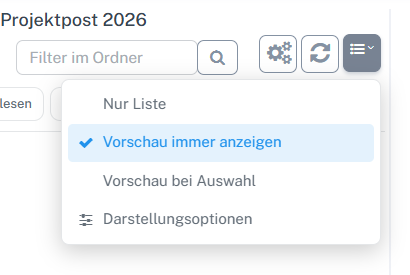
Open the button with list lines and an arrow above the list on the right and select “Display options”. Select “Email” in the webmail navigation and open the relevant folder. Click the button with list lines and a small arrow above the message list on the right. Select “Display options” in the list menu.
-
Open “Messages per page” and select the number you want.
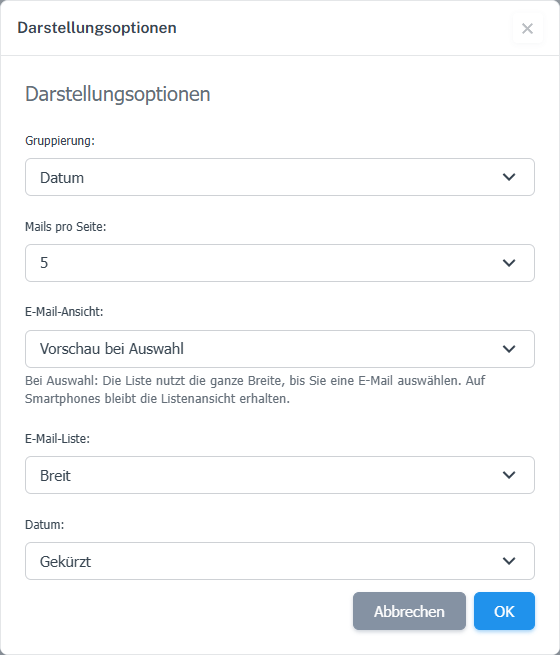
Set the number of messages per folder page under “Messages per page”. -
Confirm with “OK”. You can change the selected number again later in the same dialog.
What you will see afterwards
The folder displays up to the selected number of emails per page. If more messages exist, use page navigation to reach the rest. The selected value is retained in the dialog.
Common problems
- Fewer visible messages mean more page changes in larger folders.
- In a small folder, changing the number may have little visible effect.
Go to the relevant section of the “Getting started with Skymail” guide