
Read and write emails
Group messages in the email list
Arrange a folder's messages by date, sender, or a message characteristic.
Requirement: A signed-in account with an open email folder.
Step by step
-
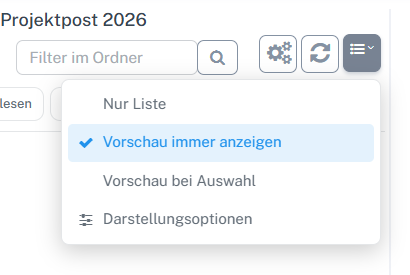
Open the button with list lines and an arrow above the list on the right and select “Display options”. Select “Email” in the webmail navigation and open the relevant folder. Click the button with list lines and a small arrow above the message list on the right. Select “Display options” in the list menu.
-
Open “Grouping”. The menu offers criteria such as date, sender, and message characteristics.
-
Select the criterion you want, for example “Date”.
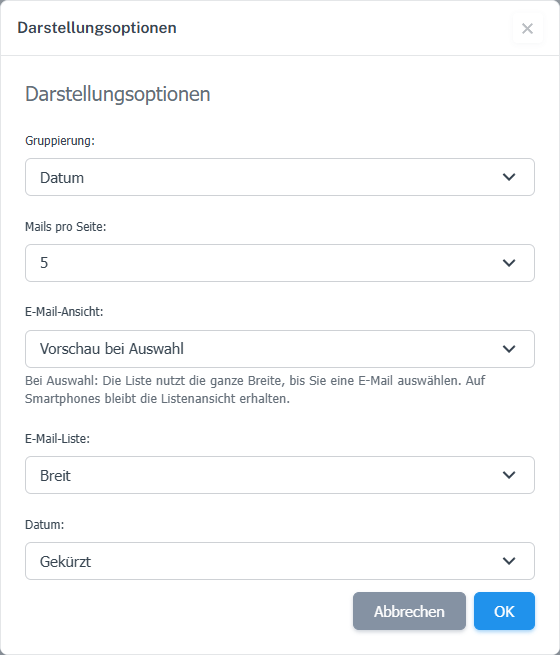
“Date” is selected in “Grouping”. -
Confirm with “OK”. To turn grouping off later, select the dashed entry in the same field and confirm with “OK” again.
What you will see afterwards
The selected grouping criterion remains selected in the dialog. Which groups appear in the list depends on the messages in the relevant folder.
Common problems
- To return to an ungrouped view, select the dashed entry and confirm with “OK”.
- The number of visible groups depends on the messages in the relevant folder.
Go to the relevant section of the “Getting started with Skymail” guide