
Sign-in and account access
Sign in to Skymail
Sign in with your email address and password, and complete any additional security confirmation that is requested.
Requirement: Public sign-in form; accessing the mailbox requires an account.
Step by step
-
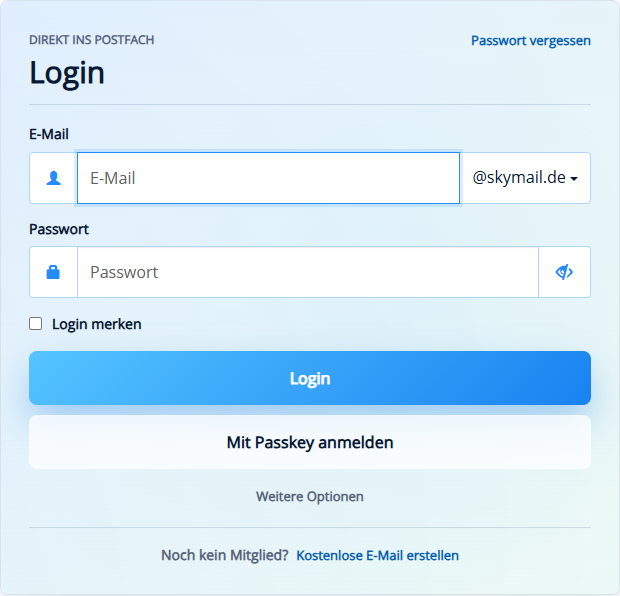
Open skymail.de and click the email field in the “Go straight to your mailbox” panel. Open skymail.de. Near the top of the home page, find the “Go straight to your mailbox” panel and click its “Email” field.
-
Enter your email address. If the page offers a separate domain selector, choose the domain that belongs to your account.
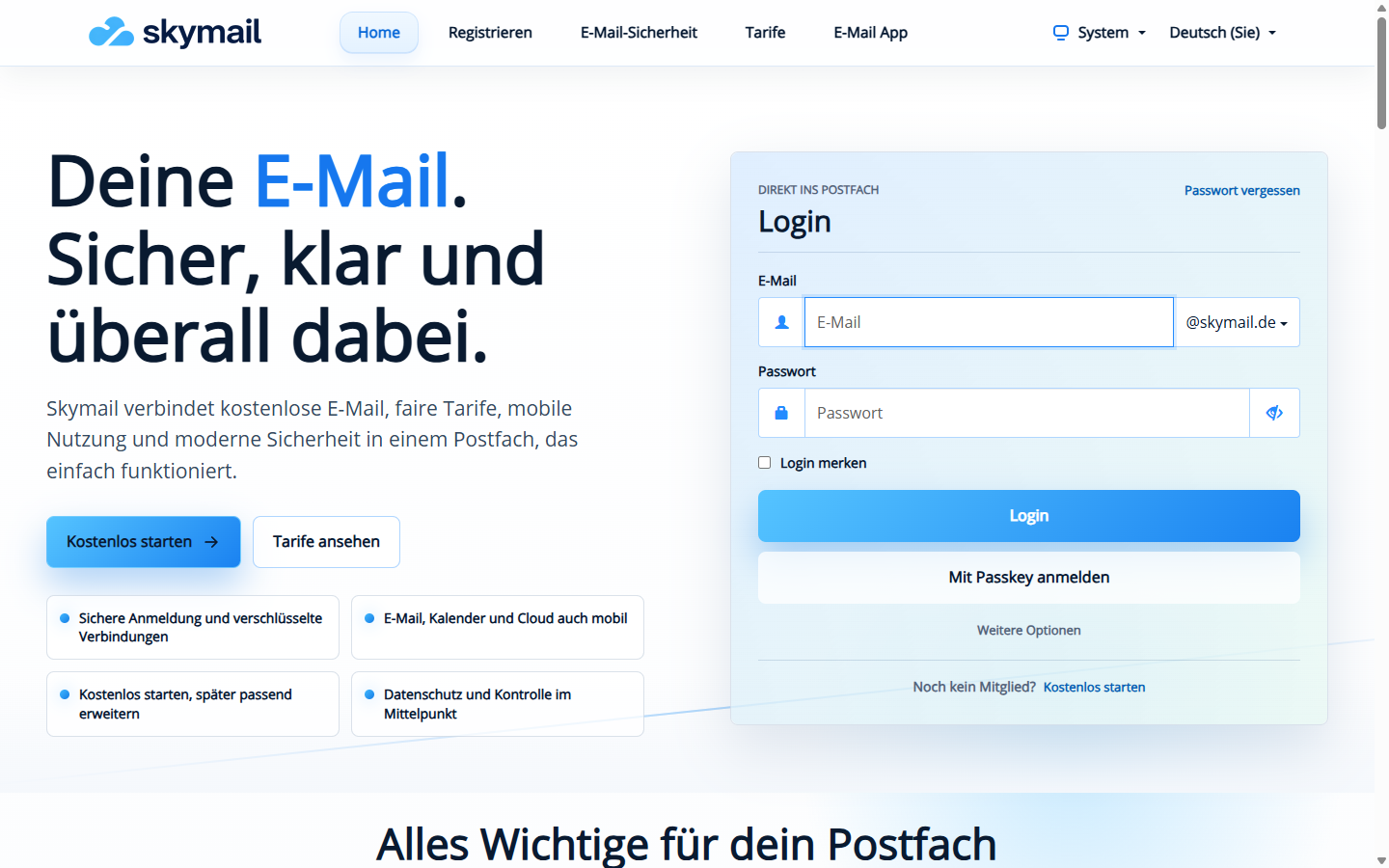
Sign-in form on the Skymail home page. -
Enter your password. You can use the eye icon to check what you have typed before submitting it.
-
Use “Remember login” only on a protected device that belongs to you, then select “Login”.
-
If the “Security Center” appears with “Passkey login”, select “Confirm with passkey” or “Confirm with security key” and follow your device’s confirmation prompt. Enable “Remember in this browser for 50 days” only on a protected device that belongs to you. Other accounts may show a different second verification method.
What you will see afterwards
After you sign in, your webmail mailbox opens. If your account requires additional security confirmation, complete it using the method you have set up before the mailbox appears.
Common problems
- If you see an error, check your email address, selected domain and keyboard layout.
- If you no longer know your password, open “Forgot password” and reset it using one of the recovery options provided.
- When a second security check is requested, use only your own configured method or a valid backup code.