
Security and encryption
Two-factor authentication: getting started and requirements
First choose a passkey in the Security center, secure your recovery information, and understand the other methods.
Requirement: After signing in, go to Settings → Security center.
Step by step
-
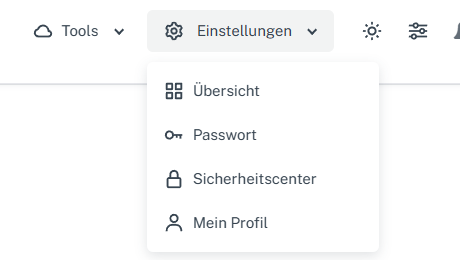
Click “Settings” at the top and select “Security center” in the menu. Click “Settings” in the webmail header, then “Security center” in the menu. On a narrow screen, first open “Menu”, then “Settings” → “Security center”. Read your current security status there and go to the “Passkeys” section.
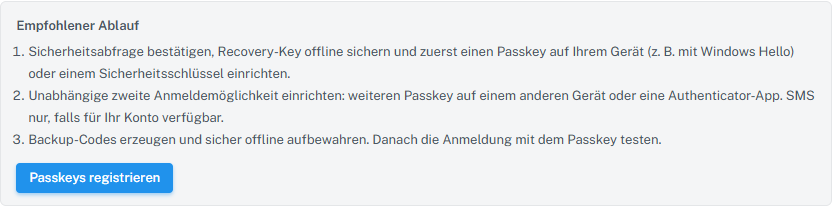
The Security center recommends a passkey on your own device as the first step; SMS is offered only if the account is eligible. -
Under “Register passkeys”, look at the two options: “On this device / in a password manager” for your own device, for example with Windows Hello, and “Security key”. Actual setup requires security confirmation from your device. Before your first passkey, you must securely store the displayed recovery key offline and confirm that you have backed it up.
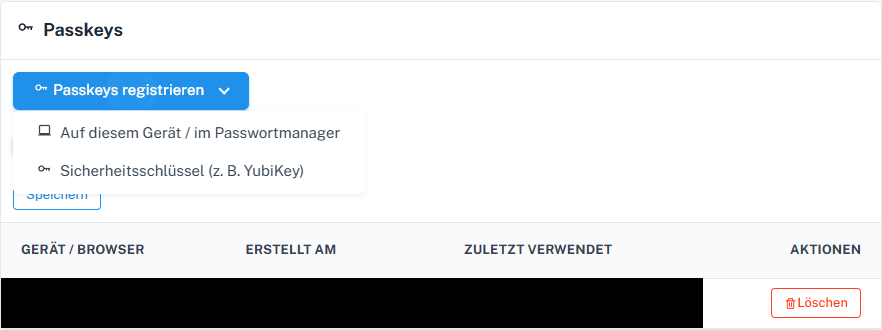
In the Security center, first choose the passkey for your device or a security key. -
If possible, add an independent second access method, such as another passkey on a different device or an authenticator app. SMS is only an option if the Security center offers it for your account and your security phone number is verified.
-
Check whether you already have valid backup codes stored securely offline. If you generate new codes, pay attention to the notes about the validity of previous codes. Only test a newly configured sign-in method while another access method is still available.
What you will see afterwards
In the Security center, you can find the passkey options offered and review your existing security methods. Selecting an option alone does not set up a new passkey or second factor; you must complete the relevant device and security confirmation.
Common problems
- You do not need an authenticator app for your first passkey. Google Authenticator and Microsoft Authenticator are only examples of an additional method.
- Never share the QR code, secret key, recovery key, or backup codes with third parties.
- If a passkey already exists, you can see it in the list of saved passkeys. Do not share device or account details with third parties.
Go to the relevant section of the “Getting started with Skymail” guide