
PDF tools
Split a PDF into individual pages
Create separate page PDFs from one PDF file.
Requirement: Publicly accessible without signing in at /en/pdf-tools and the respective tool page
Open the relevant PDF tool
Step by step
-
On the skymail.de home page, scroll to the footer. Under “Support”, click “PDF Tools” (see screenshot). In the PDF overview, select “Separate pages” or “Split PDF”.
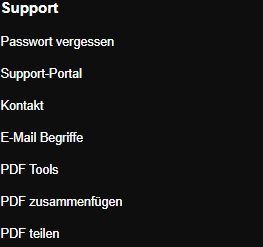
Scroll to the bottom of the SkyMail home page and click “PDF Tools” under “Support” in the footer. -
Under “Upload PDF”, select a valid PDF file no larger than 20 MB.
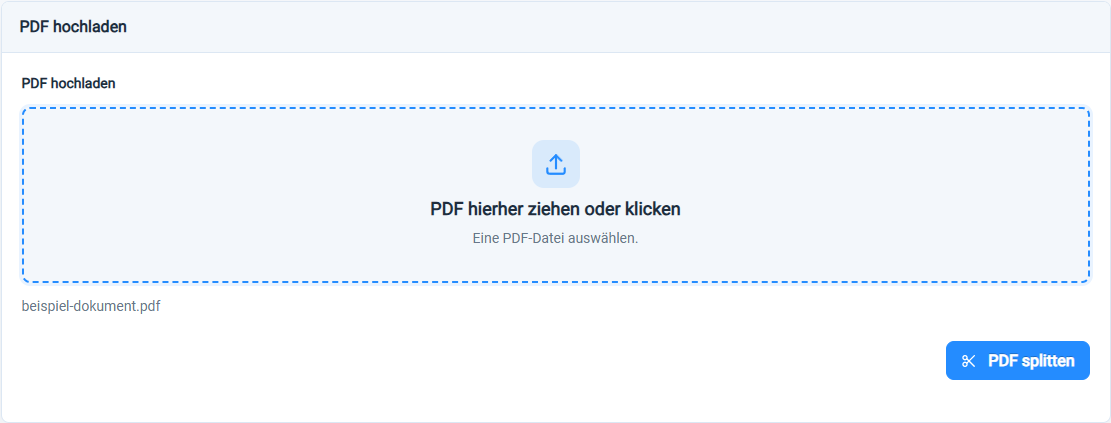
Select a PDF file before starting “Split PDF”. -
Start “Split PDF”. The tool creates a separate PDF file for each processed page.
-
Download the page PDFs you need and check that the required pages are all present.
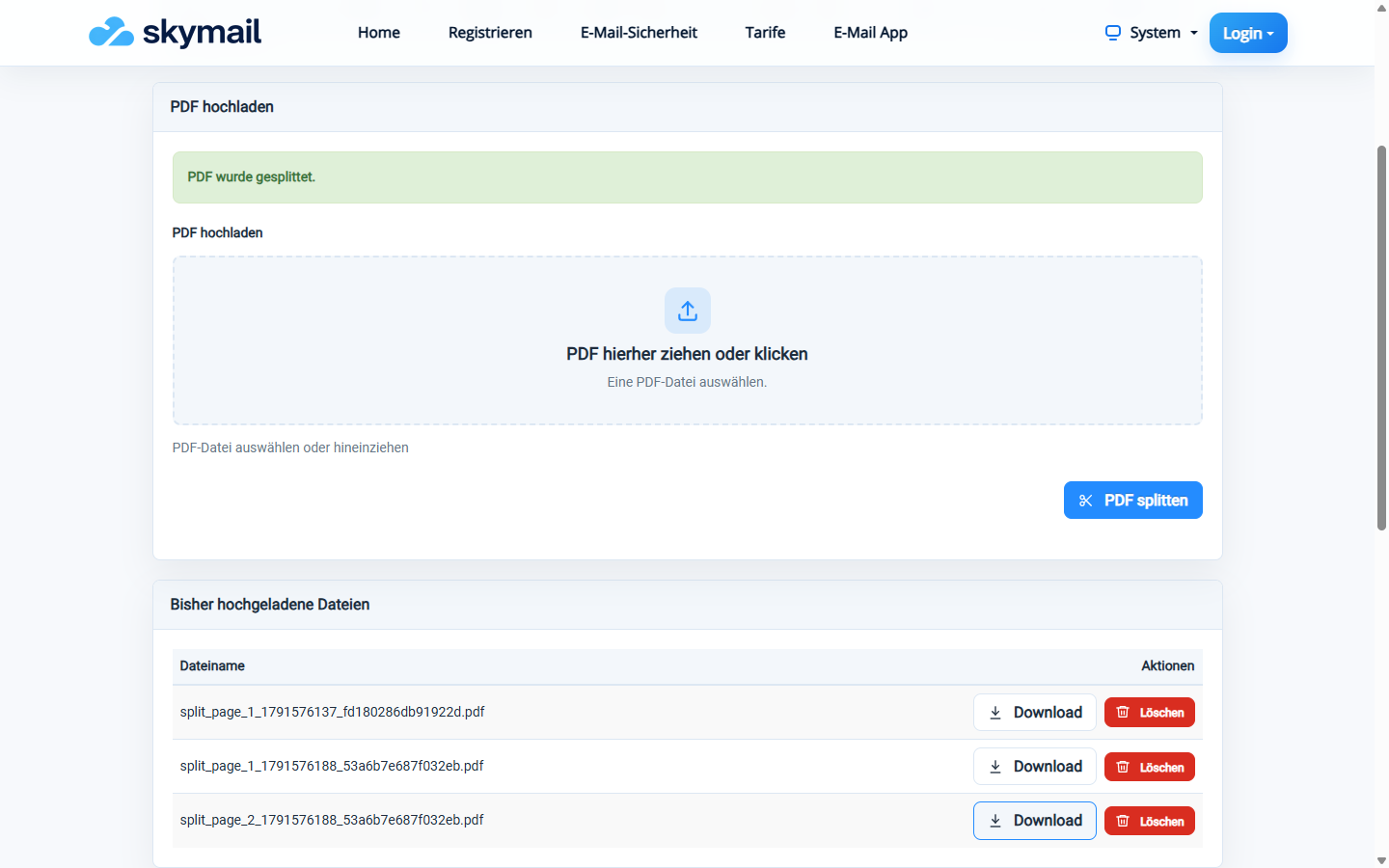
The processed pages are available as separate PDF downloads.
What you will see afterwards
The tool offers the processed pages as separate PDF downloads. It processes at most the first 20 pages; additional pages in longer documents are not included.
Common problems
- Processing is rejected if no PDF is selected or the file is larger than 20 MB.
- An error appears if the page count cannot be determined.
- To change the page order or select particular pages, use “Reorder pages”.