
Read and write emails
Attach a file to an email
Select files in the compose window and check them before sending.
Requirement: After signing in, while composing an email.
Step by step
-
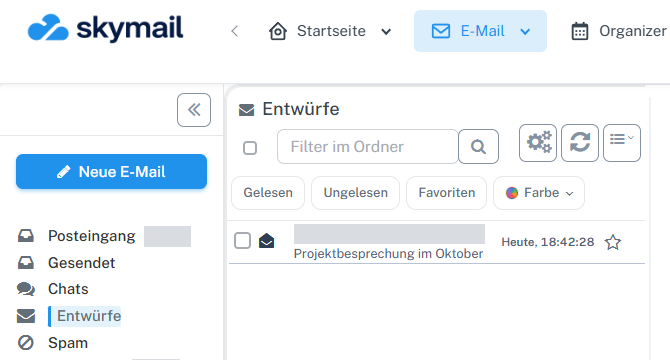
Click “Email” at the top and “New email” with the pen icon on the left. Click “Email” in the webmail header and “New email” with the pen icon in the email navigation on the left. You can add an attachment before entering a recipient.
-
Open the “Attachments” area below the subject and select “Add”.
-
In the “Add attachment” dialog, select “Local file”, choose the file from your device, and confirm with “OK”. Wait until it appears as an entry in the attachments area.
-
Check the filenames and number of attachments before selecting “Send email”. Remove an accidentally selected file using the action on its entry.
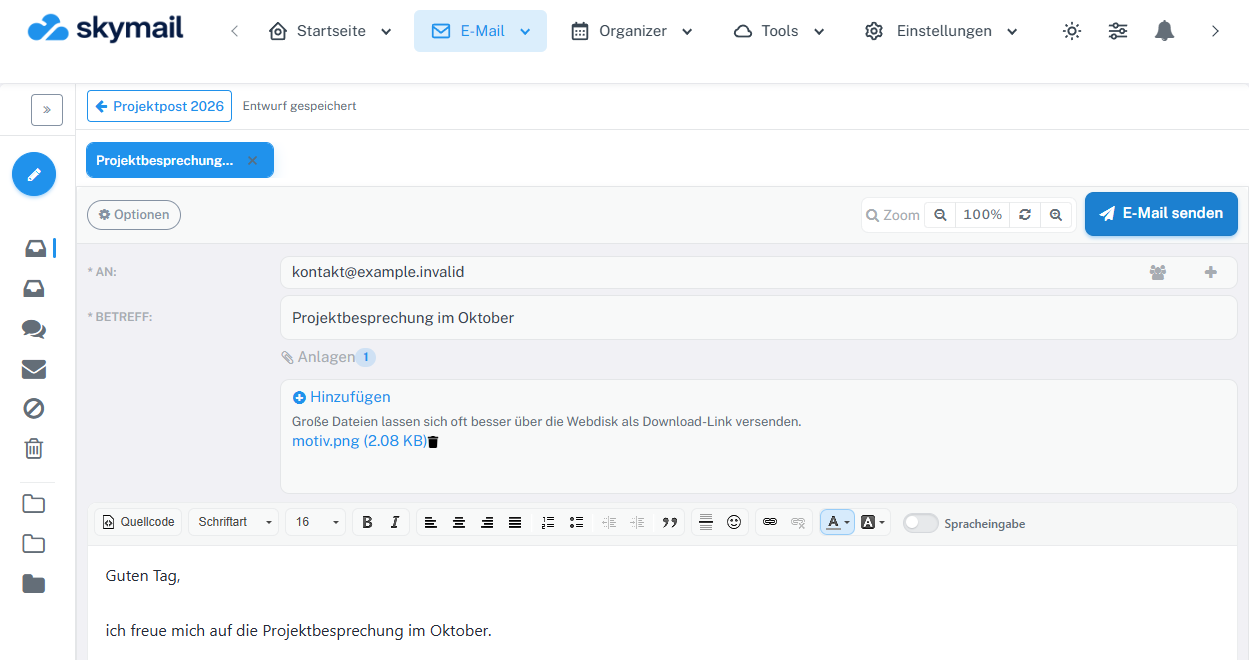
Open Attachments in the compose form and select Add. The filename then appears below. -
For large files, a Webdisk link may be more suitable; the attachments area provides a notice about this.
What you will see afterwards
The file appears with its name and size in your draft's attachments area. It is only sent with the email when you send the message.
Common problems
- If the file dialog was canceled, no attachment appears. Open “Add” again.
- If size or format limits apply, use a smaller file or the Webdisk option.
- Do not send until the attachments area shows the files you expect.
Go to the relevant section of the “Getting started with Skymail” guide