
Security and encryption
Configure automatic loading of external email content
Choose whether external images and resources in emails load by default.
Requirement: After signing in, go to Settings → Security center.
Check a suspicious email
Received a message you are unsure about? The free SkyMail check lets you check the subject, content, and links for phishing.
Step by step
-
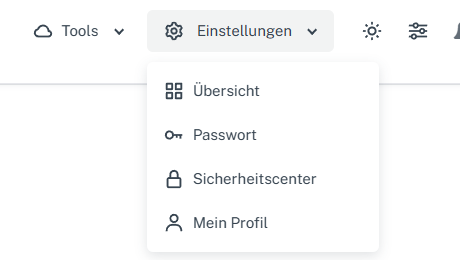
Click “Settings” at the top and select “Security center” in the menu. Click “Settings” in the webmail header, then “Security center” in the menu. On a narrow screen, first open “Menu”, then “Settings” → “Security center”. Go to the “Security” card.
-
Check “Load external content by default”. When the switch is off, external images and other resources are not displayed automatically. Read the notice that retrieving them can enable tracking.
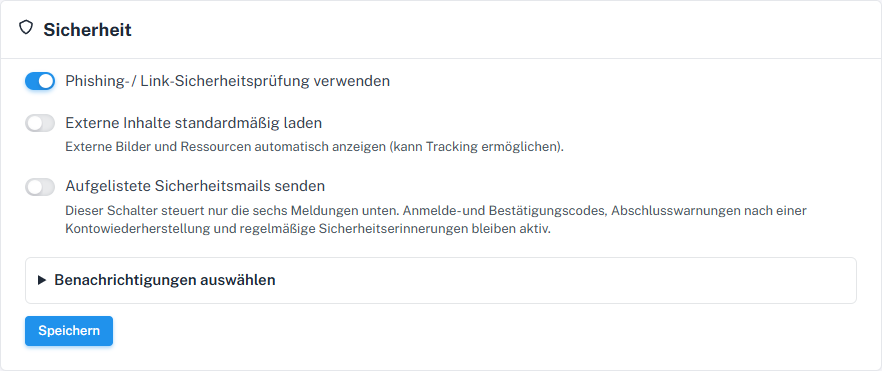
The switch controls the default for external email resources. -
Set the switch according to your choice. Also check the other two main switches in the same card, because all three and the notification selection are submitted with a shared “Save” button.
-
Select “Save” and reload the Security center. Check whether the switch retained the position you chose.
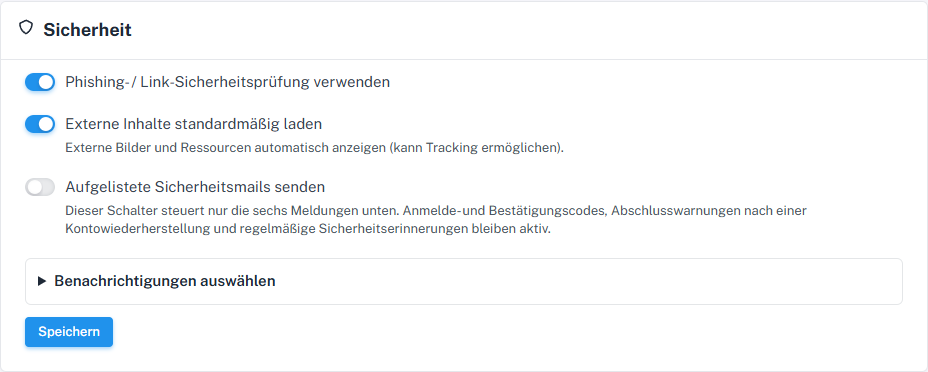
After saving, you can see the selected position when reopening the Security center.
What you will see afterwards
After saving, the Security center shows your chosen default when you reopen it. You can only tell whether a particular email loads external content when viewing that message; the switch position alone does not prove that content was retrieved.
Common problems
- Externally loaded resources can send information about opening a message to third parties.
- The switch controls the default when displaying emails. The other security options are in the same card and are saved together.
Go to the relevant section of the “Getting started with Skymail” guide