
Folders and search
Delete a custom mailbox folder
Remove a folder you created that you no longer need.
Requirement: A signed-in account with a custom folder; deletion is a permanent action.
Step by step
-
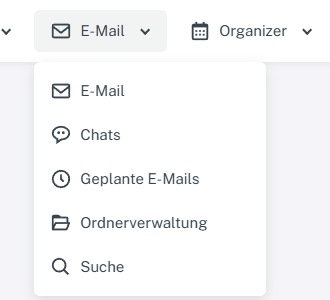
Click “Email” at the top; open “Chats” or “Folder management” in the menu. Click “Email” in the header and select “Folder management” in the menu.
-
Find the custom folder and first check whether it contains messages or subfolders you still need. Move important content before deleting.
-
Click the red trash icon on the right in the correct folder's row. The confirmation asks “Really remove this entry permanently?”.

The red trash icon belongs to the row of the empty custom folder. -
Confirm only if the correct folder is selected, then check the folder list.
What you will see afterwards
After confirmation, the selected custom folder is no longer shown in folder management.
Common problems
- The effect of deletion on contained messages or subfolders is not described here. Back up or move any content you need beforehand.
- If you only want to hide the folder, first check the “Subscribed” setting in the edit form.
Go to the relevant section of the “Getting started with Skymail” guide