
Folders and search
Rename a mailbox folder
Change the title of a folder you created.
Requirement: A signed-in account with an editable custom folder.
Step by step
-
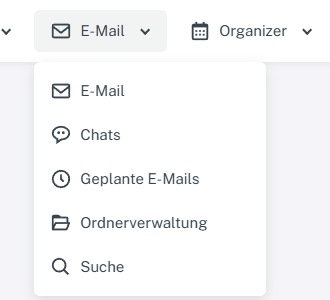
Click “Email” at the top; open “Chats” or “Folder management” in the menu. Click “Email” in the header and select “Folder management” in the menu.
-
Click “Edit” on the right in the row of the custom folder you want. The form contains “Title”, “Parent”, “Retention period”, and “Subscribed?”.
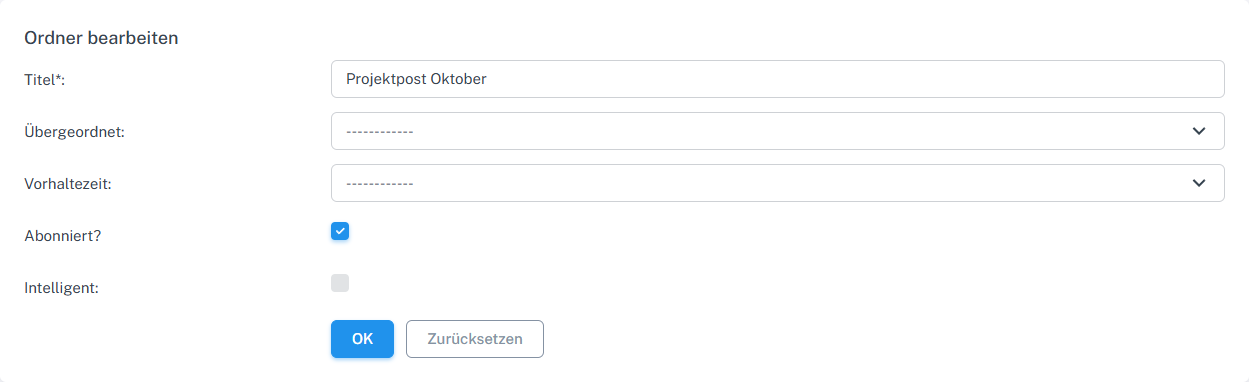
Open Edit for the custom folder and check the Title field. -
Change only the “Title” field and confirm with “OK”.
-
Check the new name in the list and open “Edit” again: the new name must still be present in the “Title” field.
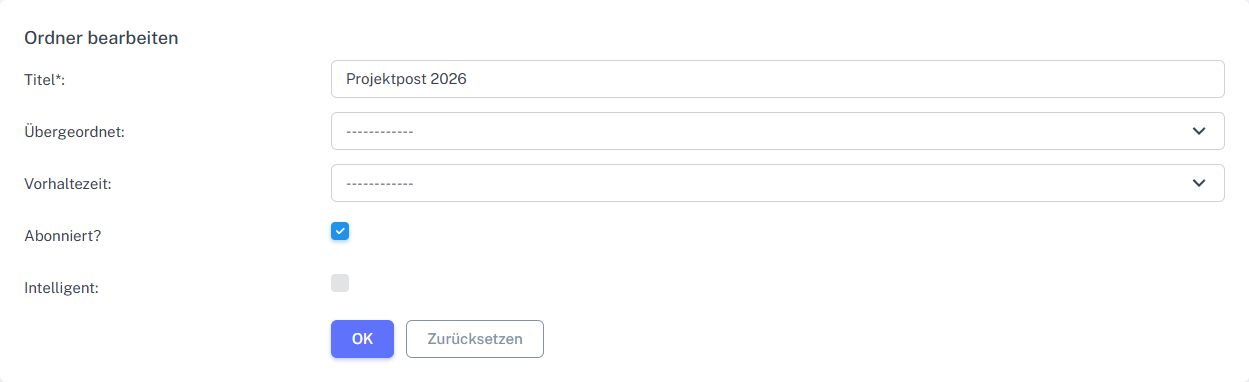
The changed title is retained when the form is reopened.
What you will see afterwards
The custom folder appears under its new title. When you reopen the edit form, the same title is shown in the “Title” field.
Common problems
- System folders have different editing options; select a custom folder.
- The parent folder, retention period, and subscription remain unchanged if you edit only the title.
Go to the relevant section of the “Getting started with Skymail” guide