
PDF tools
Extract text from a PDF
Download a PDF file’s machine-readable text as TXT.
Requirement: Publicly accessible without signing in at /en/pdf-tools and the respective tool page
Open the relevant PDF tool
Step by step
-
On the skymail.de home page, scroll to the footer. Under “Support”, click “PDF Tools” (see screenshot). In the PDF overview, select “Extract text”.
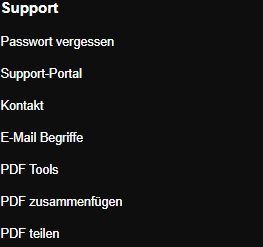
Scroll to the bottom of the SkyMail home page and click “PDF Tools” under “Support” in the footer. -
Select a valid PDF file up to 20 MB.
-
Click “Extract text” and download the TXT file.
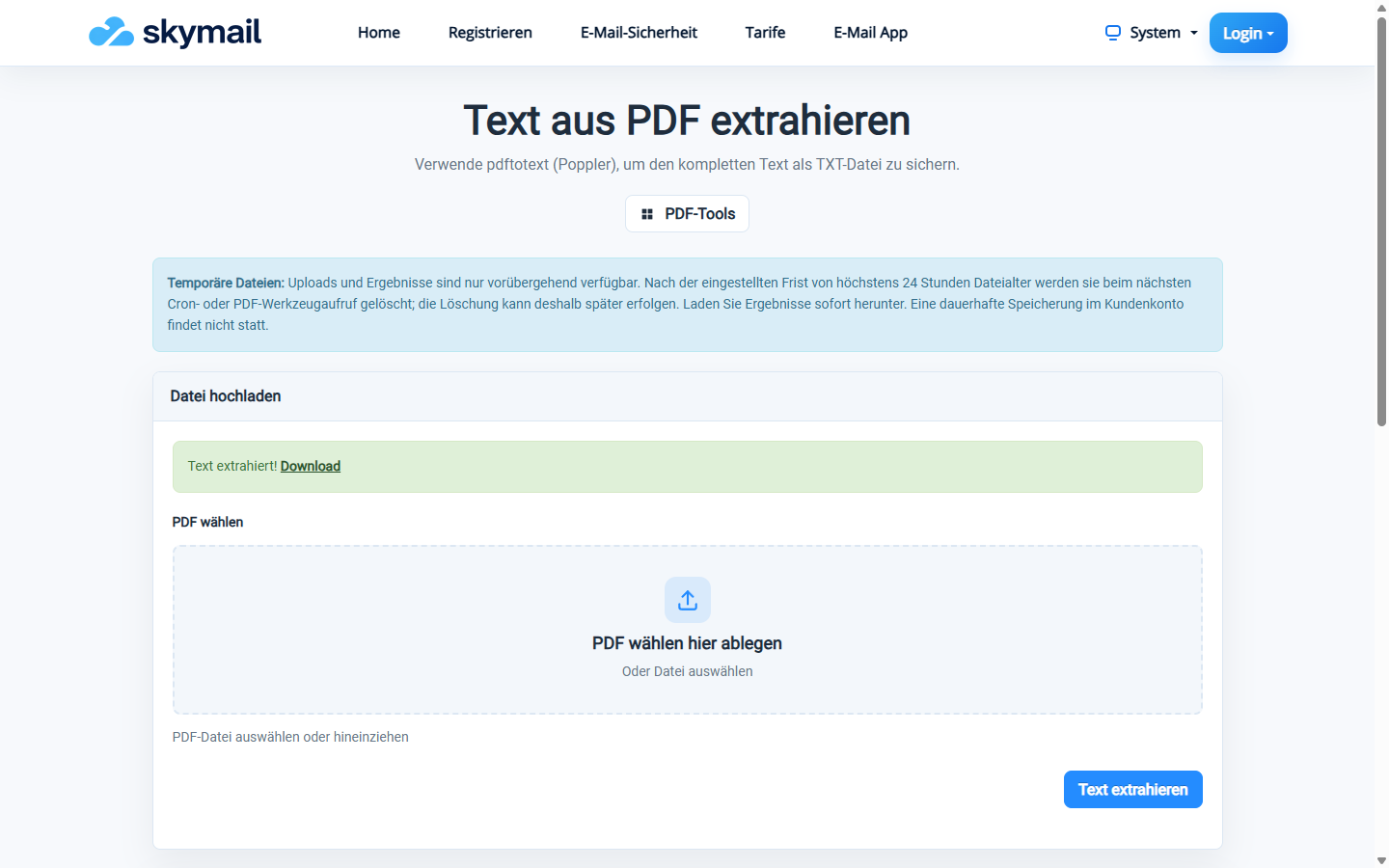
Existing machine-readable PDF text is available as a TXT download. -
Open the TXT file and check that the required text and special characters are present.
What you will see afterwards
The TXT file contains existing machine-readable text from the PDF. Text in scanned images is not recognised in this step; run OCR first.
Common problems
- For a scan without a text layer, the TXT file may be empty or incomplete; run OCR first.
- An invalid PDF or a file larger than 20 MB is rejected.
- Columns, tables and line breaks may be arranged differently in the text output.