
PDF tools
Convert a PDF to PNG, JPG or text
Export a PDF file in one of the selectable target formats.
Requirement: Publicly accessible without signing in at /en/pdf-tools and the respective tool page
Open the relevant PDF tool
Step by step
-
On the skymail.de home page, scroll to the footer. Under “Support”, click “PDF Tools” (see screenshot). In the PDF overview, select “Convert formats”.
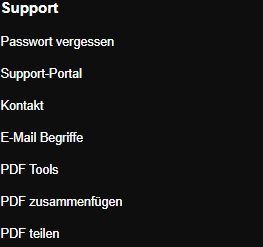
Scroll to the bottom of the SkyMail home page and click “PDF Tools” under “Support” in the footer. -
Select a PDF file up to 20 MB.
-
In “Target format”, select “Image (PNG)”, “Image (JPG)” or “Text”. Other formats are not available in this form.
-
Click “Convert”, download the result and open it for inspection.
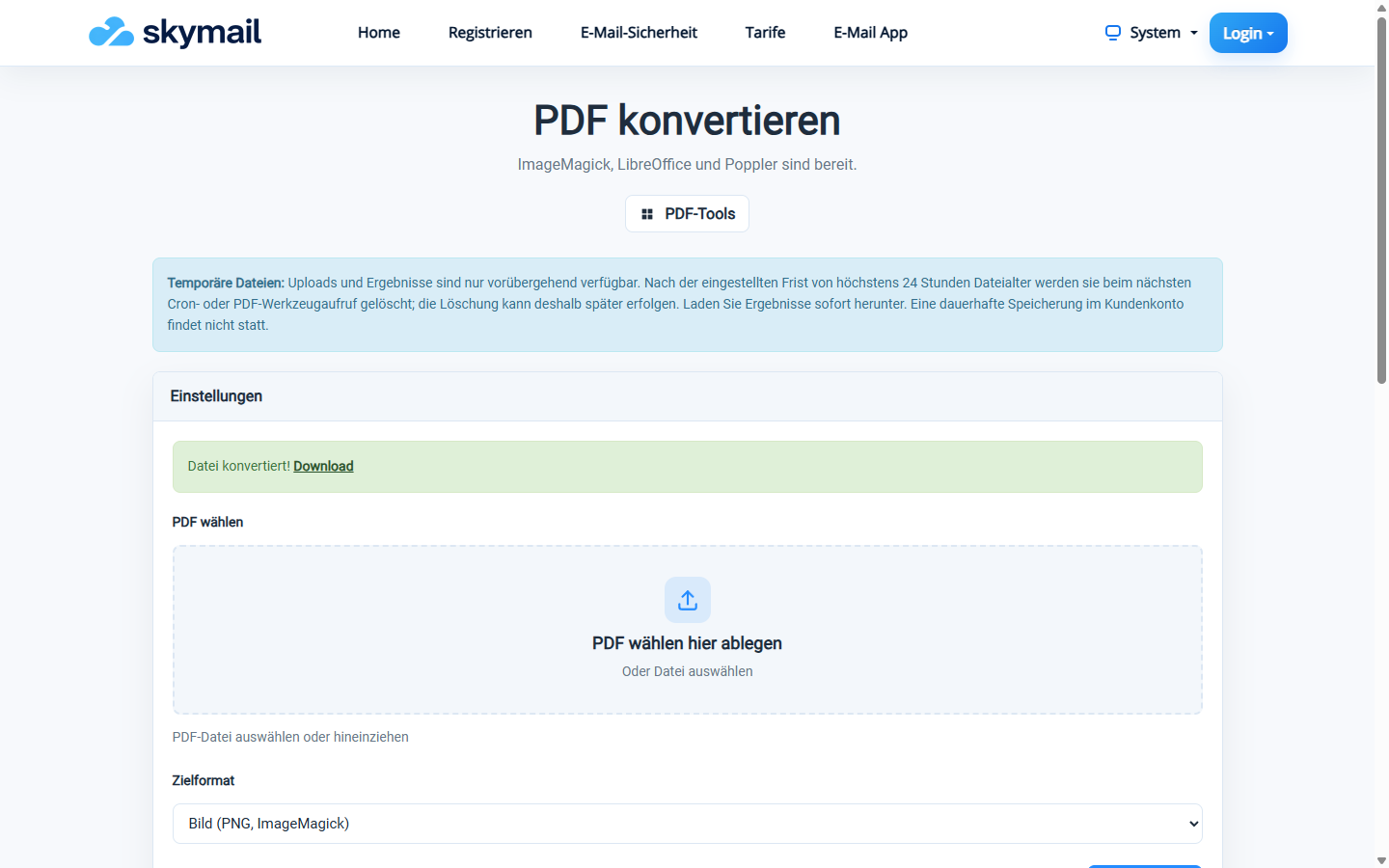
The two PDF pages were provided as PNG images in a ZIP file.
What you will see afterwards
Image output renders the pages; multiple images are provided in a ZIP file. Text output creates a TXT file and suits PDFs containing machine-readable text.
Common problems
- A ZIP archive is required for multiple image pages. The page reports an error if it cannot create the archive.
- For scans without a text layer, text output may be empty or incomplete. Run OCR first.
- Despite the interface’s mention of LibreOffice, this form currently does not offer Office output.