
Read and write emails
Configure the email list preview
Choose whether to display emails in a list only or with a reading pane.
Requirement: A signed-in account with an open email folder; the side-by-side preview is intended for larger screens.
Step by step
-
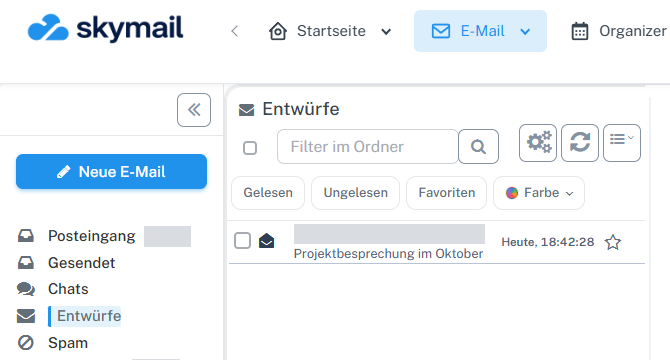
Click “Email” at the top and “Inbox” or the desired folder on the left. Click “Email” in the webmail header and “Inbox” or the desired folder on the left. Above the message list on the right, find the button with list lines and a small arrow. Use it to open the list menu.
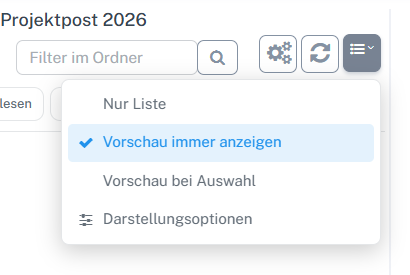
Open the button with list lines and an arrow above the list on the right; the three preview modes appear below. -
Select “List only” to use all the space for the message list. The preview area is hidden.
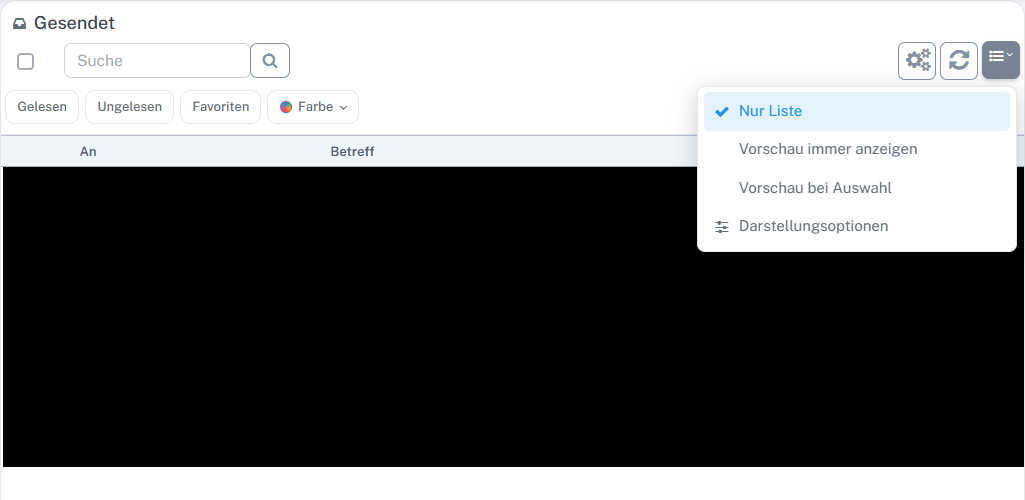
“List only” uses the width for the message list. -
Select “Always show preview” to keep the reading pane visible on a sufficiently wide screen. Without a message selected, it prompts you to select one.
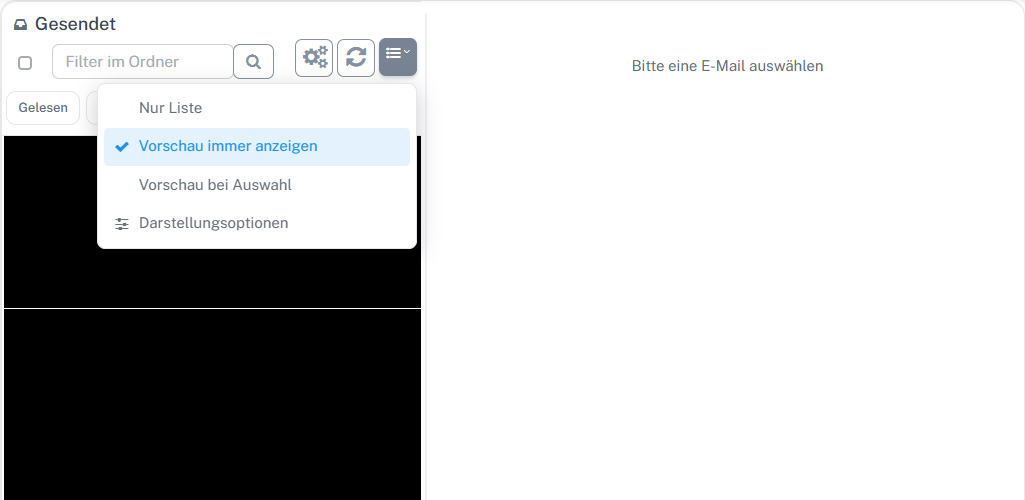
With “Always show preview”, the reading pane remains open beside the list. -
Select “Preview on selection” to let the list initially use the full width. After you click a message, the reading pane appears beside the list.
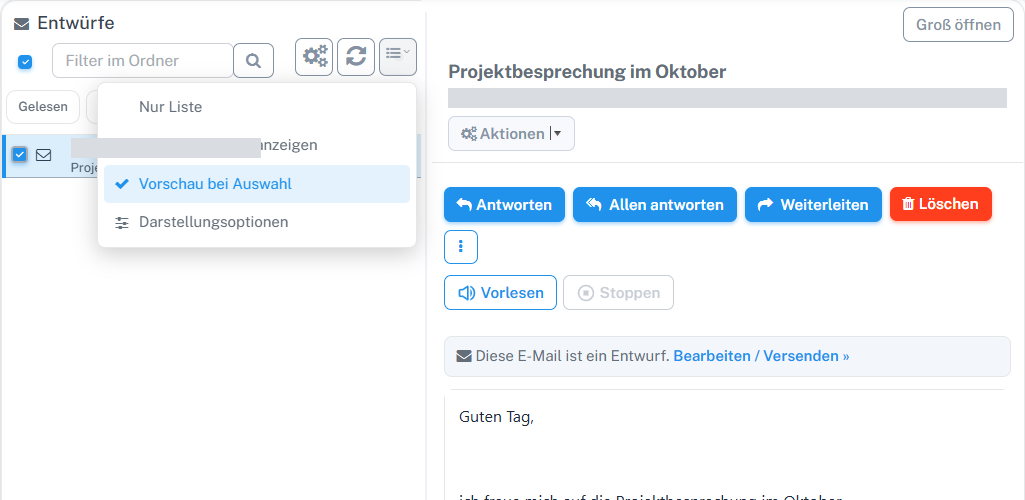
After selecting your own draft, the preview appears beside the list. -
Your choice in the list menu takes effect immediately. To change further list options, open “Display options” there, select the desired mode under “Email view”, and confirm with “OK”.
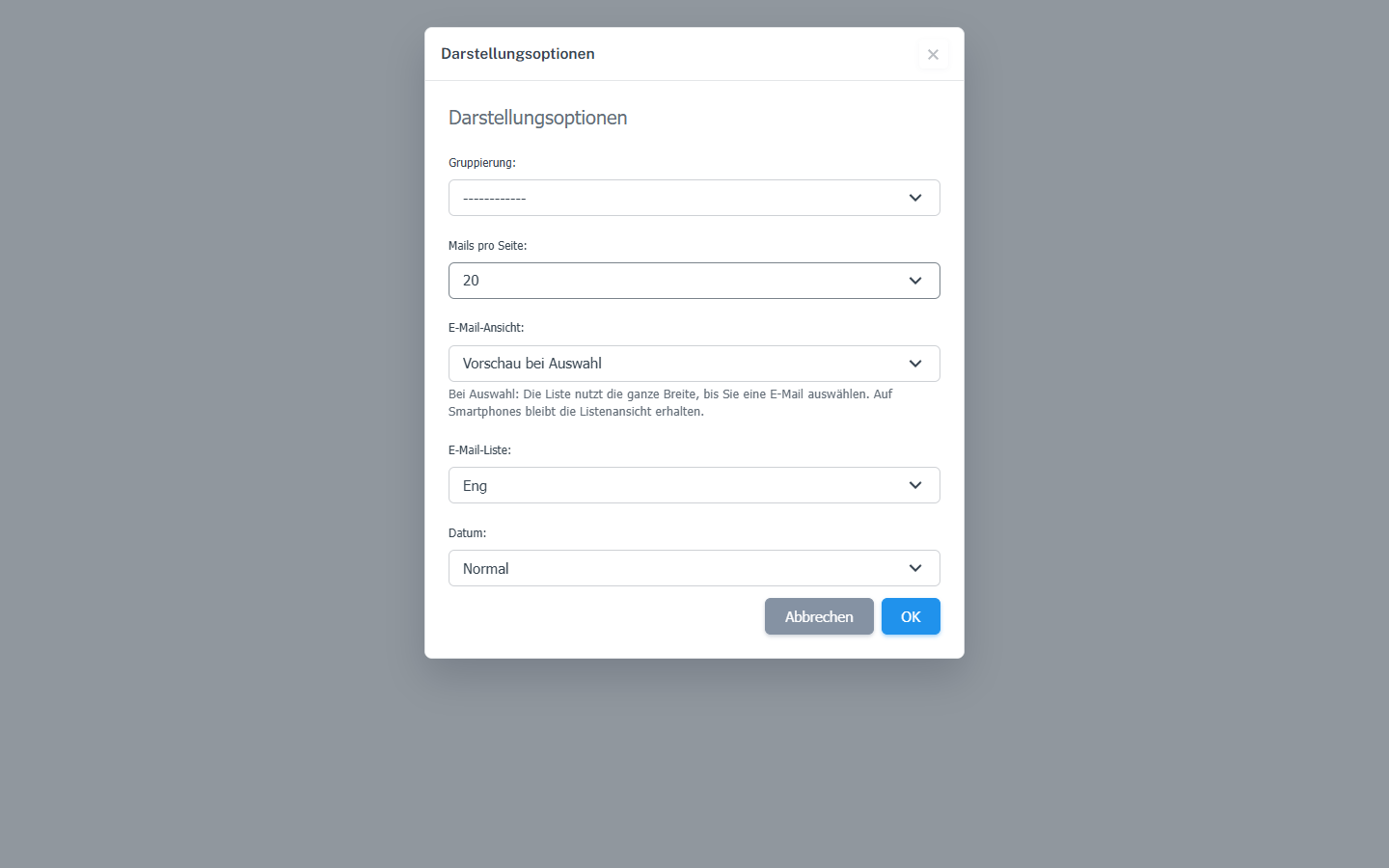
Choose between the three preview modes under “Email view”.
What you will see afterwards
The message list appears in the selected view. With “Preview on selection”, it initially uses the full width; after selecting an email on a larger screen, you see the reading pane beside it. Your choice is retained after reloading.
Common problems
- On smartphones, “Preview on selection” retains the list view; the display therefore differs from desktop.
- If a change in the dialog has not taken effect, confirm with “OK”. The list menu applies a choice immediately.
Go to the relevant section of the “Getting started with Skymail” guide