
Folders and search
Open the Chats folder in your mailbox
Distinguish the Chats view offered as a folder from the chat overview.
Requirement: A signed-in account with a visible Chats folder.
Step by step
-
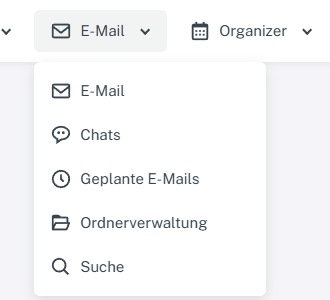
Select “Email” at the top and “Email” again in the menu before opening the Chats folder in the mailbox list on the left. Click “Email” in the header and select “Email” again in the menu. Then click “Chats” in the mailbox folder list on the left.
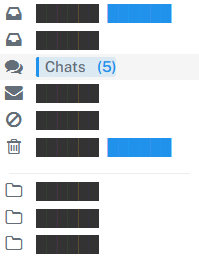
The “Chats” folder can be opened directly from the folder sidebar. -
Check whether the folder's message list appears. You can reach the chat overview through the Email menu at the top.
What you will see afterwards
The entry in the left mailbox sidebar opens a folder view. The chat overview in the Email menu is a separate view.
Common problems
- It is easy to confuse the two entry points with the same name.
Go to the relevant section of the “Getting started with Skymail” guide