
Read and write emails
Save an email as a draft
Save an unfinished message for later editing.
Requirement: You must be signed in with the compose form open.
Step by step
-
Click “Email” at the top and “New email” with the pen icon on the left. Click “Email” in the header and “New email” with the pen icon on the left. Enter the details you already know in the compose form.
-
Select “Save & return”.
-
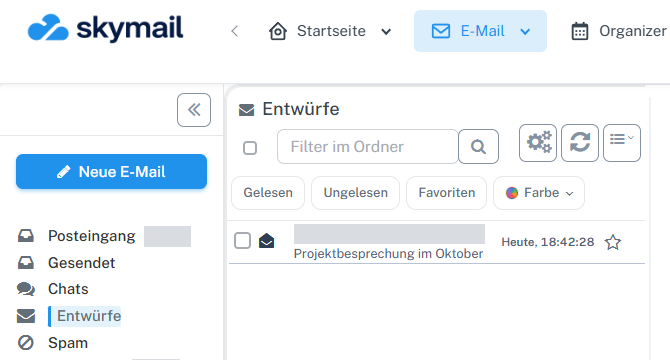
Click “Email” at the top and the “Drafts” folder on the left. Check for your subject there. Open the draft row to continue.
Find the saved message through Email and Drafts. Personal details are hidden in the image.
What you will see afterwards
The draft appears in “Drafts” and can be edited further later.
Common problems
- After saving, check “Drafts” before closing the browser window.
- Do not rely solely on automatic saving for this process; select “Save & return”.
Go to the relevant section of the “Getting started with Skymail” guide