
Read and write emails
Start a new email
Open the compose form and prepare a message.
Requirement: A signed-in webmail account.
Step by step
-
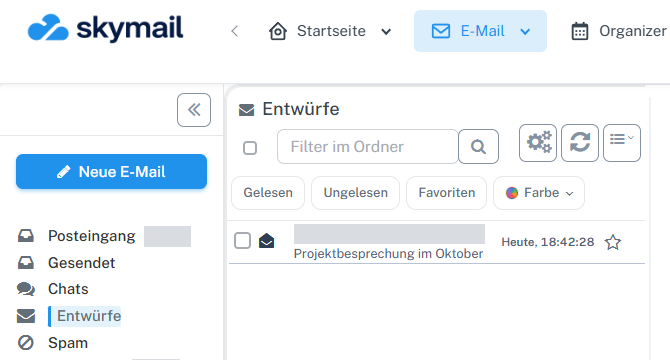
Click “Email” at the top and “New email” with the pen icon on the left. Click “Email” in the header. Select “New email” with the pen icon in the email navigation on the left.
-
Enter a meaningful subject under “Subject” and write the message text. You can fill in “To” before sending.
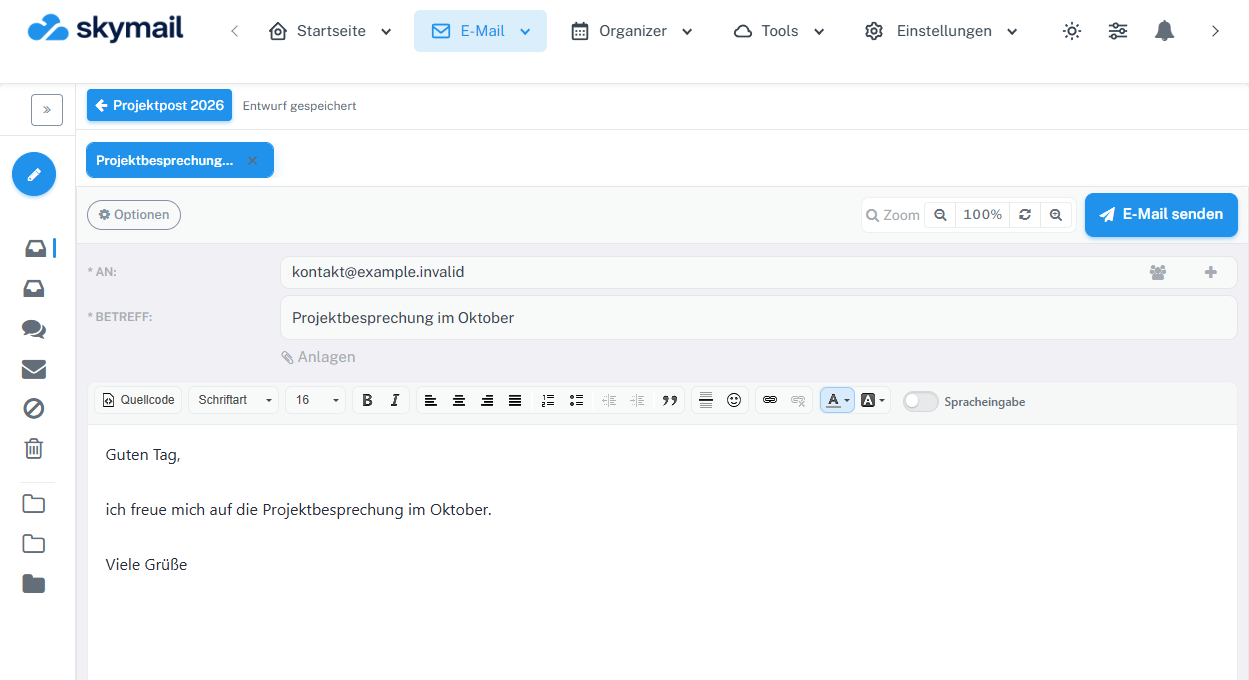
Open Email and select New email; To, Subject, and the message editor appear below. -
To continue later, select “Save & return”. Before sending later, check the recipient, subject, and content.
What you will see afterwards
The message is prepared in the compose form. After “Save & return”, you can find it in “Drafts”; saving does not send it.
Common problems
- Without a valid recipient or a required subject, the form may reject sending.
- If the status shows “Changes not yet saved”, select “Save & return” before leaving the page.
Go to the relevant section of the “Getting started with Skymail” guide