
Read and write emails
Save a quick reply as a draft
Save a quick reply you have started as a draft before sending.
Requirement: A signed-in account with a suitable open message; automatic saving depends on account settings.
Step by step
-
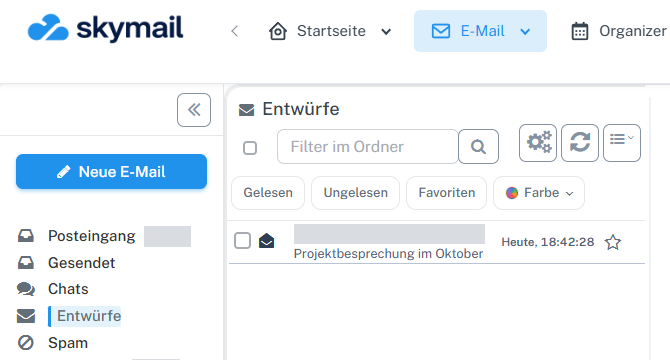
Click “Email” at the top and “Inbox” or the desired folder on the left. Click “Email” in the webmail header and “Inbox” or the folder containing the message on the left. Select a suitable message in the list and open it in the preview or reading view. Below the message text, enter a reply in “Write a quick reply”.
-
If automatic draft saving is active for your account, wait for “Draft saved”.
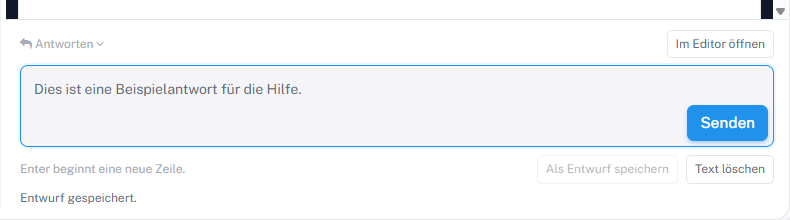
Wait for “Draft saved” before leaving the view. -
If automatic saving is not active or you want to save immediately, select “Save as draft” and wait for “Draft saved”. If the button is then grayed out, the unchanged text already has a saved version.
-
To continue the reply later, open “Drafts” and the saved reply draft. Check the subject and text in the editor.
What you will see afterwards
After the “Draft saved” message, you can find your reply in “Drafts” and continue editing it there. Saving does not send the reply.
Common problems
- Only leave the view after “Draft saved”; a save operation in progress may still be pending.
- If an error appears, check the connection and, if necessary, save the text using “Open in editor”.
Go to the relevant section of the “Getting started with Skymail” guide