
Read and write emails
Adjust email list row spacing
Use “Compact” or “Wide” to control how densely message rows are displayed.
Requirement: A signed-in account with an open email folder; the setting applies in the browser being used.
Step by step
-
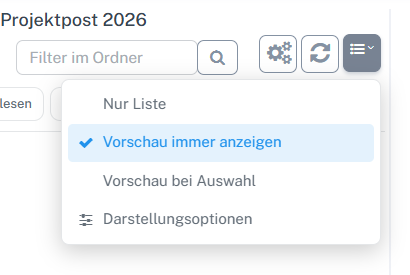
Open the button with list lines and an arrow above the list on the right and select “Display options”. Select “Email” in the webmail navigation and open the relevant folder. Click the button with list lines and a small arrow above the message list on the right. Select “Display options” in the list menu.
-
In “Email list”, choose “Compact” for more densely arranged rows or “Wide” for more space within rows.
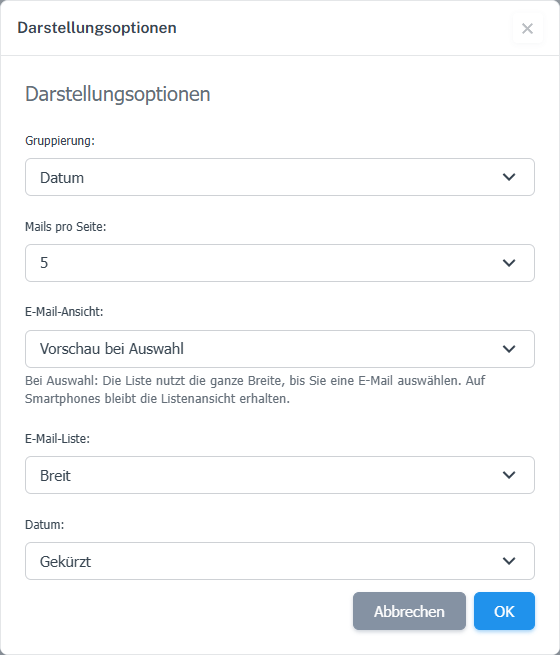
“Wide” gives message rows more breathing room; the reading pane's width is unaffected. -
Confirm with “OK”. To change the display, reopen the same dialog.
What you will see afterwards
Message rows are displayed more densely or with more breathing room. This choice changes list density; it does not set the reading pane's width. The selected value is retained in this browser.
Common problems
- This display setting is stored in the browser. A different choice may apply on another device.
- On small screens, the interface arranges rows to fit the available width independently of this desktop setting.
Go to the relevant section of the “Getting started with Skymail” guide