
Read and write emails
Configure dates in the email list
Choose between normal and shortened date display.
Requirement: A signed-in account with an open email folder; the field appears in a sufficiently wide desktop window.
Step by step
-
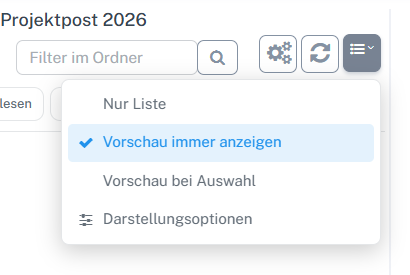
Open the button with list lines and an arrow above the list on the right and select “Display options”. On a sufficiently wide screen, select “Email” in the webmail navigation and open the relevant folder. Click the button with list lines and a small arrow above the message list on the right. Select “Display options” in the list menu.
-
In “Date”, choose “Normal” or “Short”.
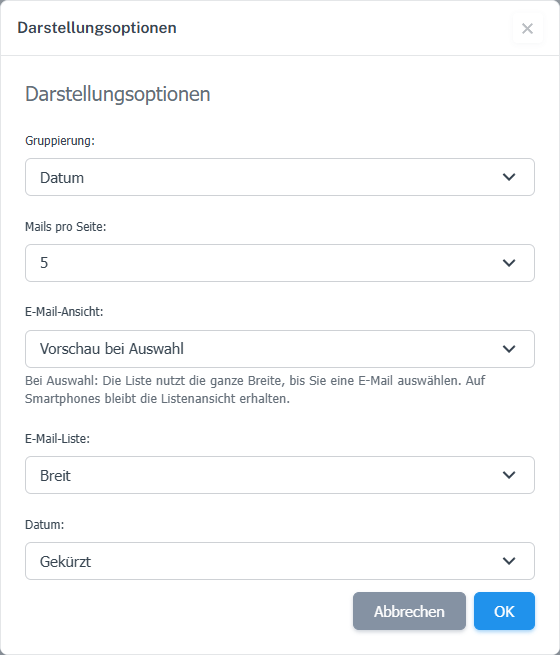
“Short” makes the date take up less space in a sufficiently wide desktop window. -
Confirm with “OK”. You can change the display again in the same dialog.
What you will see afterwards
With “Short”, the date takes up less space in the list. The choice is retained in this browser.
Common problems
- In narrow views, the interface hides this field. Make the browser window larger to change the setting.
- On smartphones, the list uses a short date display. The choice is stored in the browser and may differ on another device.
Go to the relevant section of the “Getting started with Skymail” guide