
Security and encryption
View trusted devices
Check saved devices, including their browser, IP address, and expiry date, in the Security center.
Requirement: After signing in, go to Settings → Security center.
Step by step
-
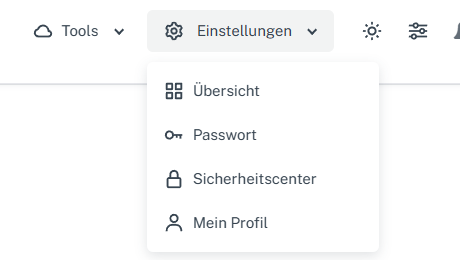
Click “Settings” at the top and select “Security center” in the menu. Click “Settings” in the webmail header, then “Security center” in the menu. On a narrow screen, first open “Menu”, then “Settings” → “Security center”. Scroll to “Trusted devices”. This section is a device list, not an overview of all active login sessions.
-
For each row, compare “Device / browser”, “IP”, and “Valid until” with your own devices. The image shows where to find these details; your values may differ.
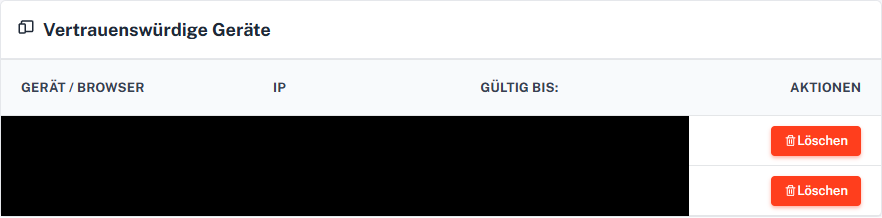
Each row shows the device/browser, IP, and validity with its own delete action.
What you will see afterwards
You can see which devices are saved as trusted in your account and when their validity ends. This list is not an overview of all active sessions; removing an entry requires the corresponding action in its row.
Common problems
- An expired device may still appear in the list. Check “Valid until”. If an expected device is missing, check whether it was saved under another browser or device name.
- If a device is unfamiliar, also review your account password, passkeys, and other security factors.
- The visible device list is not evidence of a function for signing out all active sessions.
Go to the relevant section of the “Getting started with Skymail” guide