
Security and encryption
Set up a passkey: view options and requirements
View the two passkey types offered and the list of existing passkeys in the Security center.
Requirement: After signing in, go to Settings → Security center; your device and browser must support passkeys.
Step by step
-
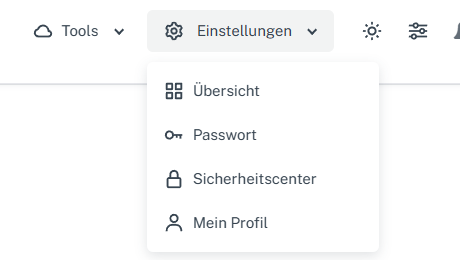
Click “Settings” at the top and select “Security center” in the menu. Click “Settings” in the webmail header, then “Security center” in the menu. On a narrow screen, first open “Menu”, then “Settings” → “Security center”. Scroll to “Passkeys”. Before setting one up later, check that you still have an independent sign-in and recovery method.
-
Open the “Register passkeys” menu to see the types offered: “On this device / in a password manager” and “Security key (e.g. YubiKey)”.
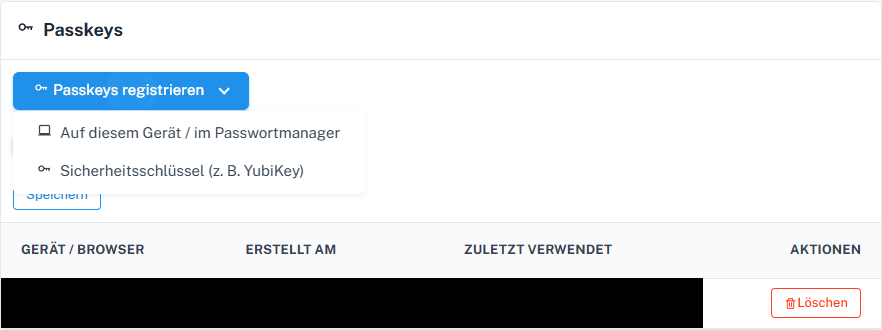
Choose the passkey type before the browser dialog. -
Below the menu, the list shows existing passkeys with their device or browser, creation time, and last use. First check whether your intended passkey is already listed.
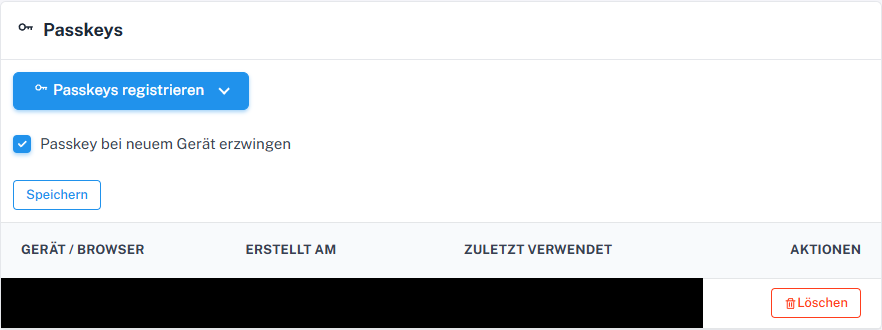
A registered passkey appears in the list with its own delete action.
What you will see afterwards
You can see the passkey types offered and entries already saved. Opening the selection does not create a passkey; after registration, a new entry should appear in the list. Signing in with a newly created passkey is not described here.
Common problems
- The two selection options do not yet confirm that a new passkey has been saved.
- Existing passkeys and device details are personal; do not share a complete device list or sign-in confirmations with third parties.
- The “Require passkey on a new device” switch is a separate security setting. Only change it if another access method is available.
Go to the relevant section of the “Getting started with Skymail” guide