
Security and encryption
Verify an email's OpenPGP signature
Understand the “Valid”, “Invalid”, and “Sender key unknown” indicators correctly.
Requirement: After signing in, for a message recognized as OpenPGP-signed, if OpenPGP is enabled
Step by step
-
Open the signed email and expand the “PGP” area. Select “Verify”, or “Decrypt / Verify” if the message is also encrypted.
-
Read the status badge: “Valid signature”, “Invalid signature”, or “Sender key unknown”.
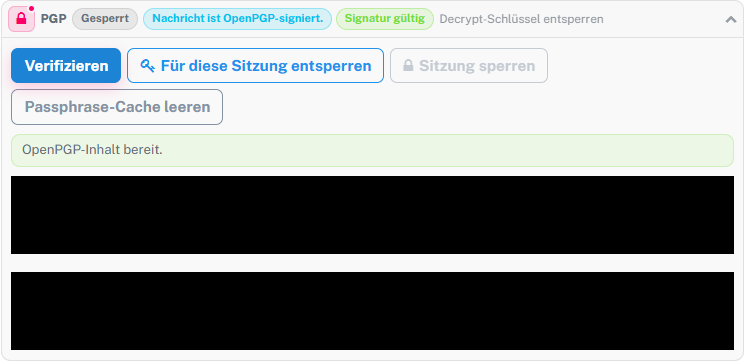
Read the technical signature status after selecting Verify. -
If the sender key is unknown, add a suitable public key only after an independent fingerprint comparison, then repeat verification.
-
If the signature is invalid, treat the content and sender identity as unverified and ask for confirmation through a trusted channel.
What you will see afterwards
The indicator gives the technical signature status, such as “Valid signature”. A valid signature only shows that the message was signed with the checked key. Establish whether the key actually belongs to the named person through an independent fingerprint comparison.
Common problems
- Without the matching public sender key, the signature cannot be verified.
- An invalid signature may indicate altered content, an incorrect key, or a faulty message.
- For signed and encrypted messages, the matching private key must first be available for decryption.
Go to the relevant section of the “Getting started with Skymail” guide