
Security and encryption
Find and confirm a public OpenPGP key
Check a recipient key's fingerprint, validity, and trust status.
Requirement: After signing in, in the “Public keys” area of OpenPGP
Step by step
-
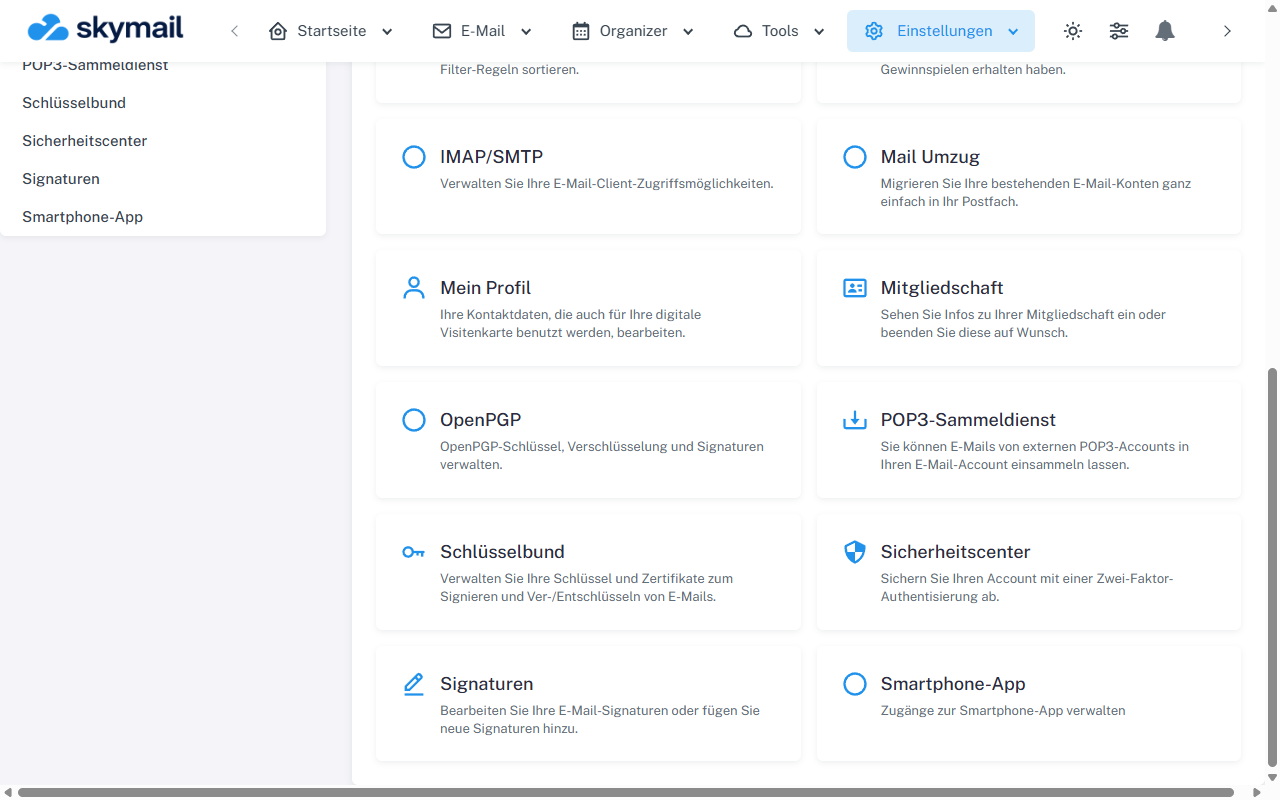
Open Settings at the top and select OpenPGP in the overview. Click “Settings” at the top and “OpenPGP” in the overview. Select “Public keys” there and search for the desired entry by email address or fingerprint.
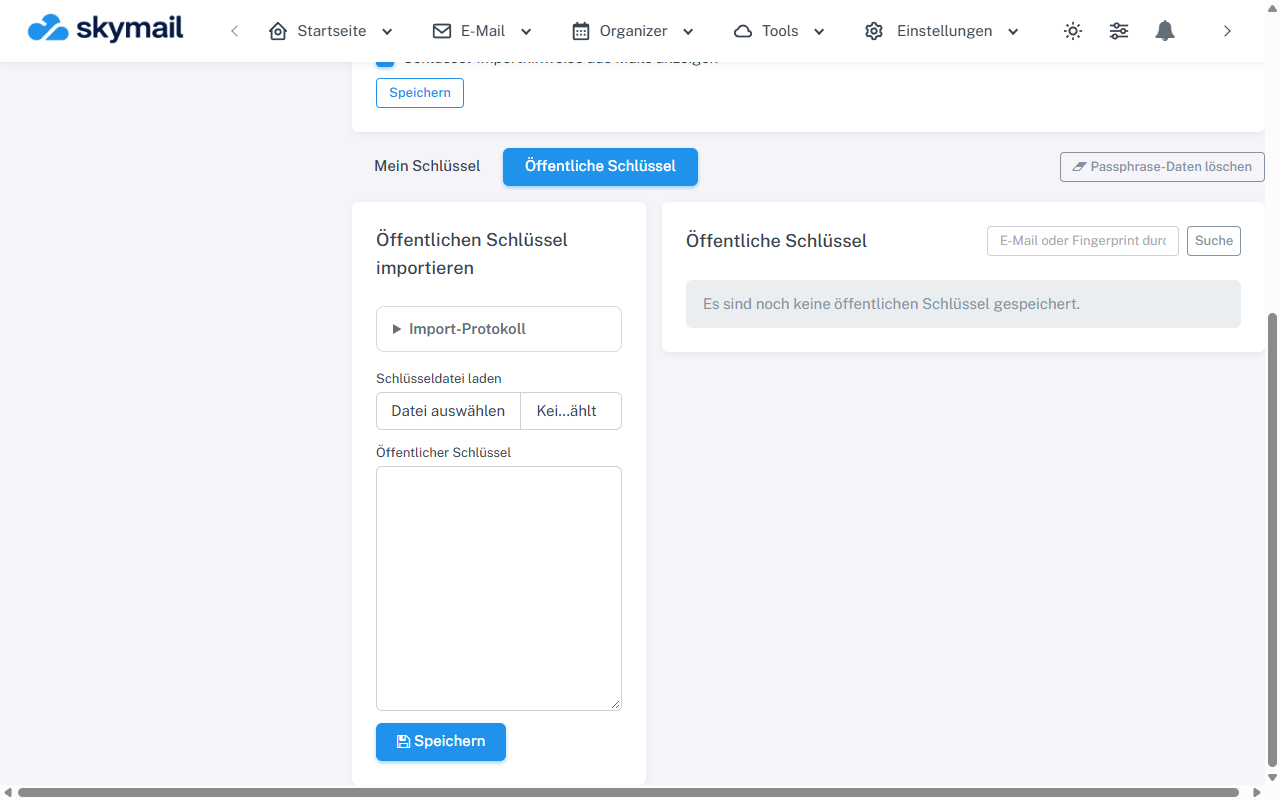
Open Public keys; you can import or search there. -
Check the email address, fingerprint, expiry date, and displayed trust status. Have the contact confirm the fingerprint through another trusted channel.
-
For a key that is not yet confirmed and has not been revoked, select “Confirm key” only after this comparison.
-
Then check whether “Manually confirmed” or another permitted trust status is displayed. If several keys exist for the same recipient, explicitly select the correct fingerprint when sending.
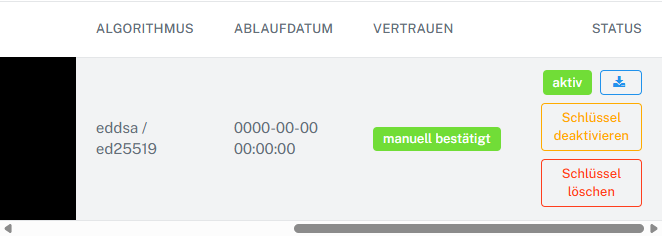
After an independent fingerprint comparison, confirm the key and check its status.
What you will see afterwards
A manually confirmed key is saved as such and may satisfy the policy for verified recipient keys. An email address in a key alone does not prove its authenticity.
Common problems
- Confirmation is not available in the list for expired or revoked keys.
- A different fingerprint may indicate a legitimate key change or an incorrect key. Clarify it before confirming.
- If a key is already verified by a policy, manual confirmation is not offered.
- If the list shows “0000-00-00 00:00:00” for a key without an expiry date, this is not a meaningful date. Check the key file if needed.
Go to the relevant section of the “Getting started with Skymail” guide