
PDF tools
Add a text annotation to a PDF
Write a visible note on every page of a PDF file.
Requirement: Publicly accessible without signing in at /en/pdf-tools and the respective tool page
Open the relevant PDF tool
Step by step
-
On the skymail.de home page, scroll to the footer. Under “Support”, click “PDF Tools” (see screenshot). In the PDF overview, select “Annotate documents”.

Scroll to the bottom of the SkyMail home page and click “PDF Tools” under “Support” in the footer. -
Select a valid PDF file up to 20 MB.
-
Enter a non-empty annotation in “Text”, then click “Insert annotation”.
-
Download the new PDF and check the annotation’s position on every page.
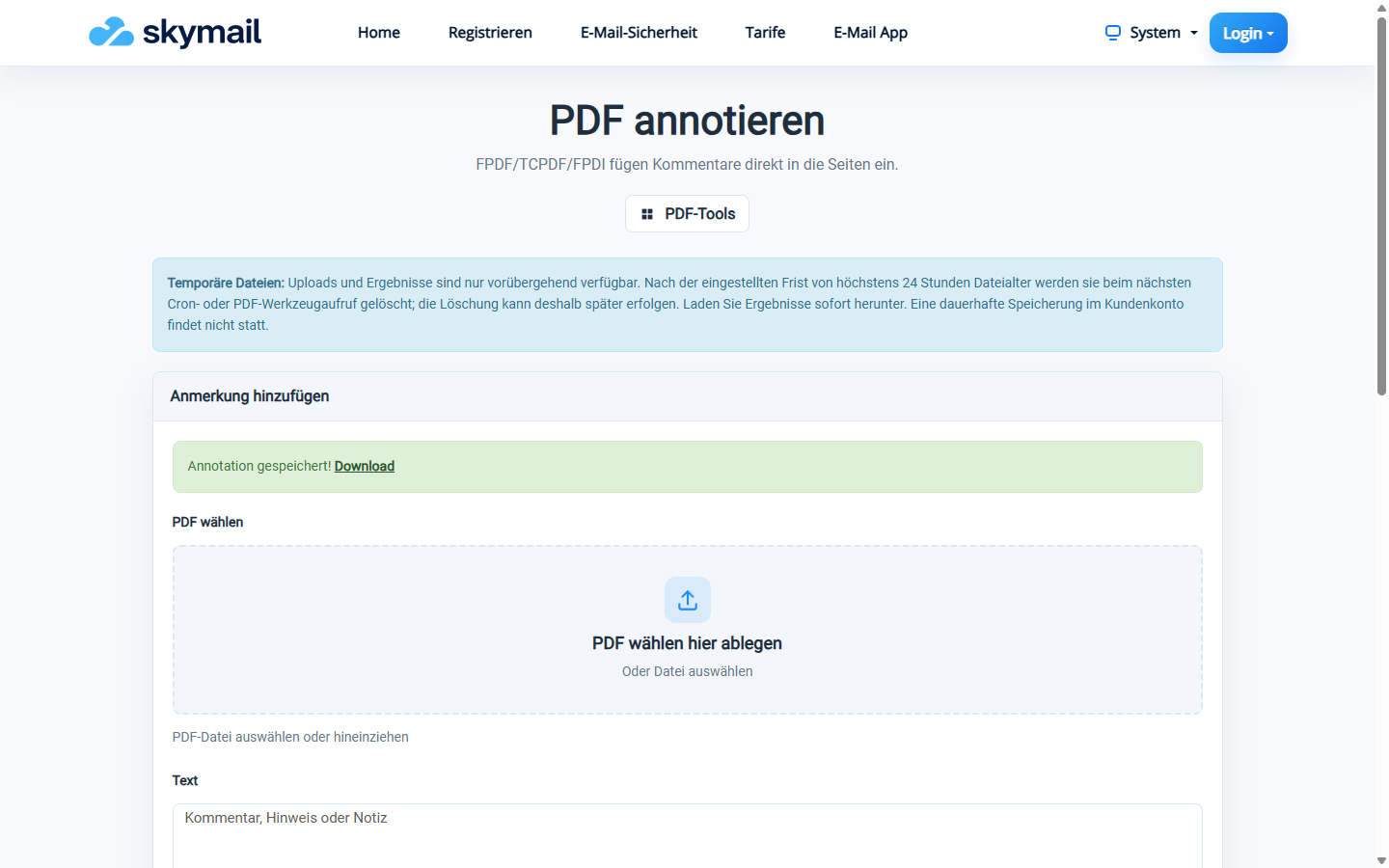
After the text annotation is inserted, the new PDF is available to download.
What you will see afterwards
The entered text appears in red near the upper-left edge of each page. This form does not let you select individual pages, another position, stamps or highlights.
Common problems
- An error appears if no annotation text is entered.
- If the text overlaps existing content, its position cannot be adjusted in the current form.
- Unreadable or protected PDFs may be rejected during processing.