
Read and write emails
Open the inbox
Go to the email overview and inbox.
Requirement: A signed-in webmail account.
Step by step
-
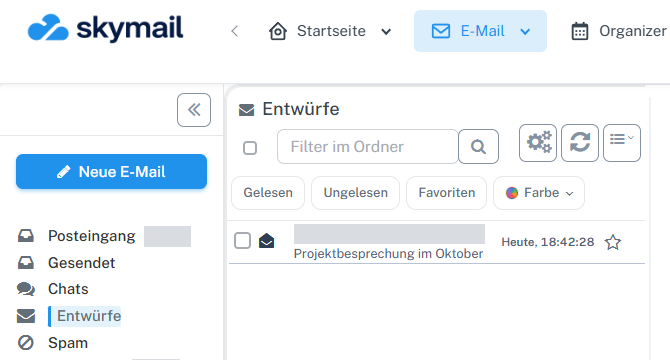
Click “Email” at the top and “Inbox” or the desired folder on the left. Click “Email” in the webmail header and “Inbox” in the folder sidebar on the left.
-
Open “Inbox” in the folder sidebar. The folder name, “Filter in folder”, and status filters appear above the list.

In the inbox, search and list filters are above the messages. -
Check the “Inbox” folder name before selecting a message. Open the desired entry to read it.
What you will see afterwards
The inbox is displayed with its folder header and list controls. The number of visible messages depends on the account and active filters.
Common problems
- If no message appears, check whether a filter is active or a different folder is selected.
- An empty inbox may simply mean there are no messages in this folder.
Go to the relevant section of the “Getting started with Skymail” guide