
Help and contact
Save public help for offline use
Choose to save published help articles and images for use without internet access, and remove them again.
Requirement: Available publicly without signing in; saving requires an internet connection, a suitable browser, and free storage on the device.
Step by step
-
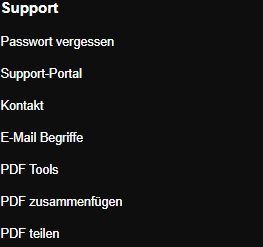
On skymail.de, first open “Support portal” under “Support” at the bottom. While connected to the internet, open skymail.de, scroll to the footer, and click “Support portal” under “Support”.
-

Click “Offline help” at the top of the support portal, then “Save help offline”. Click “Offline help” at the top of the support portal and read what is included. Select “Save help offline”. Wait for “Public help has been saved completely”; only then is the copy ready.
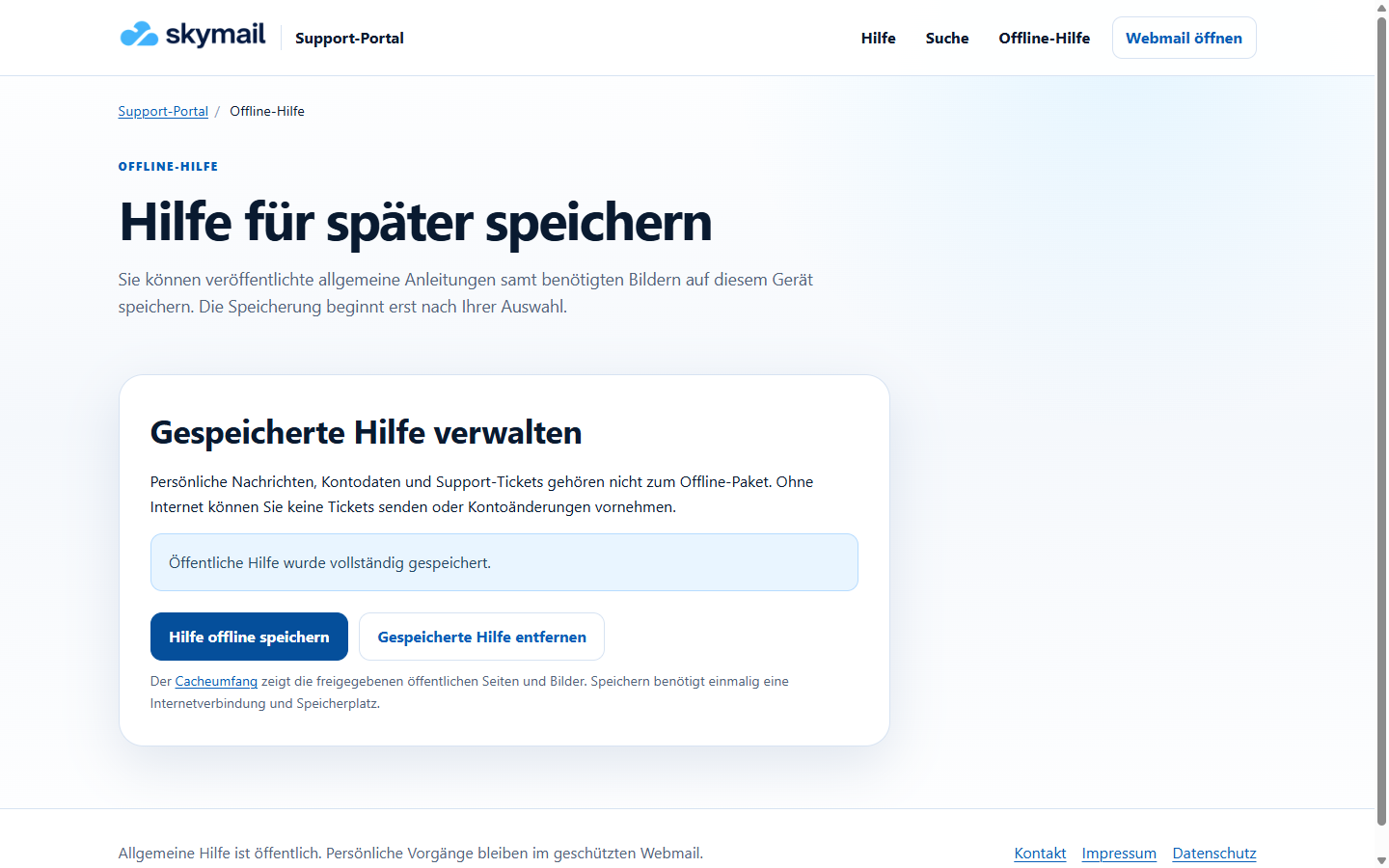
The copy is only ready after “Save help offline” and the completion message. -
Without internet access, open a help page you saved earlier. Offline search finds only articles that were saved with this public help.
-
To remove the copy, open the saved “/en/help/offline/” page and select “Remove saved help”. This also works without internet access.
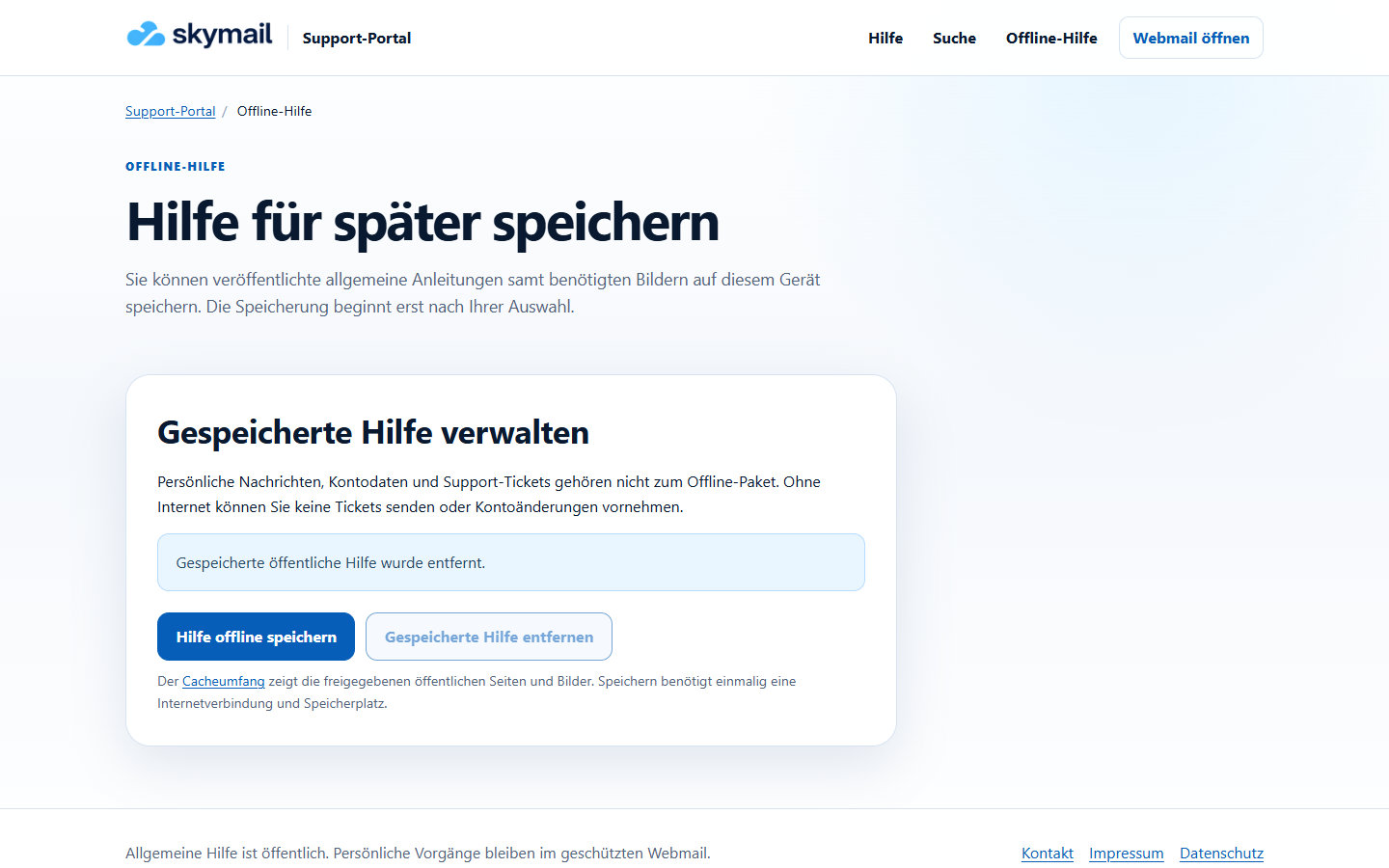
Saved help can be removed offline; afterward, the copy is no longer accessible. -
Check the confirmation. After removal, the previously saved articles are no longer accessible without a connection.
What you will see afterwards
The public help pages, articles, images, and help search offered at the time of saving are available on this device even without internet access. Personal emails, account details, and tickets are not part of offline help.
Common problems
- There is no offline help until you explicitly save it. New or subsequently published articles require saving again while connected.
- Full device storage or an interrupted download can prevent saving; an earlier complete version is retained.
- After removal, the previously saved articles are only available offline again once you save them again.
Go to the relevant section of the “Getting started with Skymail” guide