
More tools
Edit a chat group
Adjust the name or members of an existing chat group.
Requirement: A signed-in account with a chat group you can manage.
Step by step
-
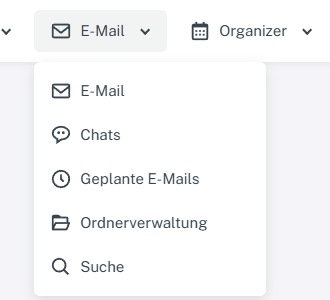
Click “Email” at the top; open “Chats” or “Folder management” in the menu. Click “Email” → “Chats” at the top and select the group you manage from the list on the left.
-
Select the edit icon in the group header. The dialog shows the name, fixed alias, and selected contacts.
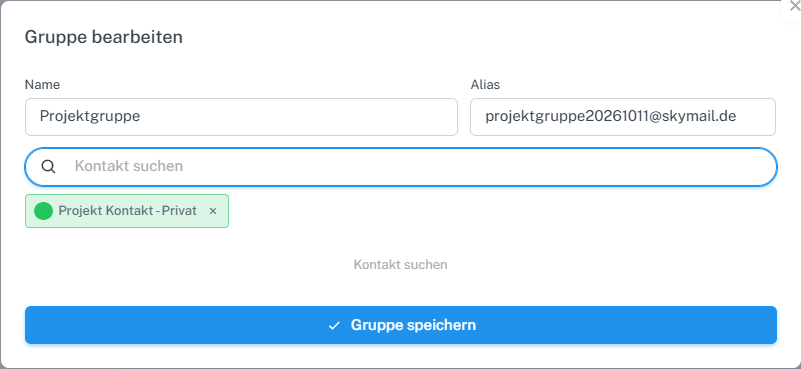
The group name can be changed in the dialog; the alias is read-only, and the selected contact appears below it. -
Change the group name or contacts and select “Save group”.
-
Reopen the group and check that the changed name is displayed.
What you will see afterwards
The changed group name remains visible after saving. Check a changed member selection again before the next send.
Common problems
- The alias is read-only in the edit dialog.
- The member list alone does not confirm delivery of later group messages; check the relevant chat history for that.