
PDF tools
Extract embedded images from a PDF
Collect the image objects in a PDF file into a ZIP download.
Requirement: Publicly accessible without signing in at /en/pdf-tools and the respective tool page
Open the relevant PDF tool
Step by step
-
On the skymail.de home page, scroll to the footer. Under “Support”, click “PDF Tools” (see screenshot). In the PDF overview, select “Export images”.
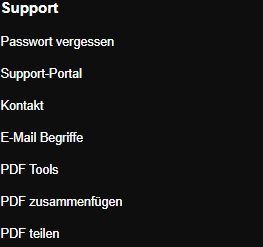
Scroll to the bottom of the SkyMail home page and click “PDF Tools” under “Support” in the footer. -
Select a valid PDF file up to 25 MB.
-
Click “Extract images”.
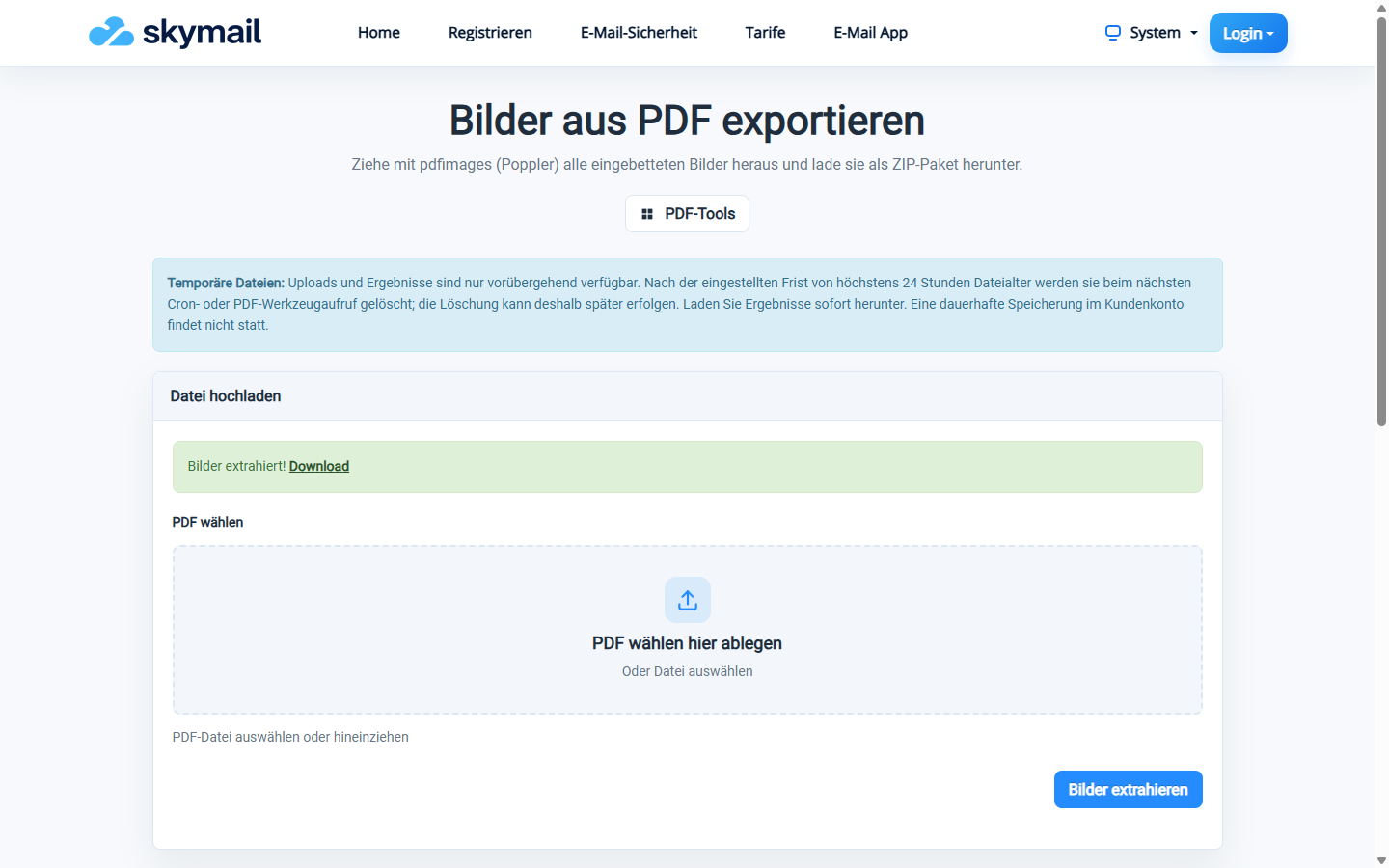
The embedded images are collected in a ZIP download. -
Download the ZIP package and inspect which embedded images it contains.
What you will see afterwards
The embedded images are provided as PNG files in a ZIP archive. The tool does not create complete images of every PDF page.
Common problems
- If the PDF contains no extractable images, the tool reports that no images were found.
- No result is offered for a file larger than 25 MB or if a ZIP error occurs.
- For complete page images, use “Convert PDF to images”.