
Security and encryption
Generate an OpenPGP key pair
Generate your own OpenPGP key pair and create the necessary backups before saving it.
Requirement: After signing in, provided OpenPGP and key generation are enabled for your user group
Step by step
-
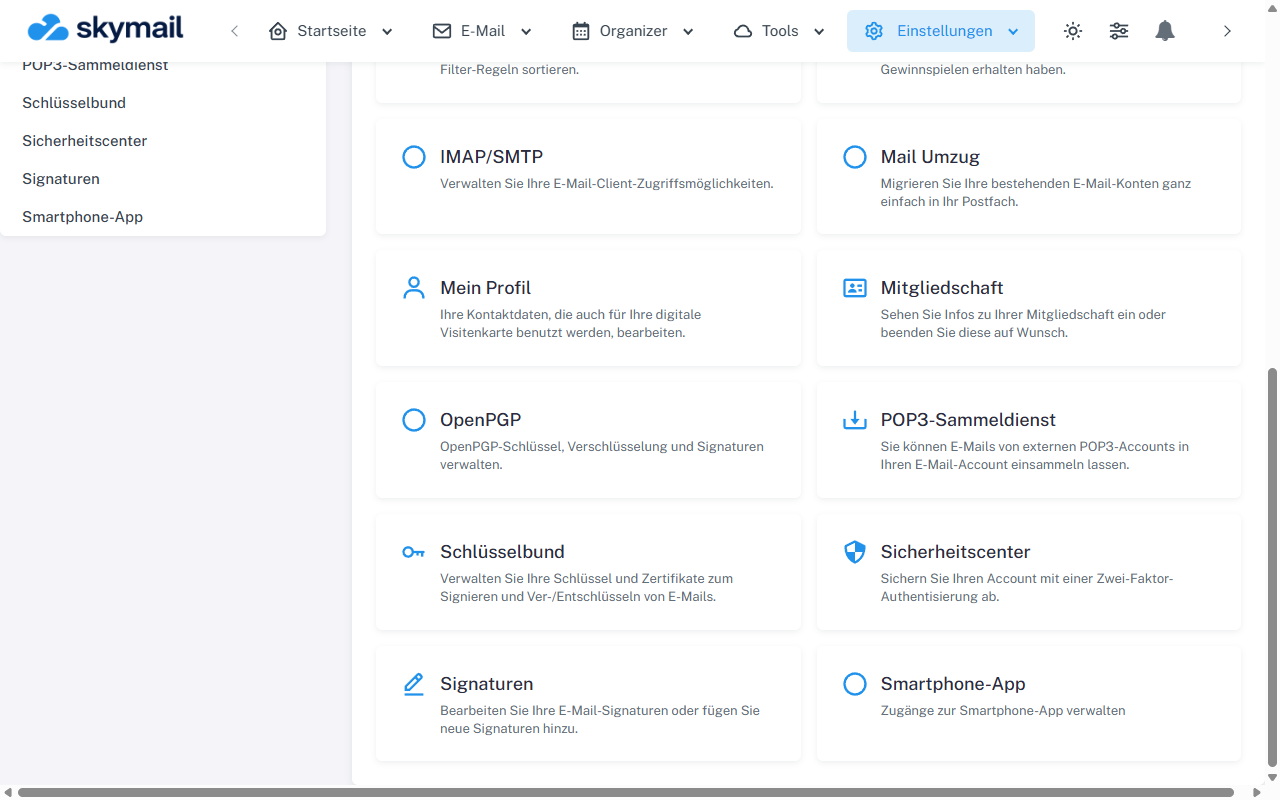
Open Settings at the top and select OpenPGP in the overview. Click “Settings” in the webmail header. Select the “OpenPGP” tile in the settings overview. If the tile is missing, the feature may not be enabled for your user group.
-
On the OpenPGP page that opens, switch to “My key”. In “Generate key pair”, your account email is fixed; check or add the display name.
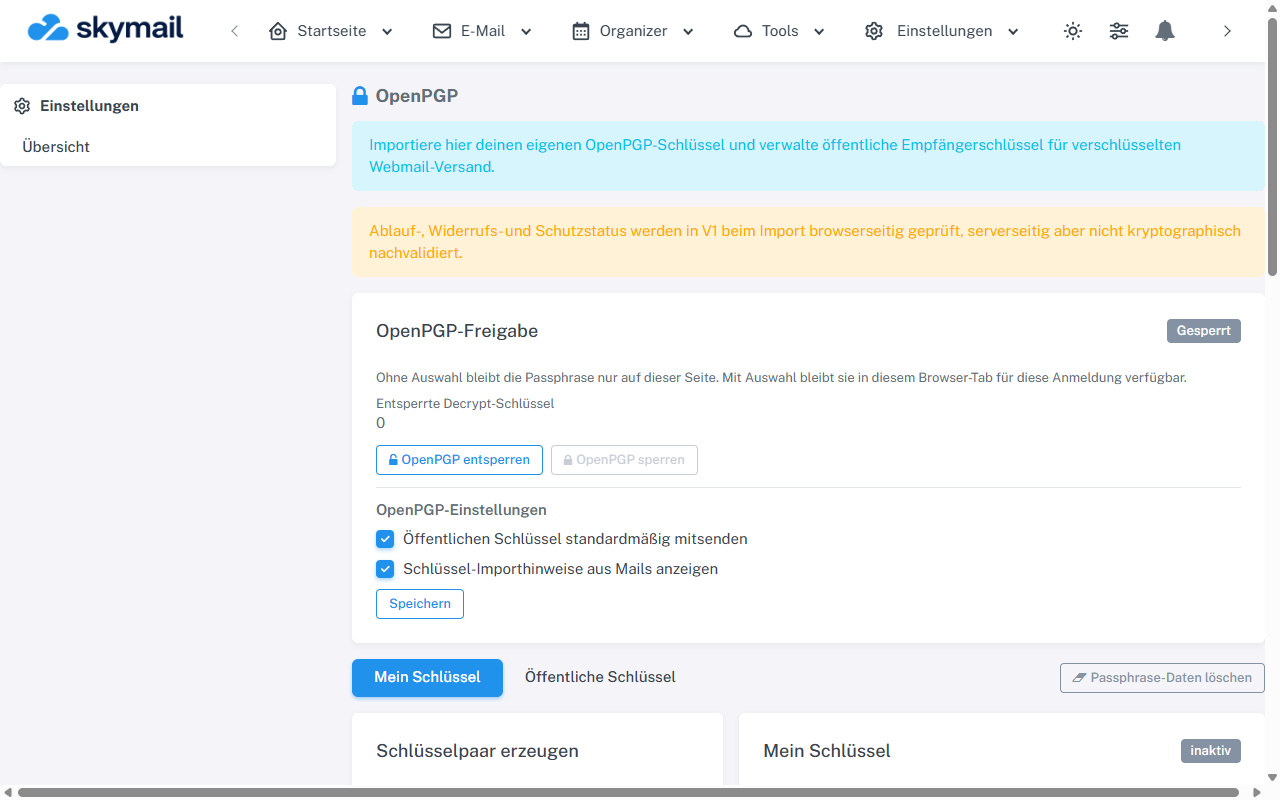
In the open OpenPGP area, select My key or Public keys. -
Enter your own passphrase twice, with matching entries, and select “Generate key pair”. Generation takes place in the browser.
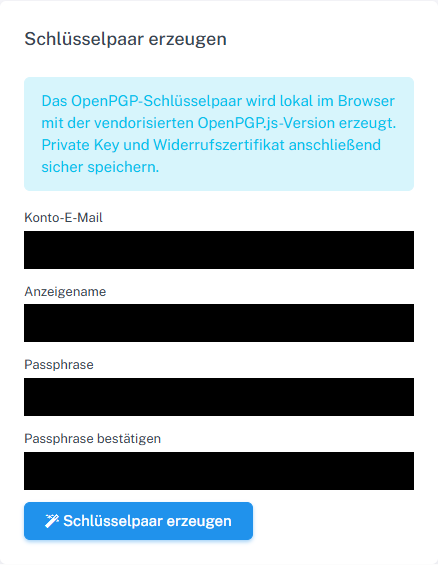
Generate your own key pair with a passphrase in the browser. -
Check the fingerprint and displayed user IDs. Download the private key and revocation certificate and keep them separately and securely. Only then select “Save generated key pair”.
What you will see afterwards
The new key appears under “My key” as the active sending key. You can share its public part. Without the private key and passphrase, messages encrypted for it cannot be read later.
Common problems
- If the browser reports that local key generation is unsupported, use a supported, up-to-date browser or import an existing protected key.
- An empty or mismatched passphrase prevents generation.
- If an active key already exists, be sure to check your backup and the effects on older emails before replacing it.
Go to the relevant section of the “Getting started with Skymail” guide