
Webdisk and files
Display Webdisk as a list or gallery
Switch between the list with file previews and the gallery view.
Requirement: After signing in with Webdisk access.
Step by step
-
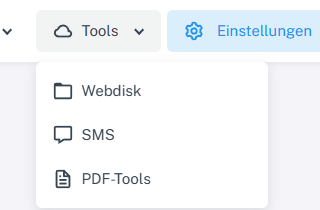
Click “Tools” at the top and choose “Webdisk” from the menu. In webmail, after signing in, click “Tools” → “Webdisk” at the top and select a folder in the folder tree on the left.
-
Find the “View” selector in the toolbar at the top.
-
Select “List” for a file list with previews, or “Gallery” for an overview with larger tiles. The list is the default view.
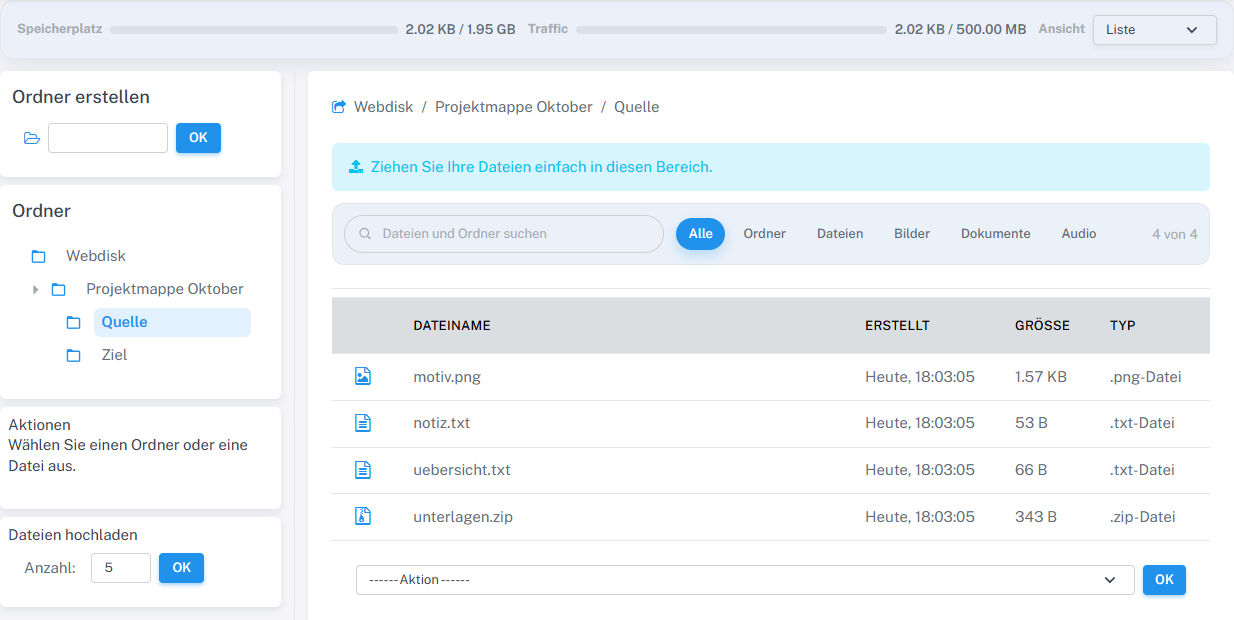
List view shows the four sample files and their properties. -
Check that the same folder is displayed in the chosen view.
What you will see afterwards
The display changes without modifying any files or folders.
Common problems
- The folder may reload after you switch views. If it does, check the selection in the toolbar.
- If the item you want is missing, check which folder is currently open.