
Webdisk and files
View files in Webdisk
Find files, open a preview, and create new documents in your online storage.
Requirement: After signing in with Webdisk access; the displayed content belongs to your own account.
Step by step
-
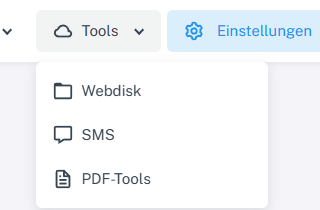
Click “Tools” at the top and choose “Webdisk” from the menu. In webmail, after signing in, click “Tools” in the header and choose “Webdisk” from the menu.
-
Select a folder in the folder tree on the left, or use the path bar above the file list.
-
Search for a name in the file list’s search field, or narrow the results using “Folders”, “Files”, “Images”, “Documents”, or “Audio”.
-
Click a file to open the appropriate preview or editor. You can view PDFs and images directly, and edit supported Office and TXT files. Use “New file” to create your own documents.
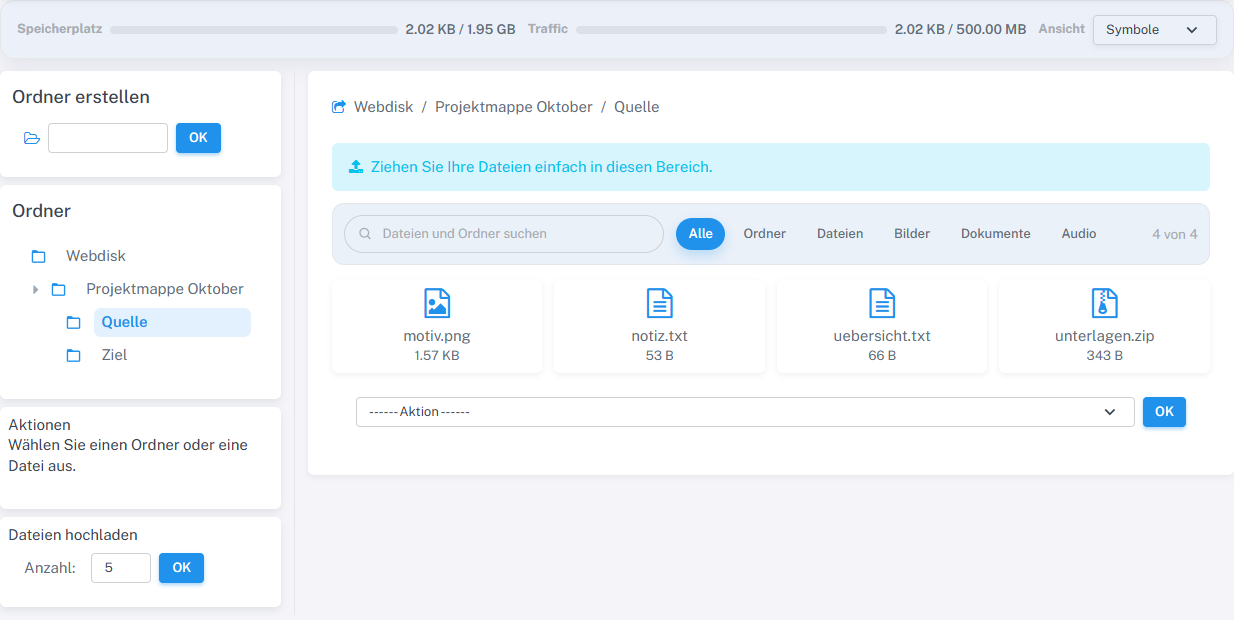
Folder tree and file view with the newly created sample files.
What you will see afterwards
The view shows the matching items in the selected Webdisk folder. Searching and filtering do not change any files.
Common problems
- If “Webdisk” is missing from the menu, check your account’s permissions.
- An empty filtered view does not necessarily mean the folder is empty. Select “All” and clear the search text.