
Webdisk and files
Edit Word and Excel files in Webdisk
Edit documents and spreadsheets directly in your browser, save the existing file, or deliberately create a copy.
Requirement: After signing in with Webdisk access and an existing supported file. Office files must be no larger than 20 MiB.
Step by step
-
Open the folder containing your file. DOC, DOCX, XLS, XLSX, ODT, and ODS are supported. Open the file for editing using “Edit Office file” in the file preview.
-
Edit the text and formatting in the Office editor. The file remains linked to its Webdisk item.
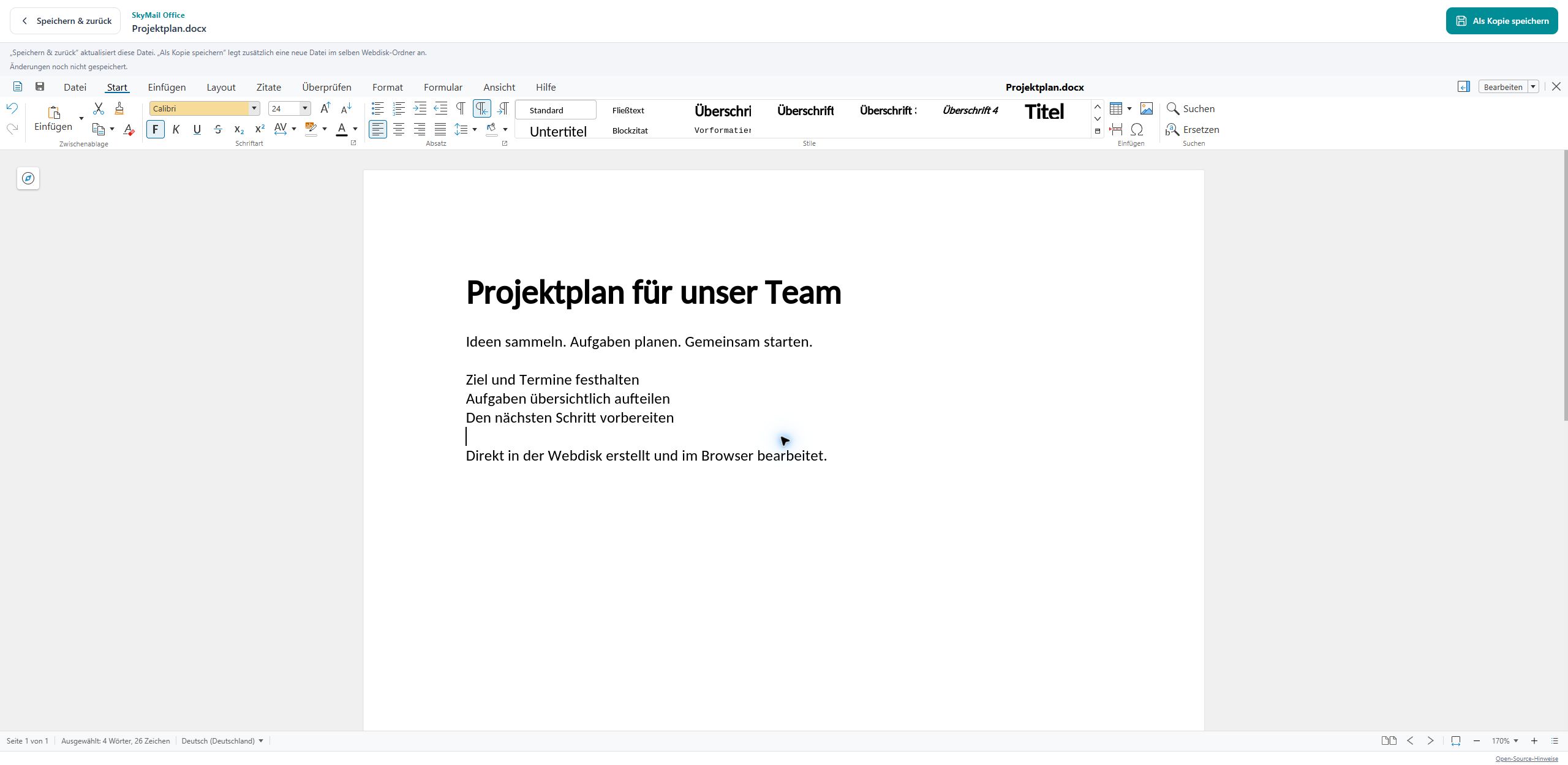
Edit documents directly in the browser, then update the existing file or create a copy. -
For spreadsheets, you can edit cells and spreadsheet content directly in your browser.
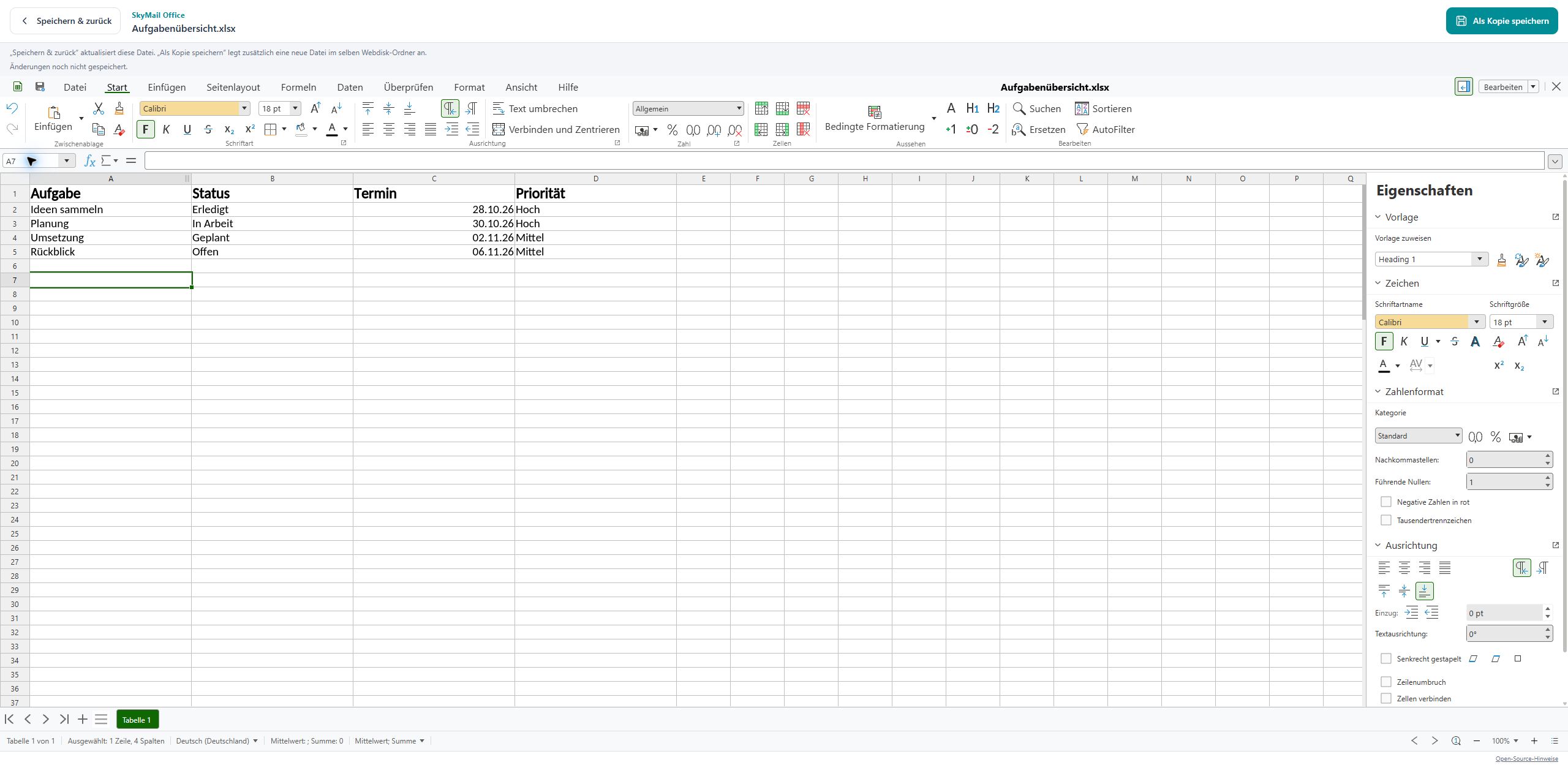
You can also open and edit spreadsheets directly from Webdisk. -
Click “Save & return” to update the open file and return to the folder.
-
If you also want to keep a separate version, choose “Save as copy”. The copy is stored in the same Webdisk folder. This action does not replace the existing file.
What you will see afterwards
“Save & return” updates the open document. “Save as copy” creates an additional file.
Common problems
- Wait for confirmation that the file was saved successfully before closing the editor.
- If the file has meanwhile been changed elsewhere, conflict protection prevents it from being overwritten unnoticed. Save your edits as a copy.
- If saving fails, leave the editor open and try again. Sufficient free storage space and data transfer allowance are required.
- Complex Office documents may look different from how they appear in the original program. Check important formatting after opening them.