
Security and encryption
Unlock or lock an OpenPGP session and clear its cache
Unlock your OpenPGP key for the session and end the saved unlocked state again.
Requirement: After signing in, if OpenPGP is enabled and you have your own protected key
Step by step
-
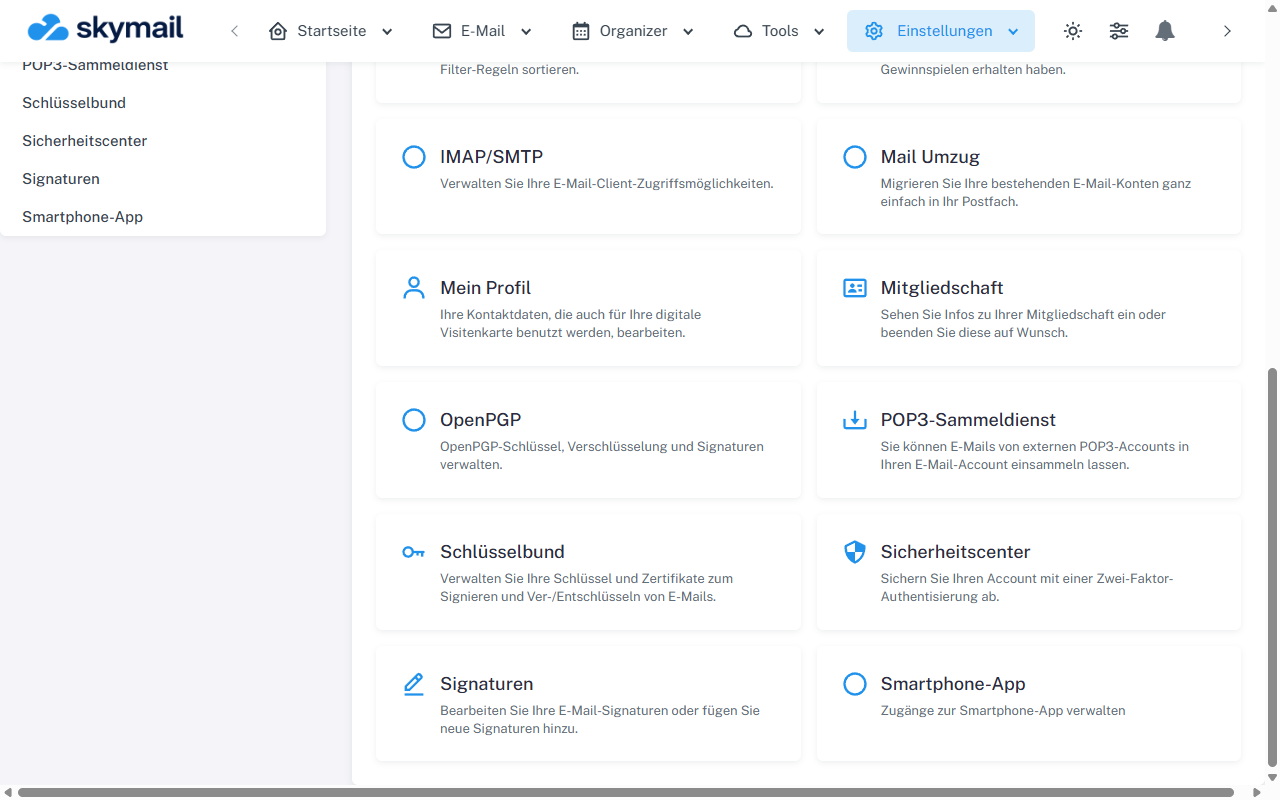
Open Settings at the top and select OpenPGP in the overview. Click “Settings” at the top and “OpenPGP” in the overview. Alternatively, open “PGP” while writing or reading an email. Check whether the session status is “Locked” or “Unlocked”.
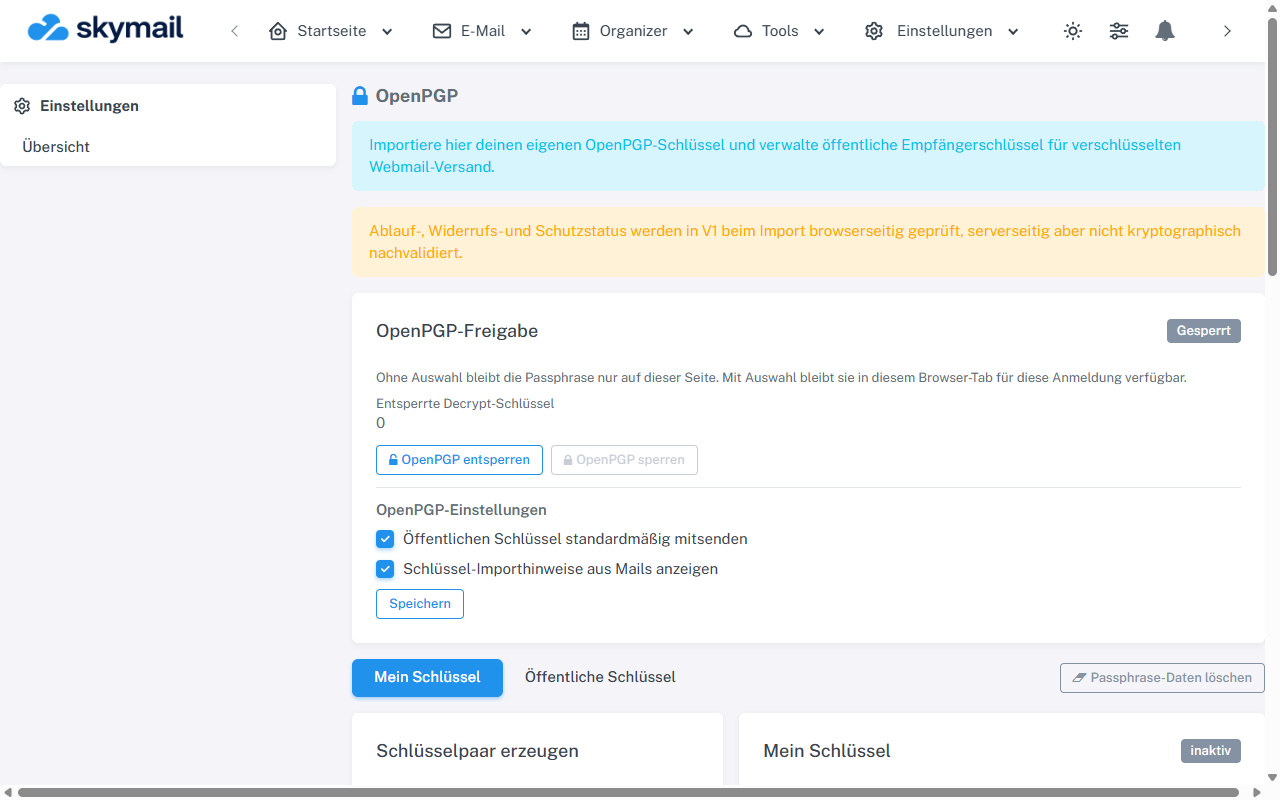
In the open OpenPGP area, select My key or Public keys. -
Select “Unlock for this session”, enter your private key's passphrase, and confirm. This passphrase is independent of the webmail password.
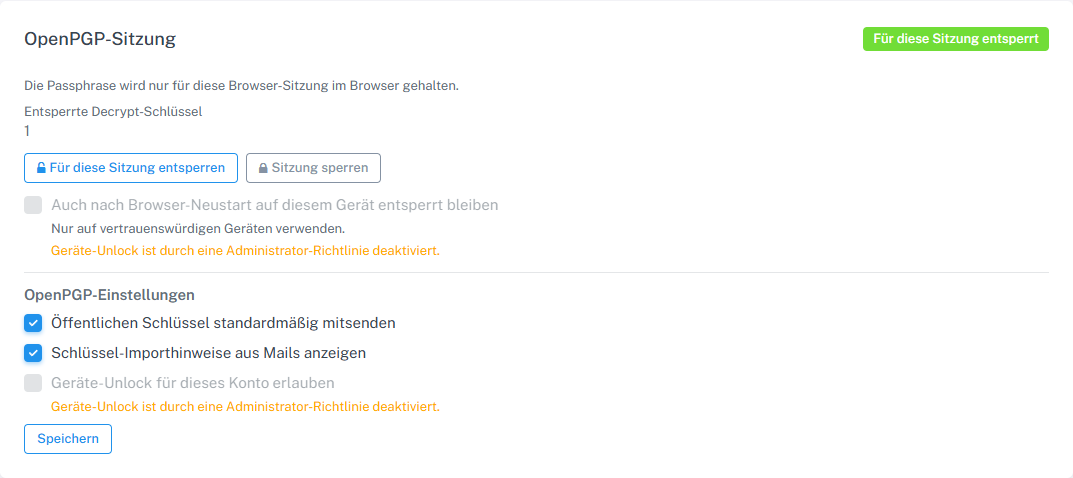
Unlock your own key for the current session and lock it again when needed. -
Use “Remember passphrase in browser session” only if group policy allows it. The option to remain unlocked on this device after restarting the browser also depends on policy and personal permission and should only be used on a trusted device.
-
Select “Lock session” to remove unlocked keys from the current session. “Clear passphrase cache” also deletes cached passphrase data in this browser.
What you will see afterwards
After unlocking, matching private keys can be used for signing or encryption operations. After locking or clearing the cache, the passphrase must be entered again when needed.
Common problems
- If “Incorrect passphrase” appears, check the passphrase for that specific key; it may differ from an archived key's passphrase.
- If remembering the passphrase or unlocking across devices is not offered, group policy may prohibit it.
- Never share passphrases with support or enter them into public screenshots.
Go to the relevant section of the “Getting started with Skymail” guide