
Folders and search
Open and manage mailbox search results
Identify search results by sender, subject, and folder, change their order, and manage selected emails.
Requirement: You must be signed in and have matching search results.
Step by step
-
Click “Email” in the header, then “Search” in the menu. Search for a term. If several search areas are selected, the results are grouped by area.
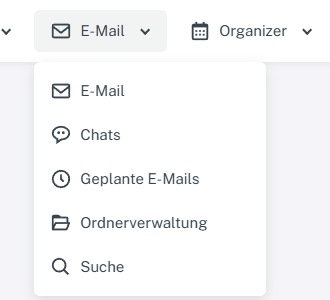
Click “Email” at the top, then “Search” in the menu. -
For email results, check the sender, subject, preview text, and the folder or trash indicator, where available. Click the subject of a suitable result. A received or sent email opens in the reading view; a draft may open in the editor.
-
If needed, change the sorting above the result list, for example to “Date”, “Subject”, or “Size”. The arrow button beside it reverses the order. “Relevance” can vary depending on the search used; choose “Date” if you want to compare messages by when they were sent or received.
-
For a bulk action, tick the checkboxes of the email results you want. The selection checkbox at the beginning of an area selects the results displayed there. Results on other pages are not selected. The action bar appears below the corresponding results area.
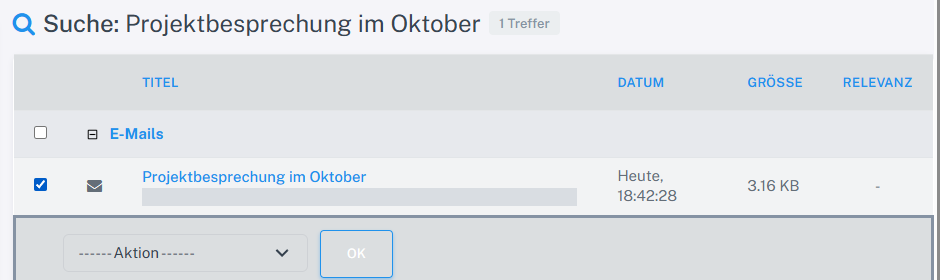
The action bar appears as soon as email results are selected. -
Select an available action, such as “Mark as unread”. Check the selected results and confirm with “OK”. Check the changed status after reloading.
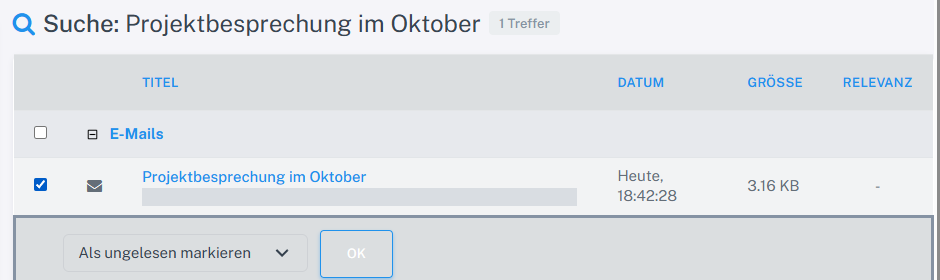
“Mark as unread” is selected in the action bar; check the selected results before clicking “OK”.
What you will see afterwards
You can compare search results using their details, sort them, and open them through the subject. The action bar manages the selected email results on the displayed results page; after confirming, you can check their status in the result list.
Common problems
- The bulk actions available depend on the results area.
- Before selecting “OK”, check which results are selected. Deleting or moving can affect several messages at once.
- A disabled checkbox indicates that no bulk actions are offered for this results area. Open an individual result through its subject.
- If there are several results pages, use the page selector below the list to reach more results. Check the selection again after changing pages.
Go to the relevant section of the “Getting started with Skymail” guide