
Settings
Adjust webmail appearance and readability
Adapt page zoom, the primary color, color scheme, and content width to your screen.
Requirement: After signing in to webmail. The full appearance menu with page zoom and content width appears in the wide desktop view; on mobile, the header offers a color scheme selection.
Step by step
-
In the wide desktop view, look at the header at the very top. To the right of the light or dark mode icon is a button with three sliders; it has a gray background in the image. Click it. The “Customize appearance” menu appears directly below.
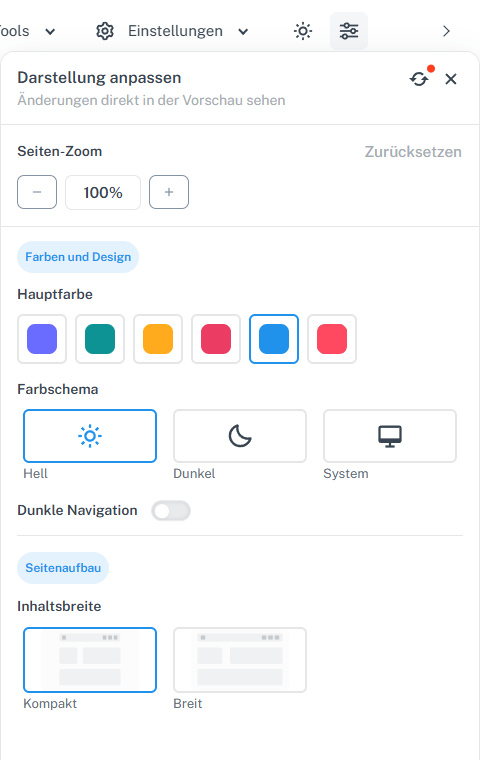
The gray-backed sliders icon at the top opens the appearance menu; zoom, colors, and content width appear below. -
On desktop, choose Light, Dark, or System under “Color scheme”; “System” follows your device's appearance setting. On a smartphone, open the sun or moon icon at the top instead. The three options there are called “Light”, “Dark”, and “System”; the desktop menu's page zoom and content width settings are absent. Check which option makes text and buttons easy for you to see.
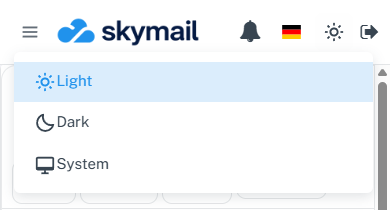
On a smartphone, the sun or moon icon at the top opens only the color scheme selection. -
Change the “Primary color” if needed. Under “Content width”, select “Compact” or “Wide” for the width of the webmail content. This setting is separate from “Email list” with “Compact” or “Wide” in the folder options.
-
In a wide desktop view, you can enlarge or reduce the entire webmail interface using − and + under “Page zoom” in the customization menu. The display between them shows 80 to 130 percent in steps of ten; “Reset” in the zoom section returns to 100 percent. These webmail buttons are not offered in narrow views.
-
Changes take effect immediately and are saved in this browser on this device. Another browser or device may look different. For the general appearance options, select “Reset appearance”. Page zoom has its own Reset button in the same menu.
What you will see afterwards
You see the selected color scheme and content width immediately. In wide desktop views, the percentage display shows the selected page zoom. These appearance controls do not require a separate Save button.
Common problems
- The sliders icon is missing? Widen the browser window on your computer. On a smartphone, the header instead offers a sun or moon icon for “Light”, “Dark”, and “System”; the desktop menu's page zoom and content width settings are not available there.
- The appearance differs on another device? The selection is stored in the browser being used and is not transferred as a general account setting.
- The message rows are too close together? Open “Display options” in the email folder and change “Email list” there. This value controls the spacing between list entries.
Go to the relevant section of the “Getting started with Skymail” guide