
Continue editing your files directly
Edit images in Webdisk, zoom the view, and change their pixel dimensions. Attach the edited version directly to a new email or save it as a copy. Send PDFs to the PDF tools.
From the preview to the image editor
Open a supported image in your Webdisk and choose Edit image. You can crop, rotate, flip, resize, adjust colors, or add text to the image. Add shapes and your own drawings if needed. You can undo and redo changes. The editor opens directly from the preview.
Image editing takes place entirely in the browser, without advertising. All required components are loaded from our own server. Your image is not sent to an external image editing service.
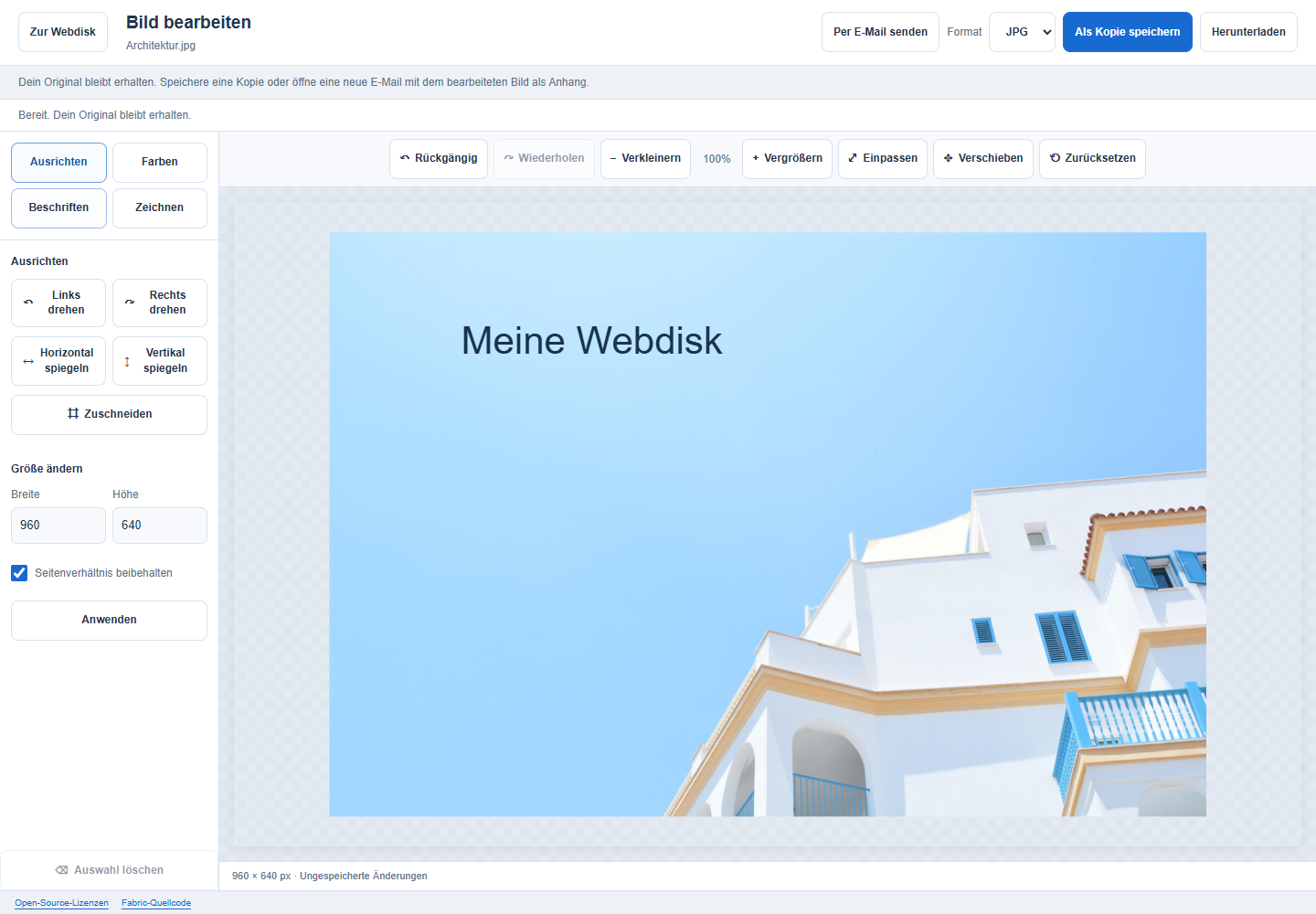
Take a closer look or resize the image
Zoom in and Zoom out change the view in the editor. You can inspect image details more closely while the file’s pixel dimensions stay the same. Fit brings the entire image back into the workspace.
To change the actual image dimensions, choose Resize under Adjust. Enter the width and height in pixels. You can keep the aspect ratio or set both values separately, then apply the change.
Your original stays intact
Save as copy creates the edited image as a new file in the same Webdisk folder. Your original remains unchanged. You can also download the edited copy directly.
JPEG, PNG, and static WebP images are supported as source files. Files are saved or downloaded as JPEG or PNG. GIFs and animated images cannot be edited. Each image is limited to 20 MiB and 24 megapixels. Your account’s upload limits and free storage space may further restrict saving.
Send PDFs directly to the PDF tools
In Webdisk, open a PDF in the preview and choose Edit with PDF tools. For a PDF attachment in an email, you will find Edit PDF directly below the file name. The PDF tools open with your selected file.
Choose a tool and check the settings. The file is placed in the first suitable PDF file field. Processing starts only when you start the action yourself. When comparing PDFs, choose the second file yourself. When merging, you can add more PDFs.
The original PDF in Webdisk or the email remains intact. If the browser cannot transfer the file automatically, or a tool limit has been reached, the page displays a message and you can still choose a file yourself.
Attach files and edited images directly to an email
Select a file in the Webdisk preview, then choose Send by email. A new email opens with the selected file attached. This also works with PDFs and other files in your own Webdisk.
In the image editor, choose Send by email. The current edited version is attached to a new email. You do not need to save an image copy in Webdisk first.
Add the recipients, subject, and message. The email is only sent when you send it yourself. The file is added as an attachment, and your original in Webdisk is preserved. Your account’s attachment limits still apply.
Find online storage in the Email App menu
On the public pages, you will find Online storage in the Email App menu alongside Webmail and Mobile App. The information page shows Webdisk with a list, gallery, and large mobile view.