
Just drag them in.
On a computer, drag several files from your file manager into Webdisk. They go into the folder currently open.
How to upload files →YOUR ONLINE STORAGE IN WEBMAIL
Create and edit Office files. Write text. Design images and work on PDFs. Attach a finished file directly to a new email. Your files and your inbox belong together.
Right in your browser. On computers, tablets and smartphones.
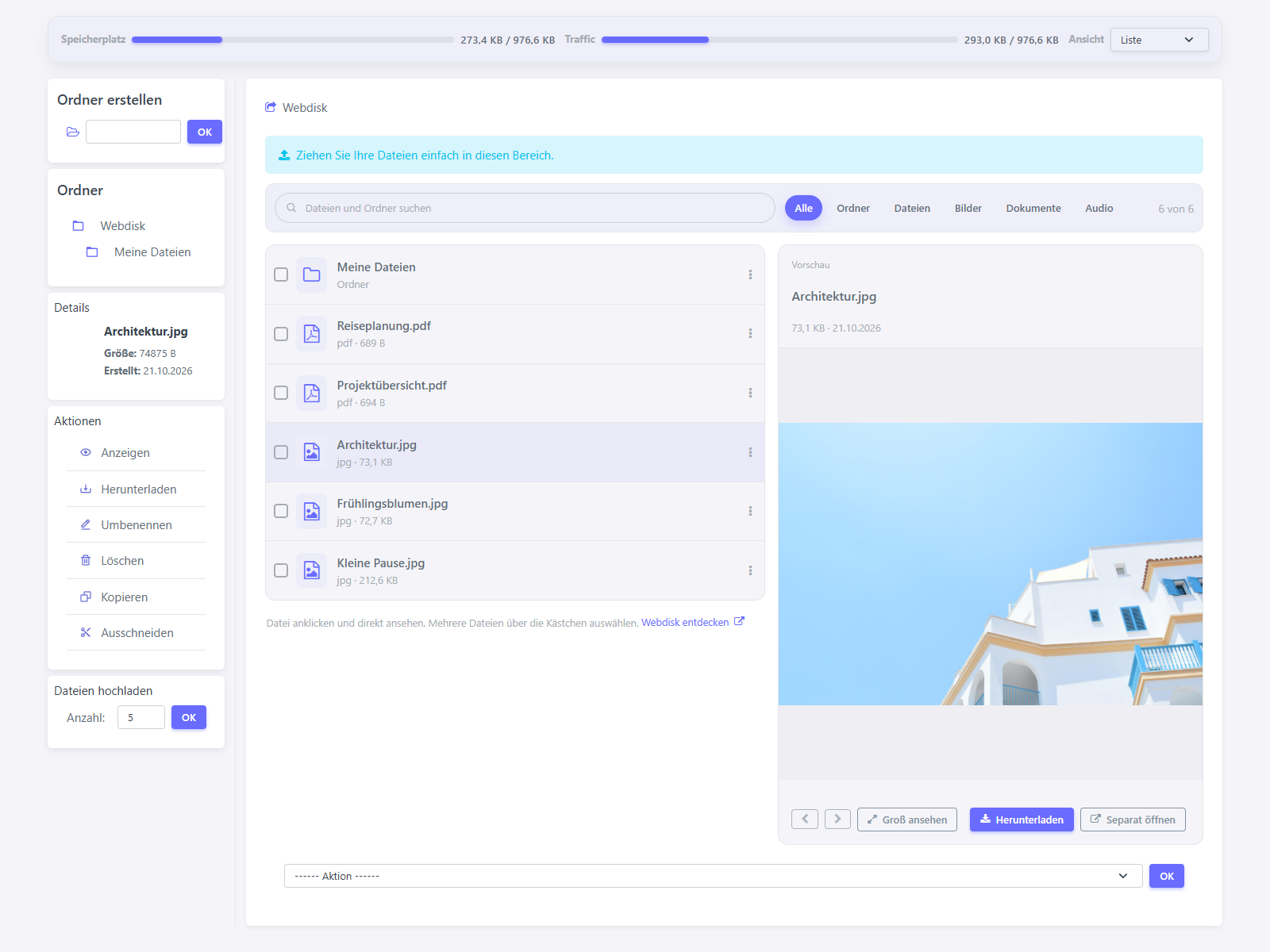
THIS IS YOUR WEBDISK
 View full size
Screenshots of the actual interface with sample data. Click the image to enlarge it.
FEWER CLICKS. MORE TO DISCOVER.
On a computer, drag several files from your file manager into Webdisk. They go into the folder currently open.
How to upload files →Open PDFs and supported images with a click. On a computer, the list shows files and the preview side by side.
More about Webdisk →Folders, search and file filters keep your files organised. Use the checkboxes to apply actions to several files together.
View all guides →OFFICE DIRECTLY IN YOUR WEBDISK
A document for your next meeting, a spreadsheet for your project or a quick note: start directly in your Webdisk folder without creating the file on your device first.
Open the folder you want and choose New file. Pick a format, name your file and start editing.
The file is created in the folder currently open. An existing filename will not be overwritten.
Create a file step by step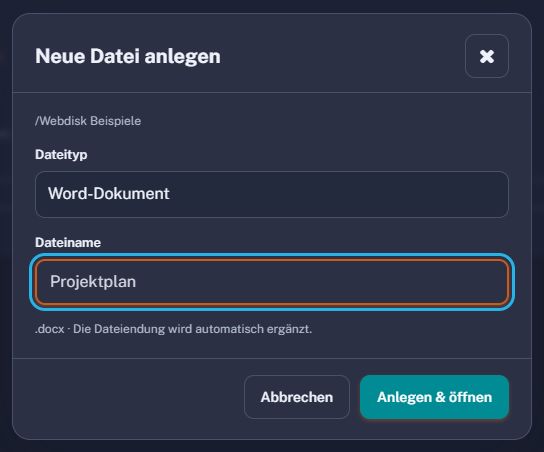 Enlarge the dialog
WITH YOUR EXISTING FILES, TOO
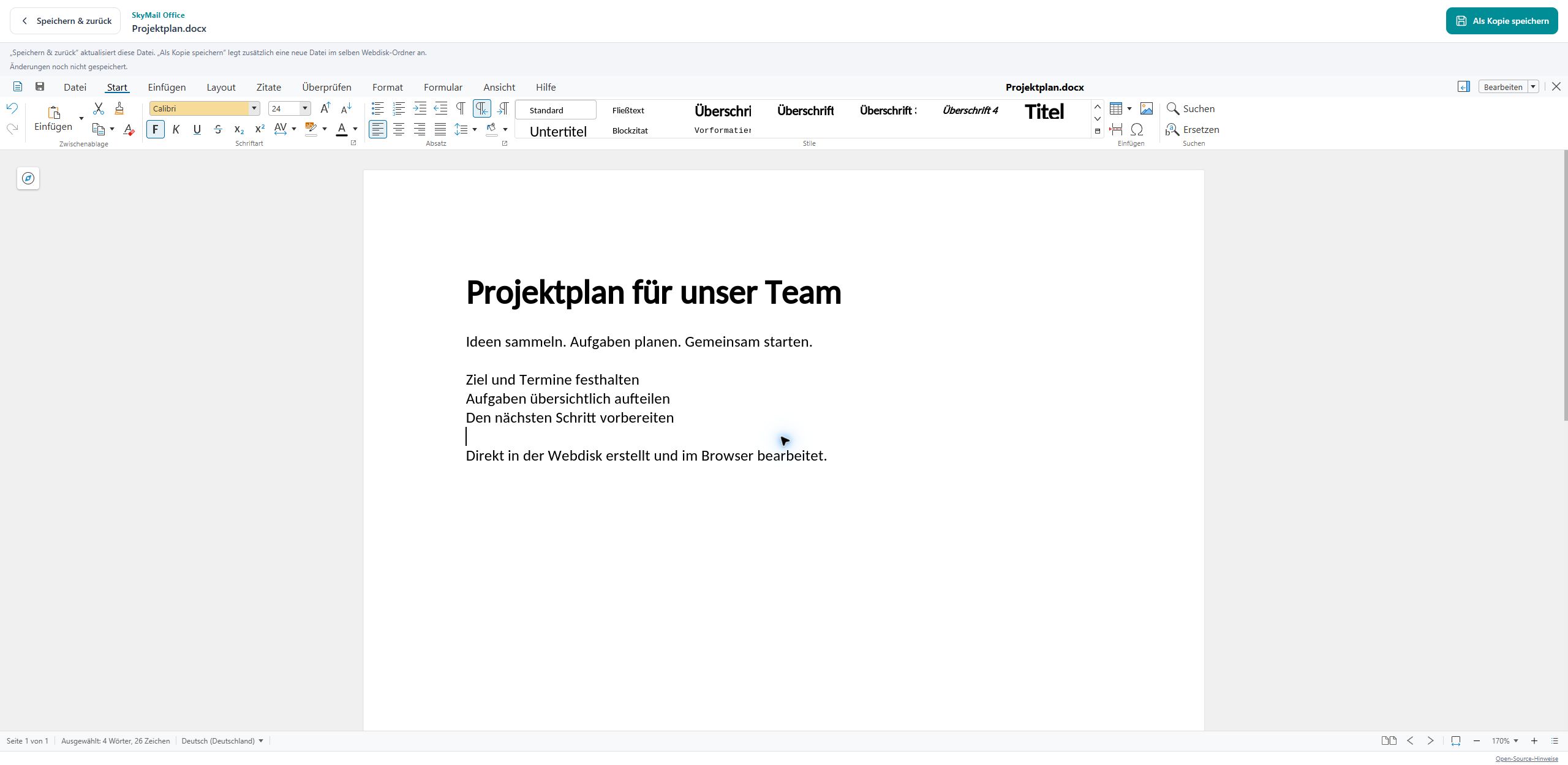
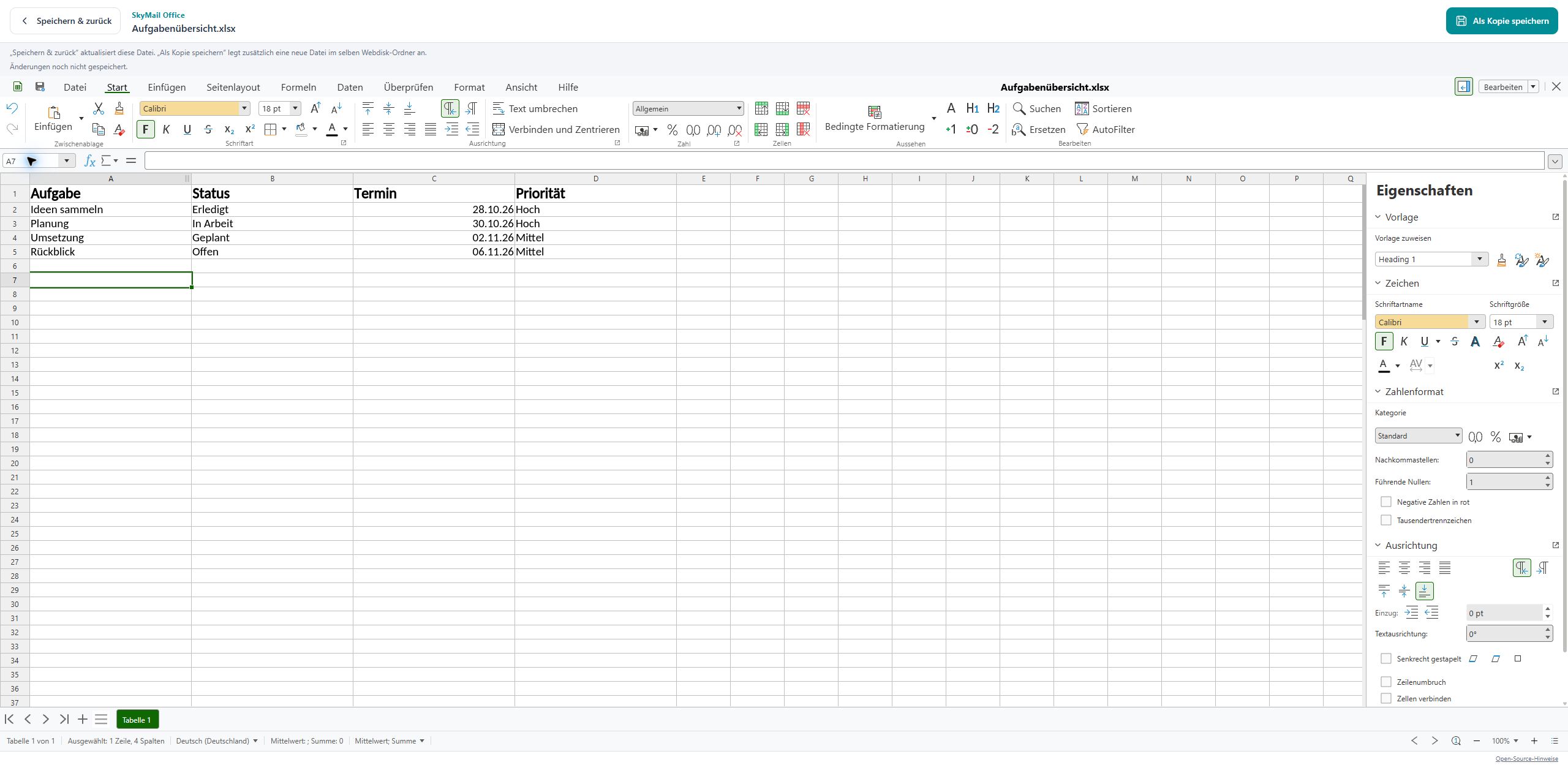
Open a supported Office file in Webdisk and edit it directly in your browser. Existing DOC and XLS files, as well as ODT and ODS, are supported alongside DOCX and XLSX.
 Enlarge the document
 Enlarge the spreadsheet
Your changes are saved in the open file. You then return to its Webdisk folder. Its name and folder stay the same; no additional file is created.
Want to keep a separate new version? This action explicitly creates an additional file. The editor then stays open.
Edit supported Office files up to 20 MB. Your available Webdisk storage and account limits still apply. For TXT files, the text limit described below applies.
Open Office files and save them correctlyJUST TEXT. WRITTEN DIRECTLY.
TXT files open in our own text editor. A clear writing area gives your words space, even on a phone with the keyboard open.
If saving fails, your text stays in the editor. You can try again or download the text.
UTF-8 text files up to 2 MiB. Empty files are allowed too.
Discover the text editor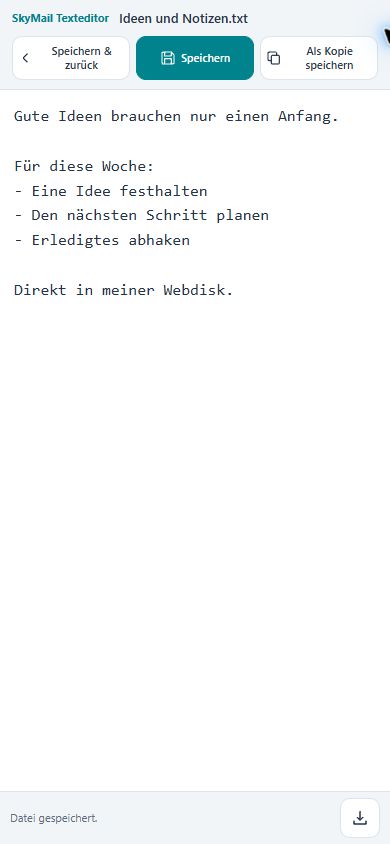
IMAGE EDITING DIRECTLY IN YOUR WEBDISK
Crop a photo, add text or change the colours: open an image in the preview and choose Edit image.
Ad-free. Right in your browser. Starting from your original.
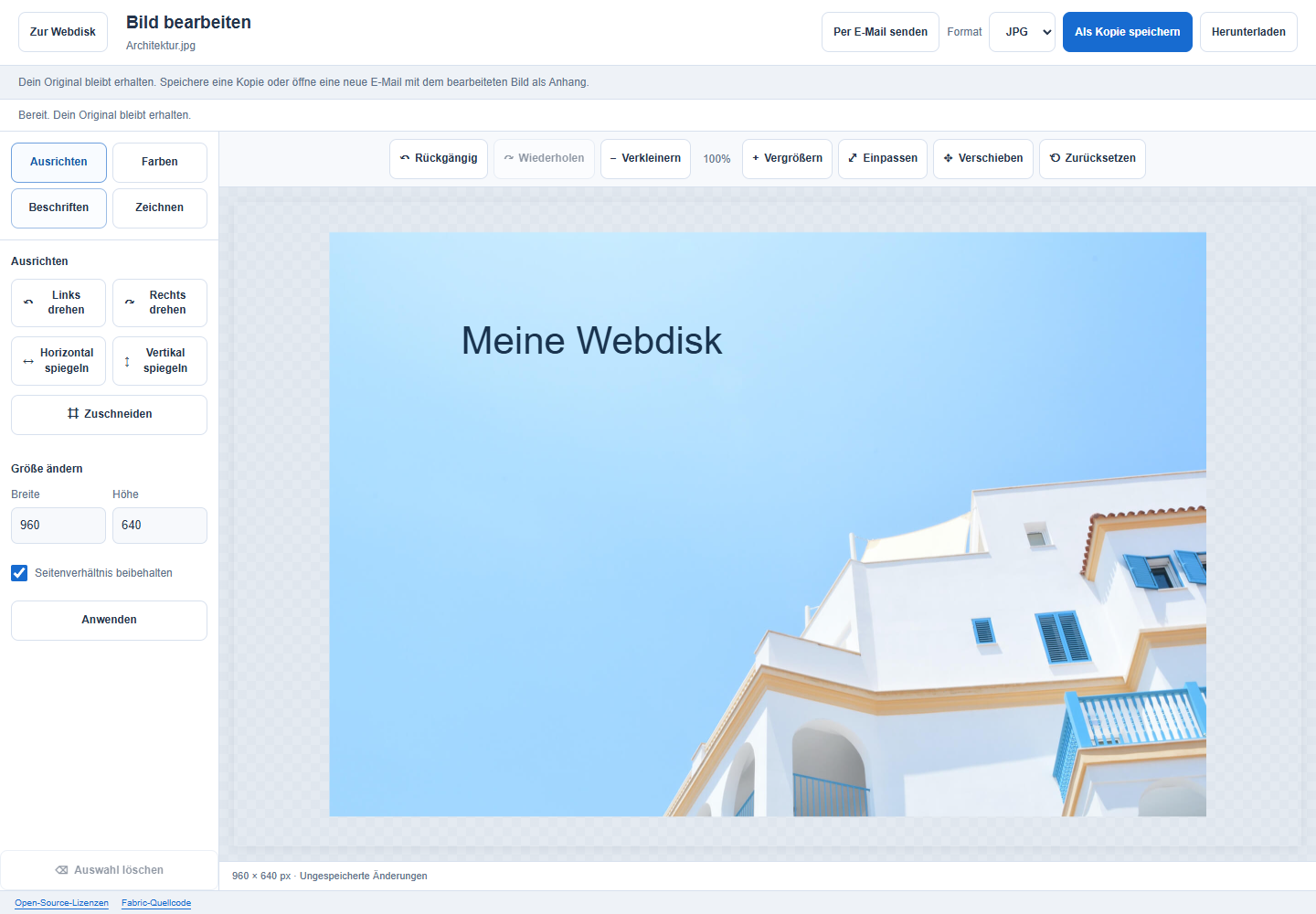 Enlarge the image editor
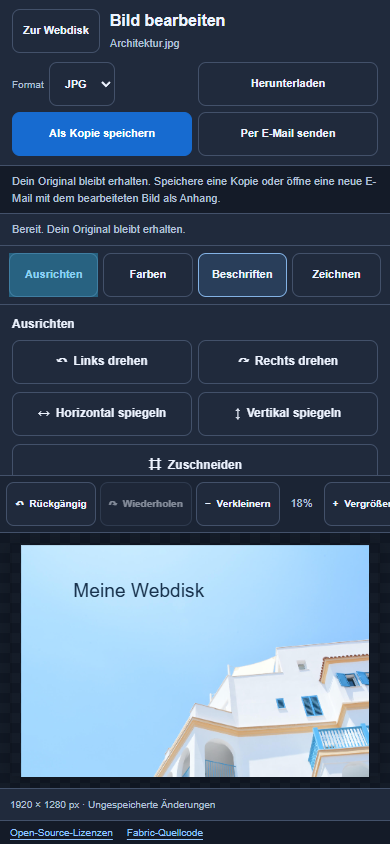
Crop the area you want, rotate or flip your photo. Change its width and height if you need a different image size.
Add text, shapes or your own drawings. Brightness, contrast, saturation and filters give your image the right look.
Undo and redo your changes. Save the result as a new copy in Webdisk or download it.
ZOOM THE VIEW IN OR OUT
The zoom buttons change the view in the editor. Your image file keeps its dimensions. Choose Fit to see the whole image again.
CHANGE WIDTH AND HEIGHT
Under Resize you set the width and height in pixels. Keep the proportions or set both values separately. Save the result as a copy.
Open JPEG, PNG and static WebP images; save the result as JPEG or PNG. Your account’s storage and upload limits still apply.
FILE READY. NEXT STEP.
In the Webdisk preview, choose Edit with PDF tools. You can also hand over PDF email attachments directly.
Then choose your tool, for example to rotate, merge or annotate. The file is preselected. Check the settings and start processing.
More about handing over PDFsIn the Webdisk preview, choose Send by email. A new email opens with the selected file attached, including PDFs.
In the image editor, the same action attaches the version you are currently editing. Add recipients, a subject and a message. You decide when to send.
Your account’s attachment limits still apply.
Email attachment helpYOUR IMAGES DESERVE MORE ROOM.
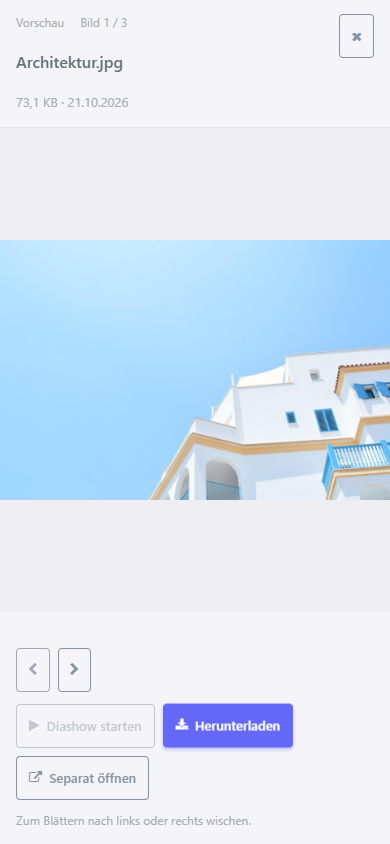
Open your images in a large view on your phone. Swipe left or right to move through them. On a computer, use the arrows.
To sit back, start the slideshow. It moves to the next loaded image every five seconds. You can pause or move through the images yourself at any time.
GOOD TO KNOW
Sign in to skymail Webmail and open Webdisk under Tools. Your folders and files are there. The Webdisk help shows you the next steps.
Available storage and upload limits depend on your plan. The storage indicator in Webdisk shows the current usage. Find the included features under Plans.
Yes. You can download files from the preview or open them separately. Downloads are available for other file types too. Whether a PDF is displayed directly also depends on the browser on your device.
Yes. Open the Webdisk folder you want and choose New file. DOCX, XLSX, ODT, ODS and TXT are available. After you enter a name, the new file opens for editing. A filename that is already in use is rejected. The file creation guide shows each step.
Yes. For Word, Excel, OpenDocument and TXT files, Save and return updates the open file. In the TXT editor, Save also lets you keep writing immediately. Save as copy creates an additional file instead. In the image editor, the edited image is saved as a new copy, keeping the original intact. More information: Saving Office files and Editing text files.
The Office editor supports Word files in DOC or DOCX, Excel files in XLS or XLSX, plus ODT and ODS up to 20 MB. TXT files open in our own text editor and can contain up to 2 MiB of UTF-8 text. Edit images with image editing, and PDFs with the PDF tools. Your account limits still apply.
Yes. In the Webdisk preview, choose Send by email. A new message opens with the selected file attached. The image editor uses the currently edited version; no prior image copy in Webdisk is needed. Add recipients and text, then send the message yourself. Your account’s attachment limits still apply. Find out more in the attachment help.
YOUR EMAILS. YOUR FILES.
Discover Webdisk directly in your skymail Webmail.